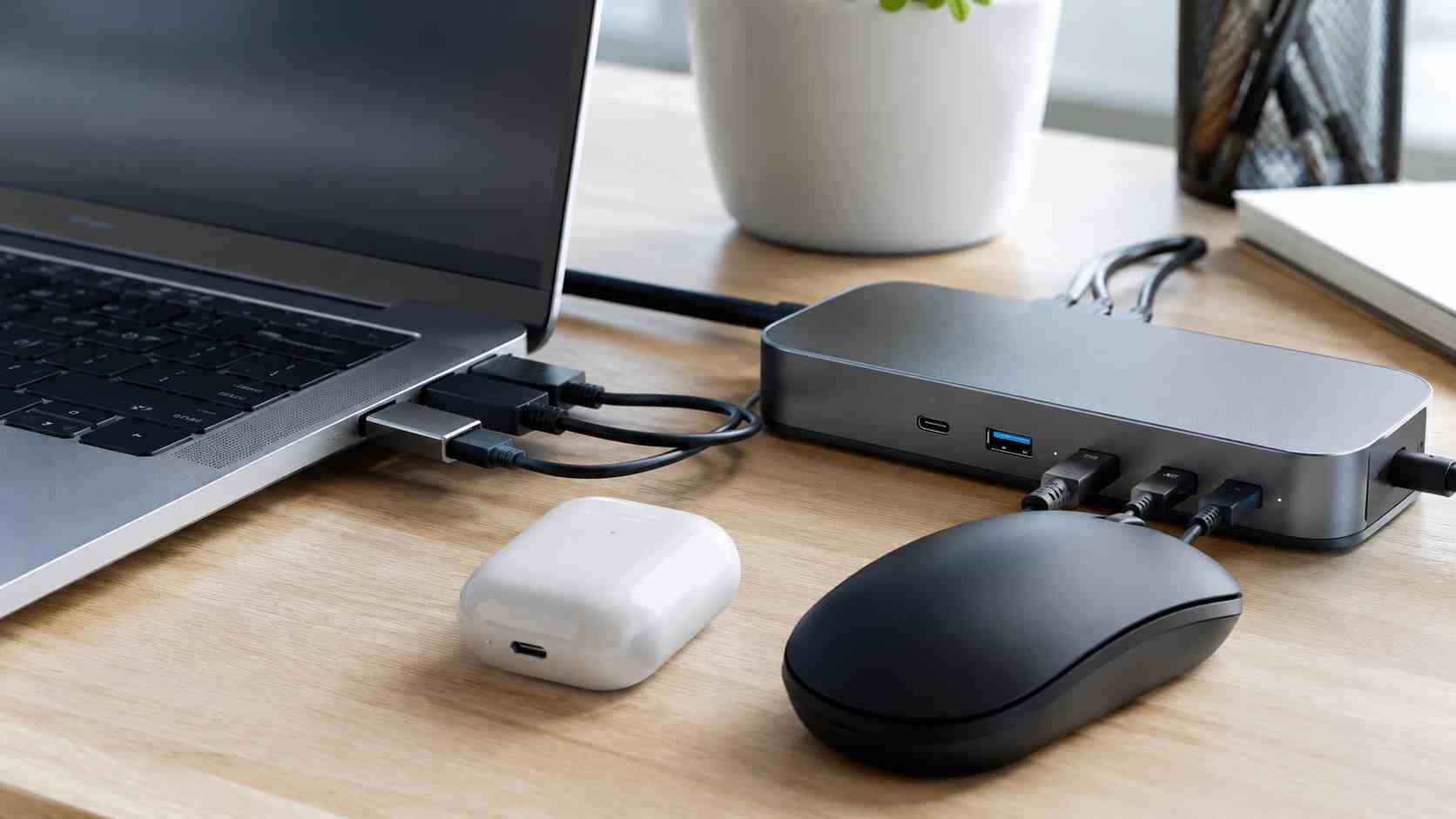
A wireless headset drops during a client call. A Bluetooth mouse stops moving. A keyboard misses keystrokes. A barcode scanner or USB device disconnects right when someone is trying to finish a task.
These problems may sound minor, but in a busy office they create real frustration. They slow down front-desk work, interrupt meetings, delay customer service, and make employees lose confidence in their computers.
The good news is that many Bluetooth and USB disconnect problems have practical causes that can be checked without replacing every device.
Before assuming the laptop or accessory is broken, check the basics:
If only one headset disconnects, the headset may be the issue. If every wireless device disconnects, the computer, dock, driver, or office environment may be the problem.
Windows may turn off certain devices or adapters to save power. That can be helpful for battery life, but annoying in an office where reliability matters more than saving a little energy.
Microsoft’s support guidance includes checking Bluetooth settings, removing and re-pairing devices, running troubleshooters, and reviewing power-saving settings when Bluetooth keeps disconnecting.
For a business user, this means the fix may not be “buy a new mouse.” It may be a setting, driver, or update issue.
Bluetooth, Wi-Fi, USB, and docking station reliability often depends on drivers. A driver is the small piece of software that helps Windows talk to the hardware.
If the driver is old, corrupted, or mismatched after an update, devices may disconnect or behave strangely. Windows updates can also include fixes for Bluetooth and device reliability. Recent reporting on Windows 11 updates has pointed to Bluetooth improvements, including connection and audio stability fixes.
A practical IT review should check:
This is especially important for offices using many laptops, docks, wireless headsets, and meeting-room devices.
Wireless problems are not always caused by Windows. Office layout can matter too.
Bluetooth devices can be affected by distance, low battery, crowded wireless environments, cheap adapters, metal desks, USB 3 interference, and too many devices fighting for stable connections.
Common trouble spots include:
A managed IT provider can help standardize equipment so the business is not troubleshooting a different headset, mouse, keyboard, and dock at every desk.
Call IT support when:
Repeated device problems usually mean there is a root cause worth fixing.
Small businesses can reduce these issues by keeping computers updated, using business-grade accessories, standardizing docks and headsets, replacing failing devices before they disrupt work, and documenting known fixes.
It also helps to have someone watching for patterns. If three employees report the same headset issue after an update, that should become one fix across the business, not three separate headaches.
Bluetooth and USB problems are easy to dismiss until they start disrupting calls, typing, meetings, scanning, and customer service. The best approach is to check the basics, review Windows settings and drivers, and fix the root cause instead of relying on daily restarts.


Himala and his team at Cybernetic Networks have been amazing. We have been a customer of Cybernetic Networks for well over 14 years now, both personally and professionally. Himala and his team are professional, reachable and on the cutting edge of technology. We have enjoyed doing business with Cybernetic Networks for many years and still rely on their knowledge, skills and technology every day
Himala and his Cybernetic team have never let me down! For over 10 years now they have been fixing my technical issues, set up all my new networks and computers and have safeguarded me from any hackers or malware. You can trust this company to navigate you as your company grows and to keep you on track with the latest in security and safety
I am a solo practicing neurologist and have had all my IT needs covered through Cybernetic Networks since 2007. They are the best! All of their tech support staff is extremely knowledgeable and efficient. Just as importantly, they are quickly responsive whenever we need their assistance. I couldn’t be happier with their service and give them my highest recommendation!
I couldn't be happier with Cybernetics - they are experts, always respond quickly , and solves any issues I have.
Cybernetic Networks has been advising and supporting all our IT issues and purchases for the last 18 years. They are very responsive and extremely knowledgeable- always providing us with timely services.
It is not often you find small business companies that are not only rewarding to work with, but also have integrity, truth and skill. I have worked with this company for over 20 years, and the service is outstanding. I can easily recommend that if you need an IT company, this is the one to get. Full STOP! Look no further, you will be happy that you did. Sue Myhelic, Gulf Breeze Real Estate, Naples, Florida.
Himala and his team from Cybernetic Networks, Inc. has been an integral part of our successful retail business for the past 20 years. He is extraordinarily knowledgable and always available for our IT needs. Thanks to Himala and his team we are always up and running.




