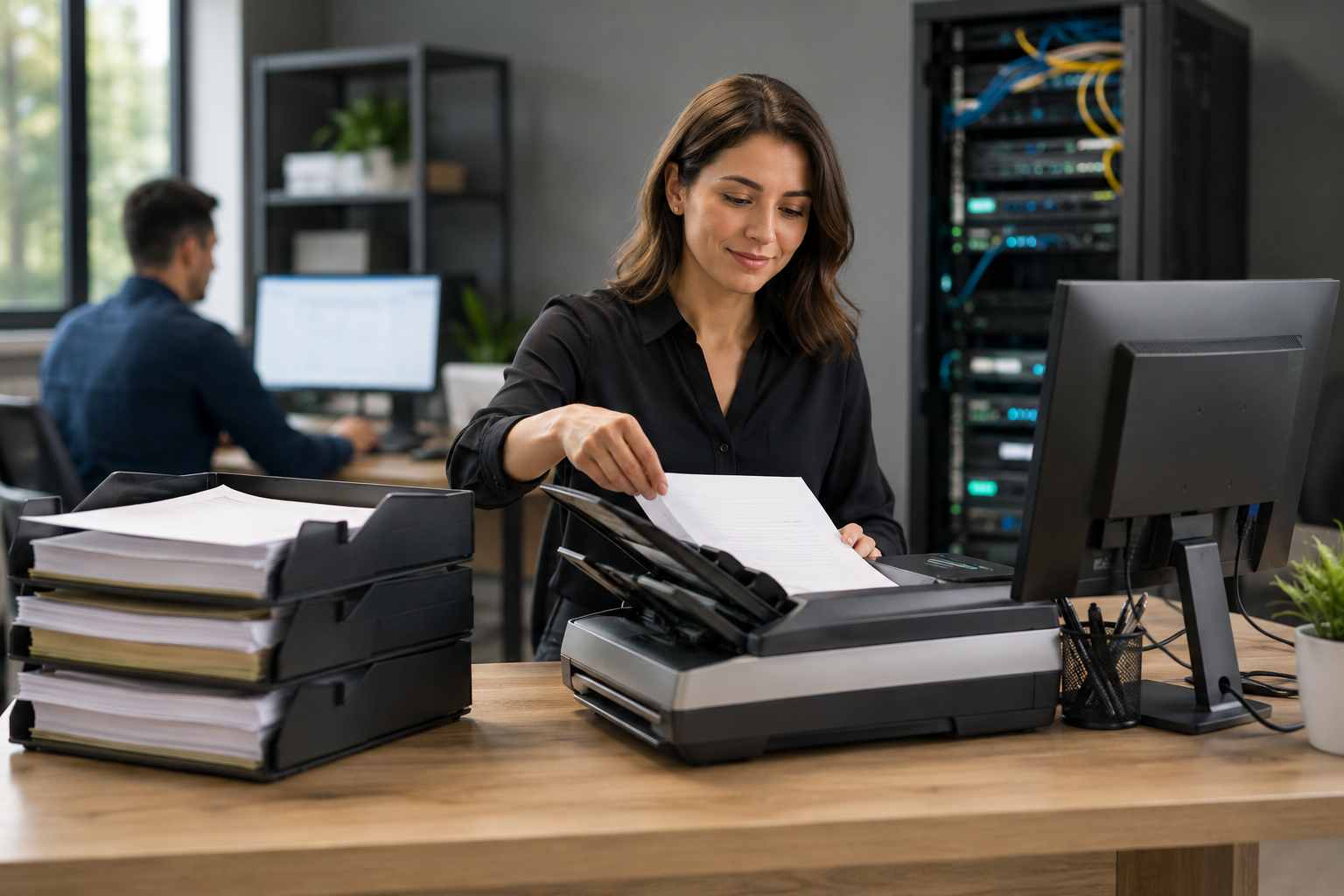
A printer that will not print. A scanner that cannot be found. A document stuck in the queue. A staff member who needs to scan paperwork before a deadline.
These sound like small problems until they happen in the middle of a busy workday.
For many small businesses, printers and scanners are still part of daily operations. Medical offices, law firms, real estate teams, contractors, accountants, nonprofits, and local service businesses all rely on printed and scanned documents more than they would like to admit.
When printing or scanning breaks, the whole office can feel stuck.
Windows 11 has continued to modernize how printing works. Microsoft has also been moving toward newer printing methods, including its built-in IPP class driver, while changing how older third-party printer drivers are handled over time.
That does not mean every old printer suddenly stops working. But it does mean small businesses may see more confusion around drivers, printer discovery, advanced printer features, scanning software, and network printer setup.
A printer may still print basic pages but lose options like stapling, duplex printing, special trays, scanning, or secure print features. A scanner may work from one computer but not another. A network printer may disappear after an update, Wi-Fi change, or driver conflict.
The result is frustrating because the problem feels random.
Most recurring printer and scanner problems come from a few practical issues:
Restarting the printer may help for the moment, but it usually does not fix the root cause.
Printer and scanner problems cost more than paper and toner.
They interrupt staff, delay customer service, slow down billing, create document backlogs, and pull managers into support issues they should not have to solve. In regulated or paperwork-heavy offices, unreliable scanning can also interfere with recordkeeping and response times.
There is also a security angle. Older printers and scanners are network devices. If they are never updated, use weak admin passwords, or sit on the same network without oversight, they can become another unmanaged technology risk.
That does not mean every office needs brand-new equipment. It means printers and scanners should be managed like the business tools they are.
Before buying a new printer, small businesses should check the basics.
First, confirm whether the issue affects one computer or everyone. If only one computer has the problem, it may be a local driver or Windows issue. If everyone has the problem, it may be the printer, network, or print server setup.
Second, use a stable network connection where possible. A shared office printer usually works better on a wired network connection than on Wi-Fi.
Third, make sure the printer has a consistent network address. This helps computers keep finding the device instead of losing it after a router restart.
Fourth, install the correct manufacturer software when advanced features are needed. Basic Windows printing may be fine for simple jobs, but scanning and office-specific features often need the right driver or app.
Fifth, remove old duplicate printer entries. Many offices have several versions of the same printer installed, and employees may be sending jobs to the wrong one.
Sixth, keep printer firmware and scanner software updated, especially after major Windows updates.
Finally, document the setup. Your office should know which printer is used by which team, how it is connected, and what software is required.
Sometimes the honest answer is that the printer or scanner has aged out of the business.
Replacement may make sense if:
A good IT provider can help decide whether the fix is a better setup, a driver cleanup, a network change, or a planned replacement.
Printer and scanner problems are not glamorous, but they are real business interruptions. The best solution is not to keep restarting devices and hoping the problem goes away. The better approach is to make printing and scanning part of the overall IT plan.


Himala and his team at Cybernetic Networks have been amazing. We have been a customer of Cybernetic Networks for well over 14 years now, both personally and professionally. Himala and his team are professional, reachable and on the cutting edge of technology. We have enjoyed doing business with Cybernetic Networks for many years and still rely on their knowledge, skills and technology every day
Himala and his Cybernetic team have never let me down! For over 10 years now they have been fixing my technical issues, set up all my new networks and computers and have safeguarded me from any hackers or malware. You can trust this company to navigate you as your company grows and to keep you on track with the latest in security and safety
I am a solo practicing neurologist and have had all my IT needs covered through Cybernetic Networks since 2007. They are the best! All of their tech support staff is extremely knowledgeable and efficient. Just as importantly, they are quickly responsive whenever we need their assistance. I couldn’t be happier with their service and give them my highest recommendation!
I couldn't be happier with Cybernetics - they are experts, always respond quickly , and solves any issues I have.
Cybernetic Networks has been advising and supporting all our IT issues and purchases for the last 18 years. They are very responsive and extremely knowledgeable- always providing us with timely services.
It is not often you find small business companies that are not only rewarding to work with, but also have integrity, truth and skill. I have worked with this company for over 20 years, and the service is outstanding. I can easily recommend that if you need an IT company, this is the one to get. Full STOP! Look no further, you will be happy that you did. Sue Myhelic, Gulf Breeze Real Estate, Naples, Florida.
Himala and his team from Cybernetic Networks, Inc. has been an integral part of our successful retail business for the past 20 years. He is extraordinarily knowledgable and always available for our IT needs. Thanks to Himala and his team we are always up and running.