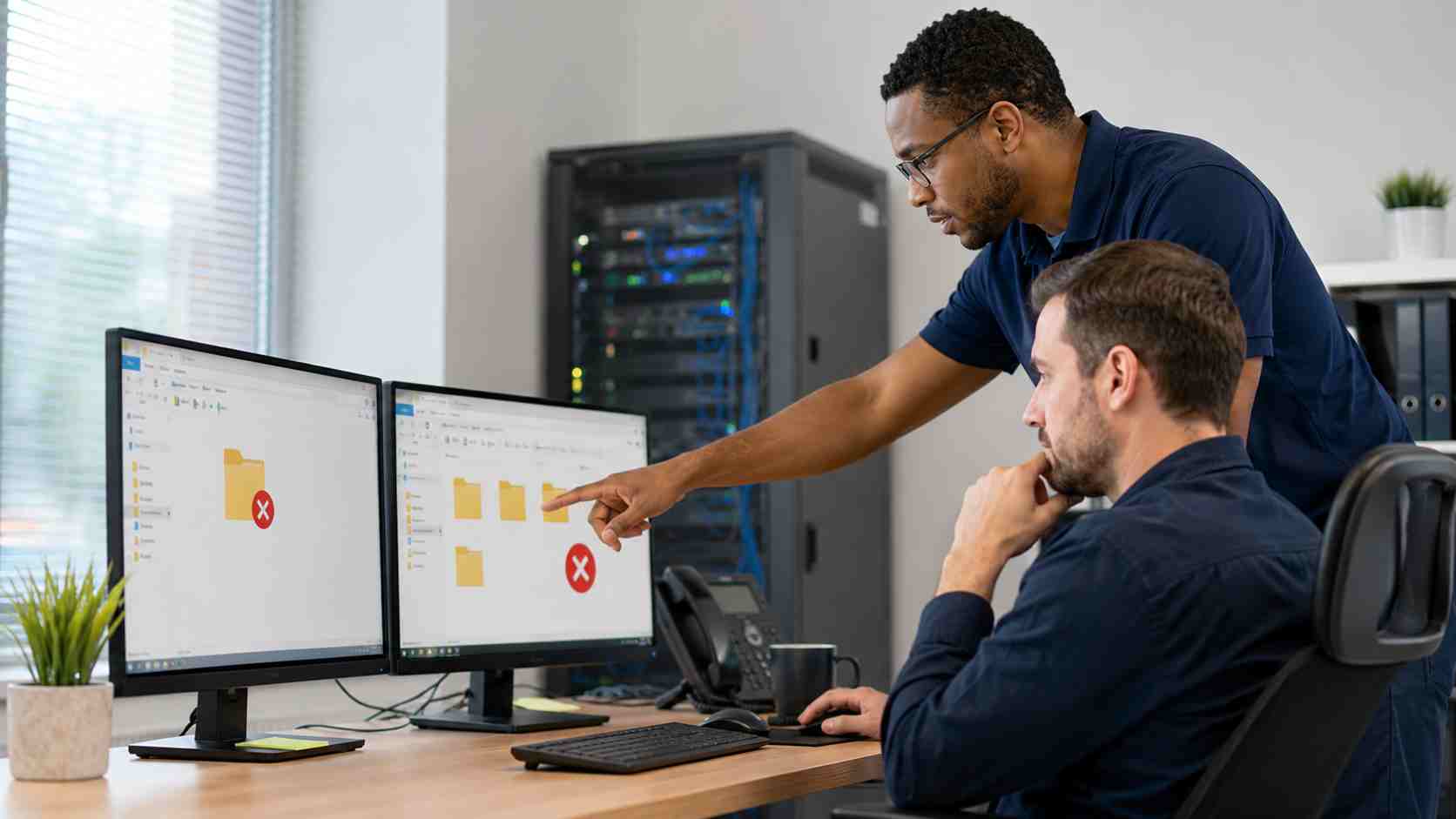
Many small businesses still rely on shared folders, mapped drives, or local file servers for daily work. Accounting files, scanned documents, forms, customer folders, estimating tools, and older business software may all depend on a stable connection to a shared location.
So when a mapped drive shows a red X, asks for a password again, says it cannot reconnect, or disappears after restart, the problem can feel bigger than it looks.
It is not just annoying. It can stop people from invoicing, printing forms, opening job files, or using important business software.
A mapped drive is a shortcut that makes a shared folder appear like a normal drive on a computer. For example, instead of browsing to a server or another PC every time, employees may click a drive letter like “S:” or “P:” in File Explorer.
That setup can be useful, especially for older software. But it depends on several things working at the same time:
If any part of that chain breaks, the shared drive may look disconnected.
Microsoft documentation notes that mapped network drives may show a red X or appear unavailable even when the connection can sometimes be restored by clicking the drive. In some cases, idle connections can be dropped after a period of inactivity and reconnected when needed.
That may sound harmless, but not every business program handles it well.
A person opening a file manually may only notice a brief delay. But older accounting, estimating, medical, legal, or inventory software may crash or freeze if it expects a constant connection.
That is why repeated shared-folder problems should not be ignored.
Start with the practical basics before replacing equipment.
Check whether the issue affects one person or everyone.
If only one computer is affected, the problem may be that device, its saved password, its Wi-Fi connection, or its Windows profile. If everyone is affected, the server, network switch, router, firewall, or internet/VPN connection may be involved.
Confirm the server or shared computer is awake.
If files are stored on another office PC instead of a proper server or cloud service, that computer may sleep, restart, update, or lose network connection.
Look for Wi-Fi problems.
If a desktop or laptop reaches shared files over weak Wi-Fi, small drops can interrupt file access. Business-critical file shares usually work best over reliable wired connections or well-designed business Wi-Fi.
Check saved credentials.
A password change, expired login, old saved password, or duplicate mapped drive can cause repeated prompts or connection failures.
Review Windows updates and restart timing.
Updates can restart computers, change network behavior, or expose older connection settings that were already fragile.
Check older equipment and protocols.
Some older storage devices and legacy software rely on outdated connection methods. That can create security and reliability concerns.
For ordinary users, keep the first steps simple:
Employees should not change firewall rules, registry settings, or advanced sharing settings on their own. Those changes can create larger problems.
If shared drive problems keep returning, the business may need a cleaner setup.
That may include:
The right answer depends on the business. A law office, medical office, contractor, retail shop, and accounting firm may all use shared files differently.
Shared drive issues often come back because the visible error is only a symptom. The real cause might be network design, device sleep settings, outdated file sharing, old credentials, weak Wi-Fi, unmanaged updates, or aging hardware.
Managed IT support helps by looking at the whole environment instead of treating every red X as a one-time helpdesk ticket.
That means fewer repeat interruptions, better documentation, clearer permissions, and a plan for moving away from fragile setups when the time is right.


Himala and his team at Cybernetic Networks have been amazing. We have been a customer of Cybernetic Networks for well over 14 years now, both personally and professionally. Himala and his team are professional, reachable and on the cutting edge of technology. We have enjoyed doing business with Cybernetic Networks for many years and still rely on their knowledge, skills and technology every day
Himala and his Cybernetic team have never let me down! For over 10 years now they have been fixing my technical issues, set up all my new networks and computers and have safeguarded me from any hackers or malware. You can trust this company to navigate you as your company grows and to keep you on track with the latest in security and safety
I am a solo practicing neurologist and have had all my IT needs covered through Cybernetic Networks since 2007. They are the best! All of their tech support staff is extremely knowledgeable and efficient. Just as importantly, they are quickly responsive whenever we need their assistance. I couldn’t be happier with their service and give them my highest recommendation!
I couldn't be happier with Cybernetics - they are experts, always respond quickly , and solves any issues I have.
Cybernetic Networks has been advising and supporting all our IT issues and purchases for the last 18 years. They are very responsive and extremely knowledgeable- always providing us with timely services.
It is not often you find small business companies that are not only rewarding to work with, but also have integrity, truth and skill. I have worked with this company for over 20 years, and the service is outstanding. I can easily recommend that if you need an IT company, this is the one to get. Full STOP! Look no further, you will be happy that you did. Sue Myhelic, Gulf Breeze Real Estate, Naples, Florida.
Himala and his team from Cybernetic Networks, Inc. has been an integral part of our successful retail business for the past 20 years. He is extraordinarily knowledgable and always available for our IT needs. Thanks to Himala and his team we are always up and running.




