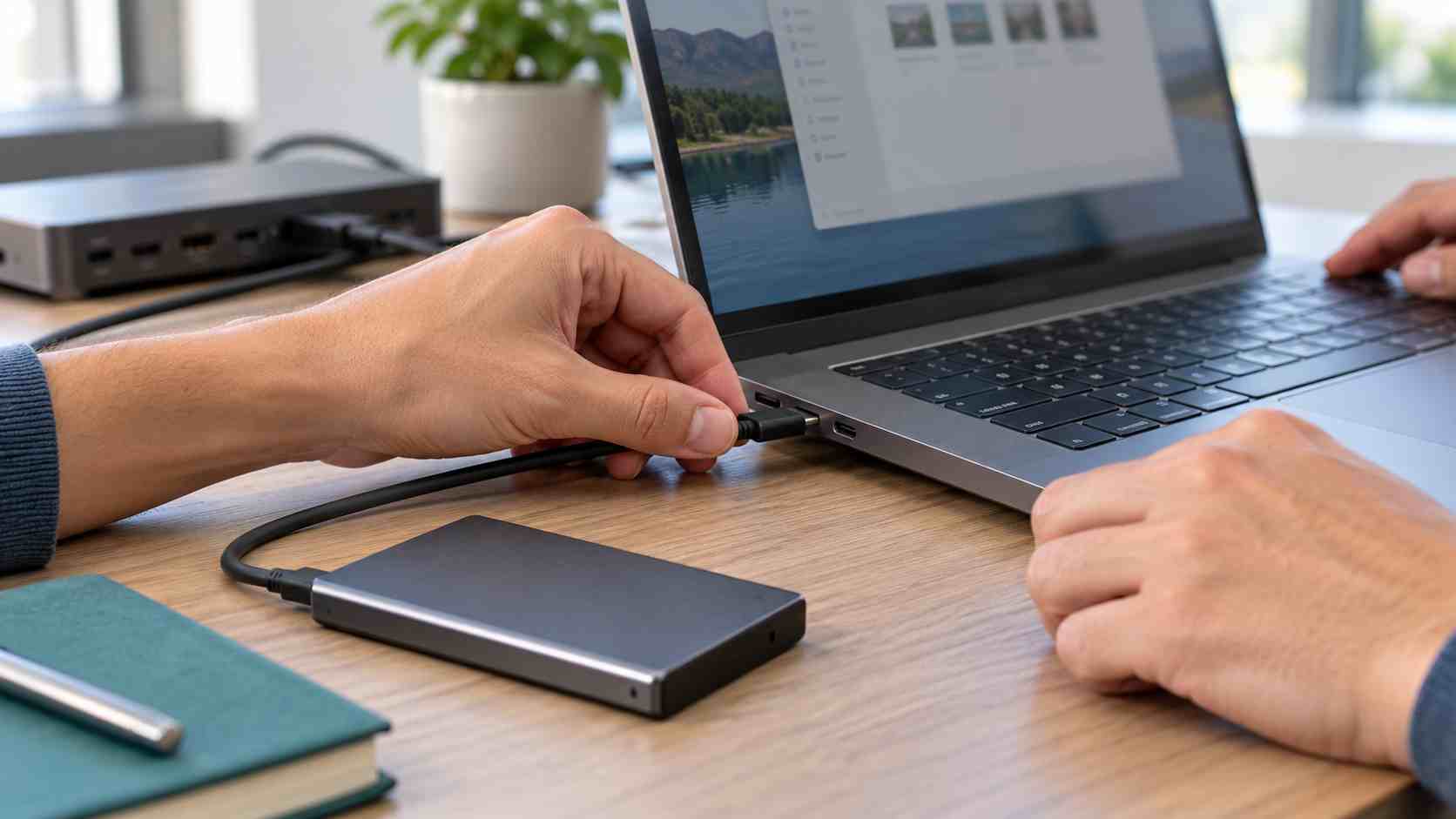
You connect a USB flash drive or external hard drive, hear the Windows connection sound, and expect it to appear in File Explorer. Nothing happens.
For a small business, the missing drive may contain a presentation, exported accounting records, project files, photographs, or a backup needed immediately. The natural reaction is to keep unplugging it, click every repair prompt, or search for a quick recovery utility.
That reaction can make a damaged drive worse.
The safest approach is to begin with simple connection checks, determine whether Windows can see the device, and stop before performing any action that could overwrite its contents.
Ask two questions:
If no USB device works in that port, the computer, dock, or port may be the problem. If the drive fails on multiple computers, the cable, enclosure, power supply, or storage device becomes more likely.
Only test the drive on a computer approved for company use. Unknown removable media can introduce malware, and sensitive business files should not be connected to a personal or public computer.
External drives often fail to appear because the connection is incomplete.
Try these checks:
Microsoft notes that some USB devices may not work correctly when the computer cannot provide enough power. A direct connection can help identify whether the dock or hub is involved.
Avoid forcing a USB-C cable into the wrong port. USB-C connectors look alike, but cables and ports do not all support the same power, data, display, and docking features.
Save your work and select Restart from the Windows power menu.
Closing the laptop lid or selecting Shut down may not clear every temporary device condition. A restart gives Windows another opportunity to detect the USB controller and connected drive correctly.
After Windows finishes loading, connect the drive directly and wait a few moments before opening File Explorer.
Open File Explorer and select This PC.
Look for a removable drive with an unexpected letter or generic name. The device may be working but assigned a different letter than employees normally expect.
Do not assume that every unfamiliar drive is the correct one. If several external drives are connected, disconnect the unnecessary devices before testing so there is less room for confusion.
Windows includes a tool called Disk Management that shows storage devices even when they do not appear normally in File Explorer.
Right-click Start and select Disk Management. Look for a disk whose approximate capacity matches the missing device.
At this stage, use Disk Management only to observe and report what it shows.
If the drive already contains important files, do not initialize, format, delete, or create a new volume. Those actions are intended for preparing new storage and can overwrite information needed for recovery.
Tell IT whether the drive appears as:
A screenshot can help a technician understand the condition without guessing.
If Windows displays “USB device not recognized,” open Device Manager and look for an entry marked with a yellow warning symbol.
Open that device’s properties and record the error code under Device status. Microsoft recommends using this code to identify driver or hardware problems.
Employees should avoid deleting drivers, changing system settings, or installing driver-update programs from search results. A technician can determine whether the next step should be a Windows update, manufacturer driver, USB-controller review, or hardware test.
Stop troubleshooting and contact IT or a qualified data-recovery provider when:
Repeated connection attempts, repair utilities, formatting, or initialization may reduce the chance of recovering data from a failing device.
Do not open the drive enclosure or attempt physical repairs. Traditional hard drives contain delicate internal components, while solid-state drives require specialized diagnostic equipment.
Portable storage is convenient, but it is easy to lose, damage, or connect to an unsafe computer.
A small business should decide:
A USB drive should rarely be the only place an important file exists.
When the drive is working normally, use Windows’ Safely Remove Hardware and Eject Media option before unplugging it. Microsoft recommends this process to reduce the risk of data loss while Windows is still writing information.
Recurring external-drive problems may point to failing docks, damaged cables, inconsistent equipment, missing updates, weak data-handling practices, or aging storage.
Managed IT support can standardize approved drives and cables, maintain Windows devices, control removable-media use, protect sensitive files, and make sure critical information is backed up somewhere more dependable.


Himala and his team at Cybernetic Networks have been amazing. We have been a customer of Cybernetic Networks for well over 14 years now, both personally and professionally. Himala and his team are professional, reachable and on the cutting edge of technology. We have enjoyed doing business with Cybernetic Networks for many years and still rely on their knowledge, skills and technology every day
Himala and his Cybernetic team have never let me down! For over 10 years now they have been fixing my technical issues, set up all my new networks and computers and have safeguarded me from any hackers or malware. You can trust this company to navigate you as your company grows and to keep you on track with the latest in security and safety
I am a solo practicing neurologist and have had all my IT needs covered through Cybernetic Networks since 2007. They are the best! All of their tech support staff is extremely knowledgeable and efficient. Just as importantly, they are quickly responsive whenever we need their assistance. I couldn’t be happier with their service and give them my highest recommendation!
I couldn't be happier with Cybernetics - they are experts, always respond quickly , and solves any issues I have.
Cybernetic Networks has been advising and supporting all our IT issues and purchases for the last 18 years. They are very responsive and extremely knowledgeable- always providing us with timely services.
It is not often you find small business companies that are not only rewarding to work with, but also have integrity, truth and skill. I have worked with this company for over 20 years, and the service is outstanding. I can easily recommend that if you need an IT company, this is the one to get. Full STOP! Look no further, you will be happy that you did. Sue Myhelic, Gulf Breeze Real Estate, Naples, Florida.
Himala and his team from Cybernetic Networks, Inc. has been an integral part of our successful retail business for the past 20 years. He is extraordinarily knowledgable and always available for our IT needs. Thanks to Himala and his team we are always up and running.




