A mouse that freezes for two seconds may not sound like a serious business problem. Neither does a keyboard that misses an occasional letter.
After it happens dozens of times, however, the interruptions become difficult to ignore. Employees repeat work, reconnect equipment, restart computers, and lose focus. A problem that seems minor can quietly consume part of every workday.
Before replacing the equipment, work through these checks in order. Many wireless keyboard and mouse problems come from batteries, connection confusion, placement, interference, or outdated software rather than failed hardware.
Low battery power can cause more than a completely dead device. A wireless mouse may lag, disconnect, or stop responding intermittently before its battery warning becomes obvious.
Replace disposable batteries with fresh ones or fully charge the device. Then turn it off, wait several seconds, and turn it back on.
If both the keyboard and mouse started failing around the same time, check the batteries in both devices rather than assuming the computer is the problem.
Not every wireless mouse or keyboard uses Bluetooth.
Some connect directly through Windows Bluetooth. Others communicate through a small USB receiver plugged into the computer, monitor, dock, or USB hub. A few models can use either method.
This distinction matters because the troubleshooting steps are different.
For Bluetooth devices, check Settings > Bluetooth & devices in Windows 11. For devices using a receiver, locate the small USB adapter and confirm that it is firmly connected.
Avoid removing several receivers without noting which device each one controls. Similar-looking adapters may not be interchangeable.
Move the mouse or keyboard closer to the computer during testing. Metal desks, cabinets, computer cases, monitors, and crowded equipment can weaken a short-range wireless connection.
If moving the device closer immediately improves performance, the issue may be placement or interference rather than defective equipment.
This is especially worth checking at reception desks, checkout areas, medical offices, conference rooms, and workstations with several monitors or docking stations.
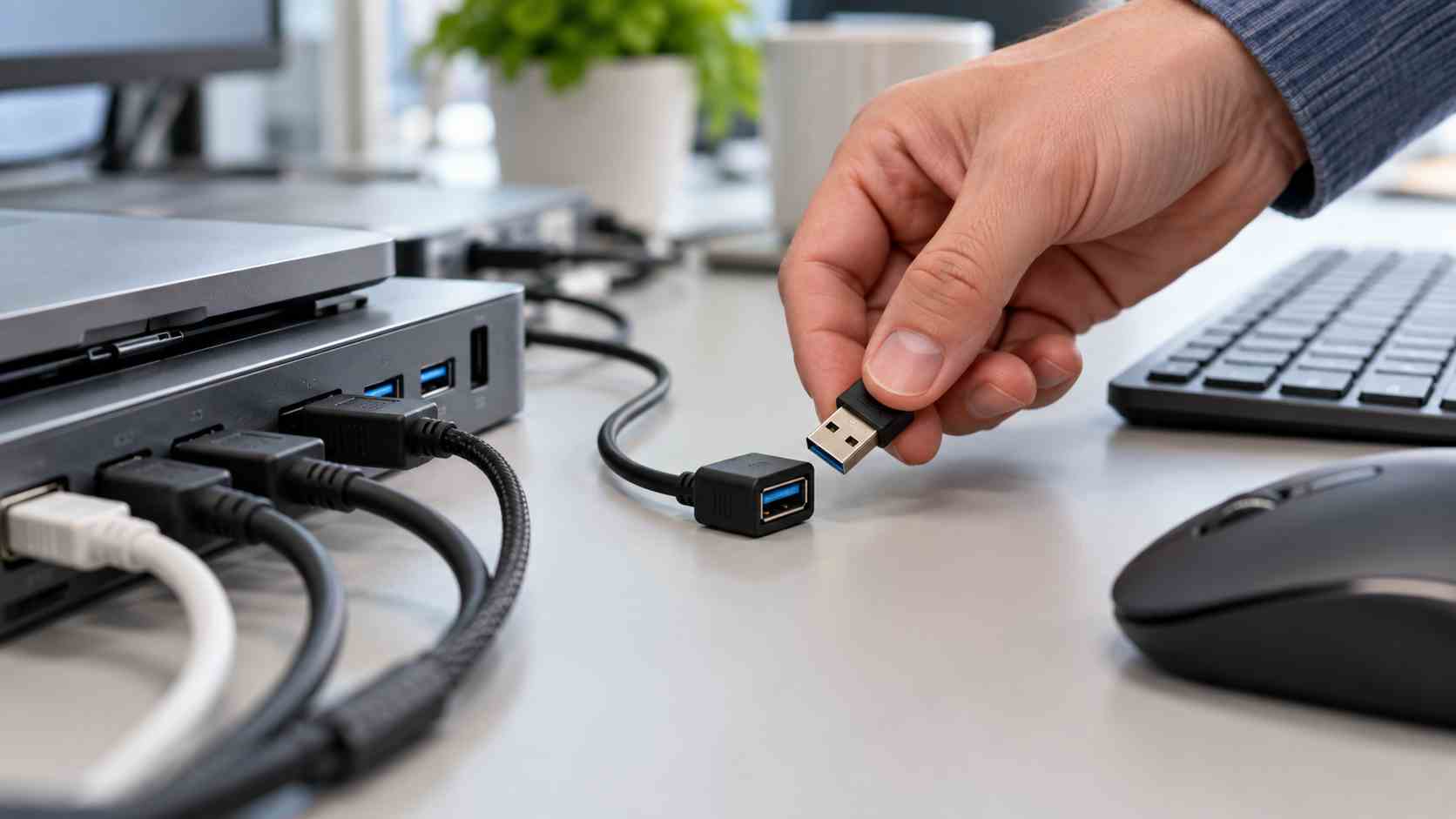
If the device uses a USB receiver, unplug it, wait approximately ten seconds, and reconnect it. Try a different USB port if one is available.
A receiver connected behind a metal desktop computer or buried inside a bundle of cables may have a poor signal. A powered USB hub, monitor port, or dock can also add another point of failure.
Microsoft notes that some unshielded USB devices connected to USB 3.0 ports can interfere with nearby Bluetooth connections. Moving the receiver away from a crowded dock or USB device may therefore make a noticeable difference.
A short USB extension cable can sometimes place the receiver in a clearer position without changing the entire workstation.
If Windows shows the device but it will not connect reliably, remove it and pair it again.
In Windows 11:
Only remove the device when another working input method is available. A wired mouse or keyboard is useful when troubleshooting a desktop computer that has no touchpad.
Restart the computer after checking power and connections. A restart can clear a temporary Bluetooth or device-service problem.
Next, check Windows Update. If the issue began after an update or repeatedly returns after every restart, the computer may need an updated Bluetooth, wireless, chipset, dock, or peripheral driver.
Use Windows Update or the computer manufacturer’s official support site. Avoid third-party driver-download websites, which may distribute incorrect, outdated, or unsafe software.
Windows 11 also provides an automated Bluetooth troubleshooter through the Get Help app.
Connect the mouse or keyboard to another compatible computer, if possible.
If the same problem follows the device, the peripheral or its receiver may be failing. If it works normally elsewhere, the original workstation’s USB ports, Bluetooth adapter, dock, drivers, or surrounding equipment deserve closer attention.
This test can prevent a business from buying a new keyboard only to discover that the real problem was the computer or dock.
Contact your IT provider when:
These patterns can point to a larger workstation, docking station, driver, or wireless-interference problem.
Keep a basic wired mouse and keyboard available for critical workstations. Label USB receivers so they are not accidentally swapped, and include wireless peripherals in routine workstation checks.
For businesses with many computers, consistent equipment models and documented setups make support faster. Your IT provider can also monitor device health, keep approved drivers current, and identify recurring problems across multiple workstations.


 Trustindex verifies that the original source of the review is Google.
  Trustindex verifies that the original source of the review is Google.
  Trustindex verifies that the original source of the review is Google.
  Trustindex verifies that the original source of the review is Google.
  Trustindex verifies that the original source of the review is Google.
  Trustindex verifies that the original source of the review is Google.
  Trustindex verifies that the original source of the review is Google.
  Trustindex verifies that the original source of the review is Google.
  Trustindex verifies that the original source of the review is Google.
  Trustindex verifies that the original source of the review is Google.

Himala and his team at Cybernetic Networks have been amazing. We have been a customer of Cybernetic Networks for well over 14 years now, both personally and professionally. Himala and his team are professional, reachable and on the cutting edge of technology. We have enjoyed doing business with Cybernetic Networks for many years and still rely on their knowledge, skills and technology every day
Himala and his Cybernetic team have never let me down! For over 10 years now they have been fixing my technical issues, set up all my new networks and computers and have safeguarded me from any hackers or malware. You can trust this company to navigate you as your company grows and to keep you on track with the latest in security and safety
I am a solo practicing neurologist and have had all my IT needs covered through Cybernetic Networks since 2007. They are the best! All of their tech support staff is extremely knowledgeable and efficient. Just as importantly, they are quickly responsive whenever we need their assistance. I couldn’t be happier with their service and give them my highest recommendation!
I couldn't be happier with Cybernetics - they are experts, always respond quickly , and solves any issues I have.
Cybernetic Networks has been advising and supporting all our IT issues and purchases for the last 18 years. They are very responsive and extremely knowledgeable- always providing us with timely services.
It is not often you find small business companies that are not only rewarding to work with, but also have integrity, truth and skill. I have worked with this company for over 20 years, and the service is outstanding. I can easily recommend that if you need an IT company, this is the one to get. Full STOP! Look no further, you will be happy that you did. Sue Myhelic, Gulf Breeze Real Estate, Naples, Florida.
Himala and his team from Cybernetic Networks, Inc. has been an integral part of our successful retail business for the past 20 years. He is extraordinarily knowledgable and always available for our IT needs. Thanks to Himala and his team we are always up and running.

