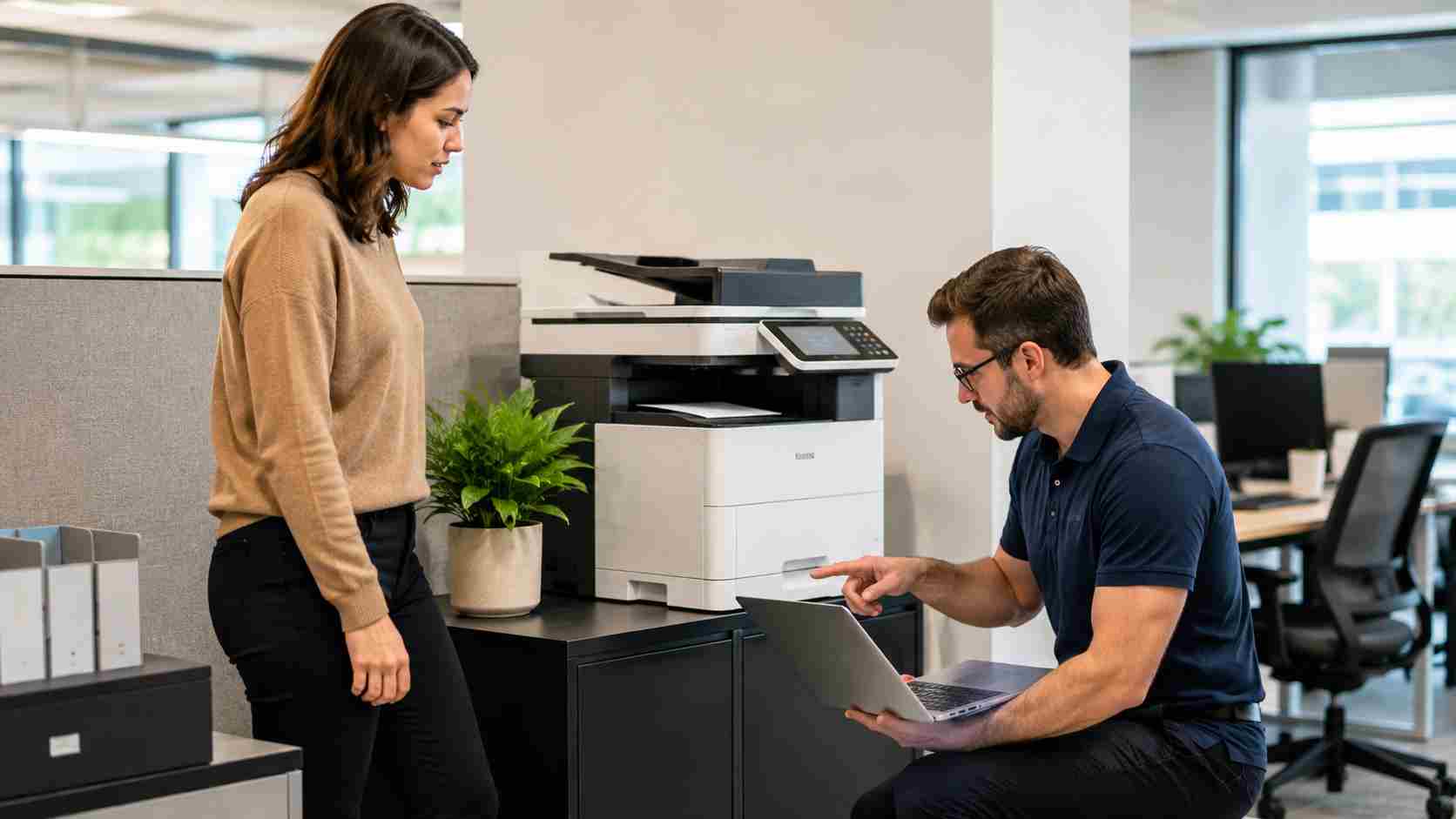
A proposal needs to go out. A customer form needs to be scanned. Payroll documents need to print. Then the office printer says “offline,” disappears from Windows, or refuses to use the same settings it used yesterday.
For small businesses, printer problems are frustrating because they interrupt ordinary work. They also waste time across the whole office. One person tries restarting the printer. Someone else clears the queue. Another employee installs a second copy of the same printer. Before long, a simple print job has eaten half an hour.
In 2026, Windows printing is also going through changes that business owners should understand.
Microsoft has been moving Windows printing toward a newer, more standardized printing approach. According to Microsoft’s printer driver servicing plan, Windows 11 and newer Windows Server versions stopped routinely publishing new legacy printer drivers to Windows Update starting January 15, 2026. Microsoft also noted that as of July 1, 2026, Windows prefers its built-in IPP class driver when ranking printer drivers.
That sounds technical, but here is the plain-English version:
Windows is trying to rely less on older printer drivers and more on modern built-in printing support.
For many offices, this may be fine. For others, especially businesses with older printers, specialty label printers, scanners, or multifunction devices, the printer may behave differently after updates or reinstallations.
Printers are often kept for many years because they still work. That makes sense. But older devices may depend on older drivers, vendor utilities, or special scan software.
When Windows changes how it chooses or supports printer drivers, a business may see issues such as:
The issue may not be the printer itself. It may be the driver, Windows update status, network setup, or how the printer was installed.
Before replacing the printer, check the basics:
Microsoft’s own support guidance still starts with practical basics: restart the printer, confirm network connection, check default printer settings, and review the print queue. Those simple checks solve many everyday issues.
Call IT support when the same printer keeps coming back as offline, when multiple employees are affected, when scanning breaks after a Windows update, or when the printer needs special business features.
A managed IT provider can check whether the printer should use Windows’ built-in driver, the manufacturer’s driver, a print server, a static IP address, or a different deployment method. They can also document the setup so the same issue does not have to be solved from scratch every time.
For businesses with several printers, this is a good time to review which devices are still worth supporting and which ones may become harder to maintain.
Printer support may not sound strategic until printing stops a sale, delays a shipment, or interrupts front-desk service. For medical offices, law firms, contractors, accounting firms, and service businesses, printing and scanning are still part of daily operations.
A little planning can prevent a lot of frustration.


Himala and his team at Cybernetic Networks have been amazing. We have been a customer of Cybernetic Networks for well over 14 years now, both personally and professionally. Himala and his team are professional, reachable and on the cutting edge of technology. We have enjoyed doing business with Cybernetic Networks for many years and still rely on their knowledge, skills and technology every day
Himala and his Cybernetic team have never let me down! For over 10 years now they have been fixing my technical issues, set up all my new networks and computers and have safeguarded me from any hackers or malware. You can trust this company to navigate you as your company grows and to keep you on track with the latest in security and safety
I am a solo practicing neurologist and have had all my IT needs covered through Cybernetic Networks since 2007. They are the best! All of their tech support staff is extremely knowledgeable and efficient. Just as importantly, they are quickly responsive whenever we need their assistance. I couldn’t be happier with their service and give them my highest recommendation!
I couldn't be happier with Cybernetics - they are experts, always respond quickly , and solves any issues I have.
Cybernetic Networks has been advising and supporting all our IT issues and purchases for the last 18 years. They are very responsive and extremely knowledgeable- always providing us with timely services.
It is not often you find small business companies that are not only rewarding to work with, but also have integrity, truth and skill. I have worked with this company for over 20 years, and the service is outstanding. I can easily recommend that if you need an IT company, this is the one to get. Full STOP! Look no further, you will be happy that you did. Sue Myhelic, Gulf Breeze Real Estate, Naples, Florida.
Himala and his team from Cybernetic Networks, Inc. has been an integral part of our successful retail business for the past 20 years. He is extraordinarily knowledgable and always available for our IT needs. Thanks to Himala and his team we are always up and running.




