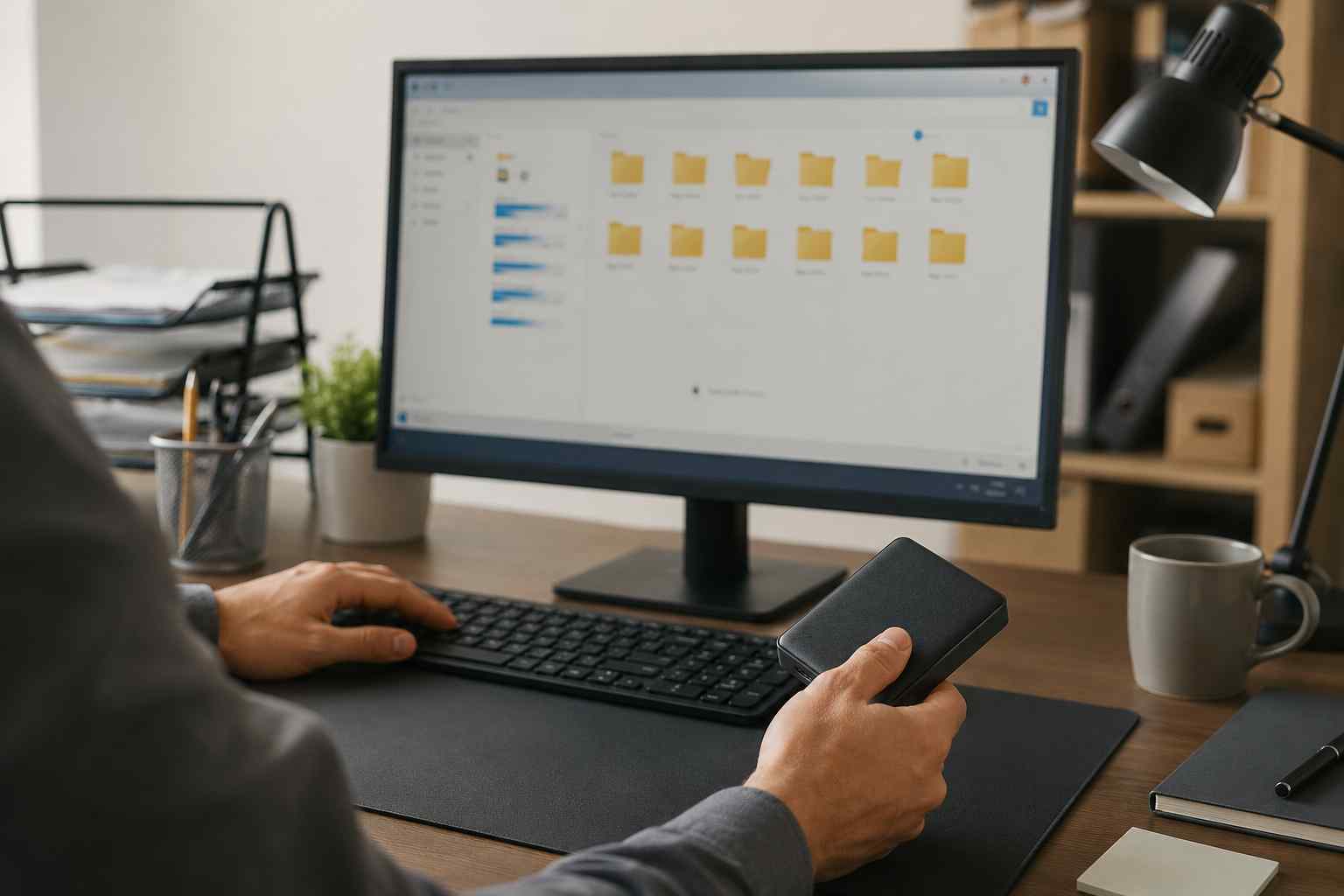
A business computer can still turn on and open documents while running dangerously low on storage. That does not mean it is operating normally.
When the main drive fills up, Windows has less room for temporary files, updates, application data, and other everyday operations. Employees may notice slow startups, programs freezing, unsuccessful updates, file-sync problems, or an inability to save new work.
Ignoring the warning can turn a quick cleanup into a frustrating work stoppage.
The cause is not always obvious. Common sources include:
A computer may also have a drive that was simply too small for its current workload. Cleaning temporary files may provide short-term relief without solving that underlying problem.
Microsoft provides built-in tools for reviewing storage without searching through system folders manually.
In Windows 11, open:
Start > Settings > System > Storage
The Storage page groups files into categories such as installed applications, temporary files, documents, and other content. This can help identify what is consuming space before anything is removed.
Microsoft also provides Cleanup recommendations, which can identify temporary files and other content that may no longer be needed. Review every selection before approving the cleanup, especially when business documents or the Downloads folder are included.
Storage Sense is a Windows feature that can automatically remove certain temporary files and older items from the Recycle Bin. Microsoft says it can also manage locally stored cloud content based on settings selected by the user.
The feature should still be configured thoughtfully.
Downloads should not be deleted automatically unless employees understand and accept that behavior. Files that become “online only” will generally require an internet connection before they can be opened again. That can be inconvenient during an internet outage or when an employee is working away from the office.
Microsoft notes that Storage Sense works on the system drive, normally the C: drive. Other drives must be reviewed separately.
Files in the Recycle Bin continue to use storage. Confirm that nothing important was deleted accidentally before emptying it.
Downloads often contain old installers, duplicate PDFs, images, and attachments. Move business records to the appropriate approved location before deleting unneeded copies.
Uninstall unused software from Settings > Apps. Do not remove program folders manually, because that can leave broken components behind.
Windows can identify temporary content and previous installation files. Read each category before removing it. Some older Windows installation files may be useful temporarily if an update needs to be rolled back.
OneDrive Files On-Demand can make less frequently used files available online without keeping a full local copy. Important files needed during outages or travel can be marked to remain on the device.
Old project files may belong in approved cloud storage, a managed server, or a properly backed-up archive. An external drive sitting on one employee’s desk should not become the only copy of important business information.
Do not delete unfamiliar folders from the Windows, Program Files, or system areas simply because they appear large.
Avoid random “PC cleaner” applications promoted through advertisements or browser pop-ups. Some provide little value, while untrustworthy versions may create additional security and privacy risks.
Do not remove employee files until the business knows whether they must be retained for operational, customer, accounting, or regulatory reasons.
When the contents are unclear, have an IT professional identify what can be removed safely.
Repeated low-storage warnings may indicate a larger planning problem. The computer might need a larger drive, a better cloud-storage configuration, or a clear policy for where employees should save business data.
It may also be time to replace the device if it has limited storage, outdated hardware, and other performance problems. Continually cleaning a few gigabytes from an undersized computer is rarely an efficient long-term strategy.
A managed maintenance plan can monitor available disk space before it becomes an emergency. It can also help ensure that:


Himala and his team at Cybernetic Networks have been amazing. We have been a customer of Cybernetic Networks for well over 14 years now, both personally and professionally. Himala and his team are professional, reachable and on the cutting edge of technology. We have enjoyed doing business with Cybernetic Networks for many years and still rely on their knowledge, skills and technology every day
Himala and his Cybernetic team have never let me down! For over 10 years now they have been fixing my technical issues, set up all my new networks and computers and have safeguarded me from any hackers or malware. You can trust this company to navigate you as your company grows and to keep you on track with the latest in security and safety
I am a solo practicing neurologist and have had all my IT needs covered through Cybernetic Networks since 2007. They are the best! All of their tech support staff is extremely knowledgeable and efficient. Just as importantly, they are quickly responsive whenever we need their assistance. I couldn’t be happier with their service and give them my highest recommendation!
I couldn't be happier with Cybernetics - they are experts, always respond quickly , and solves any issues I have.
Cybernetic Networks has been advising and supporting all our IT issues and purchases for the last 18 years. They are very responsive and extremely knowledgeable- always providing us with timely services.
It is not often you find small business companies that are not only rewarding to work with, but also have integrity, truth and skill. I have worked with this company for over 20 years, and the service is outstanding. I can easily recommend that if you need an IT company, this is the one to get. Full STOP! Look no further, you will be happy that you did. Sue Myhelic, Gulf Breeze Real Estate, Naples, Florida.
Himala and his team from Cybernetic Networks, Inc. has been an integral part of our successful retail business for the past 20 years. He is extraordinarily knowledgable and always available for our IT needs. Thanks to Himala and his team we are always up and running.




