A client call begins in two minutes, but the camera shows a black screen. The microphone worked yesterday, but nobody can hear you today. The laptop sees the headset, yet the meeting app keeps using the built-in speakers.
These problems are common, but they can still damage an important conversation.
For small businesses, unreliable meeting equipment can interrupt sales presentations, interviews, customer consultations, telehealth appointments, vendor discussions, and remote teamwork. The employee may lose ten minutes changing settings while everyone else waits.
Fortunately, many webcam and microphone problems have straightforward causes.
Computers may have several cameras, microphones, and speakers available at the same time.
A laptop might have a built-in webcam and microphone. A docking station may connect another camera. A monitor might include speakers. A Bluetooth headset may appear as both an audio input and an audio output.
The meeting app does not always choose the device you intended.
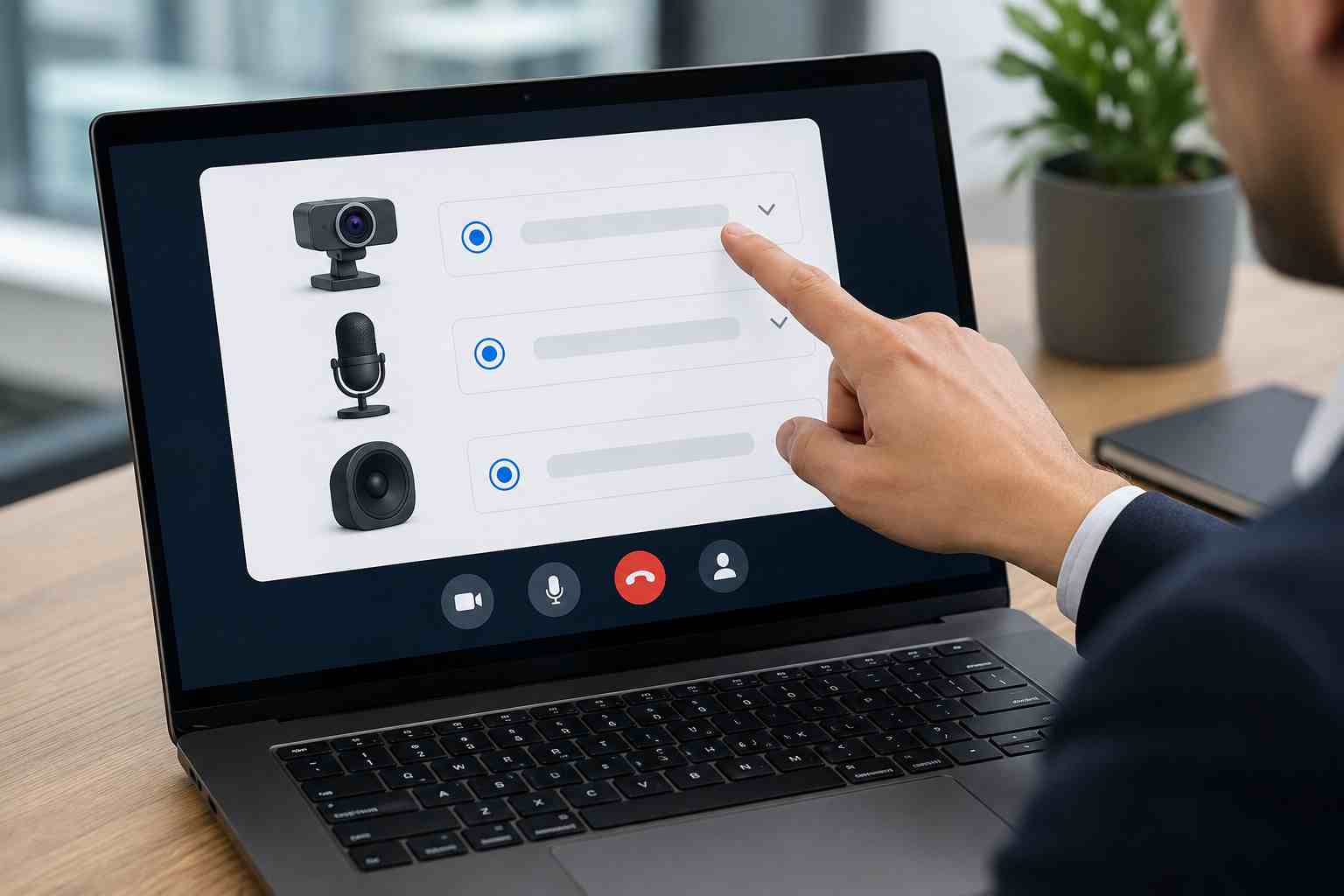
Before changing Windows settings, open the audio or device settings in Microsoft Teams, Zoom, or the application being used. Confirm that it has selected the correct:
Use the application’s test feature when available. If the microphone level moves while you speak and the camera preview appears normally, the basic equipment is probably working.
Some business laptops have physical camera shutters. Others have keyboard buttons that disable the camera or microphone. Headsets may also include an inline mute switch.
Check for:
These simple checks are easy to miss when a meeting is already starting.
Windows includes privacy controls that decide which applications can use the camera and microphone.
If access is disabled, the device may work in one application but remain unavailable in another. Browser-based meetings may require permission inside both Windows and the browser.
For example, a browser can display a small camera or microphone icon near the website address. If access was accidentally blocked, Teams or Zoom in the browser may not be able to use the equipment until permission is allowed again.
Avoid changing unrelated privacy settings at random. Confirm which application needs access and adjust only the appropriate camera or microphone permission.
Another application may already be using the camera or microphone.
This can happen when an employee has several meeting tools open, such as Teams, Zoom, a browser meeting, recording software, or the Windows Camera app.
Close applications that are not needed, then reopen the meeting software. If that does not work, restart the computer rather than repeatedly opening and closing the same meeting window.
A proper restart can also complete pending updates and clear a device that is stuck in the wrong state.
External webcams and headsets introduce more possible failure points.
If the device connects through a dock or USB hub, try connecting it directly to the computer. If it works directly, the problem may involve the dock, its power supply, its cable, or one of its ports.
For a wired device:
For Bluetooth equipment, confirm that the battery is charged and that the headset is connected to the correct computer rather than a nearby phone.
A quick comparison can save a great deal of guessing.
If the camera works in the Windows Camera app but not in Teams, the hardware is probably functioning. The issue may be the Teams device selection, app permissions, cached settings, or the application itself.
If the microphone works in Zoom but not in a browser meeting, check browser permissions and confirm that the correct input is selected.
If the device does not work anywhere, the cause may be a driver, cable, USB port, Windows setting, or hardware failure.
When reporting the problem to IT, include:
“The microphone fails in Teams but works in Zoom” is far more useful than “the computer audio is broken.”
When equipment stops working, employees may search for a driver or “webcam fix.” That can lead to unofficial download sites, unnecessary utilities, or unwanted software.
Drivers should come through managed Windows updates or directly from the computer or equipment manufacturer. Random driver-updater tools can create more problems than they solve and may introduce a security risk.
If a driver problem is suspected, let the company’s IT provider review the device model, current driver, Windows version, and recent updates.
Employees who regularly join important calls should test their setup before the customer arrives.
A useful routine is:
Conference rooms should have a similar routine, with clearly identified equipment and a support contact employees can reach quickly.
If camera and microphone problems keep returning, the issue may not be employee error.
The business may have inconsistent laptop models, unsupported docks, aging headsets, missing updates, weak USB connections, confusing meeting-room equipment, or no standard setup for remote staff.
Managed IT support can standardize approved equipment, apply updates, monitor device health, document meeting-room setups, and resolve recurring problems before the next client call.


Himala and his team at Cybernetic Networks have been amazing. We have been a customer of Cybernetic Networks for well over 14 years now, both personally and professionally. Himala and his team are professional, reachable and on the cutting edge of technology. We have enjoyed doing business with Cybernetic Networks for many years and still rely on their knowledge, skills and technology every day
Himala and his Cybernetic team have never let me down! For over 10 years now they have been fixing my technical issues, set up all my new networks and computers and have safeguarded me from any hackers or malware. You can trust this company to navigate you as your company grows and to keep you on track with the latest in security and safety
I am a solo practicing neurologist and have had all my IT needs covered through Cybernetic Networks since 2007. They are the best! All of their tech support staff is extremely knowledgeable and efficient. Just as importantly, they are quickly responsive whenever we need their assistance. I couldn’t be happier with their service and give them my highest recommendation!
I couldn't be happier with Cybernetics - they are experts, always respond quickly , and solves any issues I have.
Cybernetic Networks has been advising and supporting all our IT issues and purchases for the last 18 years. They are very responsive and extremely knowledgeable- always providing us with timely services.
It is not often you find small business companies that are not only rewarding to work with, but also have integrity, truth and skill. I have worked with this company for over 20 years, and the service is outstanding. I can easily recommend that if you need an IT company, this is the one to get. Full STOP! Look no further, you will be happy that you did. Sue Myhelic, Gulf Breeze Real Estate, Naples, Florida.
Himala and his team from Cybernetic Networks, Inc. has been an integral part of our successful retail business for the past 20 years. He is extraordinarily knowledgable and always available for our IT needs. Thanks to Himala and his team we are always up and running.




