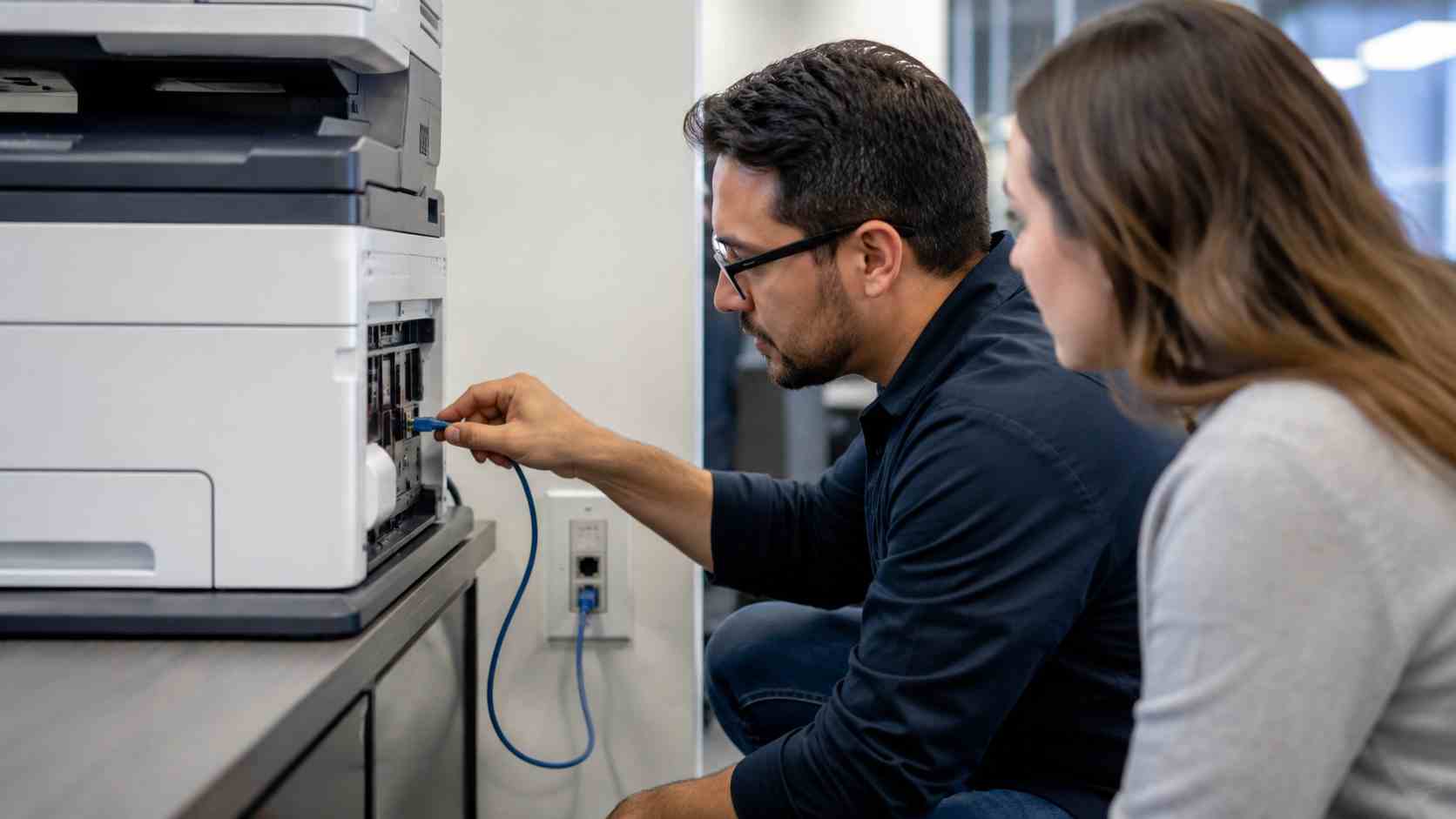
Few office problems feel as small and disruptive as a printer that says it is offline.
The printer is turned on. The paper tray is full. Someone printed to it yesterday. Yet today, invoices, forms, labels, scans, or customer paperwork are stuck.
For small businesses, printer problems are more than an annoyance. They interrupt billing, front-desk work, shipping, records, signatures, and customer service. The good news is that many printer issues have simple causes.
When Windows says a printer is offline, it usually means the computer cannot communicate with the printer reliably. That does not always mean the printer is broken.
Common causes include:
In plain English: the computer is trying to send the job, but the path to the printer is confused.
Before replacing the printer or calling it a lost cause, try these basic steps.
First, confirm the printer is powered on and not showing a paper, toner, or jam warning. Then restart the printer by turning it off, unplugging it for about 30 seconds, and turning it back on.
Next, make sure the computer and printer are connected to the same office network. This matters especially if your business has guest Wi-Fi, private Wi-Fi, and wired network connections.
Then check the print queue. A single stuck job can block everything behind it. Cancel old jobs and try printing again.
Finally, confirm the correct printer is set as the default printer. In offices with old printers, home printers, PDF printers, and label printers, Windows may send the job to the wrong place.
If the same printer keeps going offline every week, the problem may not be the printer itself. It may be the way the printer is connected and managed.
A technician may need to:
This is especially important for multifunction printers that handle scanning to email, scanning to folders, or printing from multiple departments.
Repeated printer problems waste time in small pieces. Five minutes here, ten minutes there, one employee waiting while another restarts the printer again. Over a month, that becomes real lost productivity.
A managed IT provider can standardize printer setup, clean up old printer entries, document scanner settings, monitor network issues, and help employees avoid the same recurring problem.
If a printer goes offline once, troubleshoot it. If it keeps happening, fix the setup.
That simple distinction saves time and frustration. The goal is not just to print one document today. The goal is to make printing and scanning reliable enough that your team can stop thinking about it.


Himala and his team at Cybernetic Networks have been amazing. We have been a customer of Cybernetic Networks for well over 14 years now, both personally and professionally. Himala and his team are professional, reachable and on the cutting edge of technology. We have enjoyed doing business with Cybernetic Networks for many years and still rely on their knowledge, skills and technology every day
Himala and his Cybernetic team have never let me down! For over 10 years now they have been fixing my technical issues, set up all my new networks and computers and have safeguarded me from any hackers or malware. You can trust this company to navigate you as your company grows and to keep you on track with the latest in security and safety
I am a solo practicing neurologist and have had all my IT needs covered through Cybernetic Networks since 2007. They are the best! All of their tech support staff is extremely knowledgeable and efficient. Just as importantly, they are quickly responsive whenever we need their assistance. I couldn’t be happier with their service and give them my highest recommendation!
I couldn't be happier with Cybernetics - they are experts, always respond quickly , and solves any issues I have.
Cybernetic Networks has been advising and supporting all our IT issues and purchases for the last 18 years. They are very responsive and extremely knowledgeable- always providing us with timely services.
It is not often you find small business companies that are not only rewarding to work with, but also have integrity, truth and skill. I have worked with this company for over 20 years, and the service is outstanding. I can easily recommend that if you need an IT company, this is the one to get. Full STOP! Look no further, you will be happy that you did. Sue Myhelic, Gulf Breeze Real Estate, Naples, Florida.
Himala and his team from Cybernetic Networks, Inc. has been an integral part of our successful retail business for the past 20 years. He is extraordinarily knowledgable and always available for our IT needs. Thanks to Himala and his team we are always up and running.