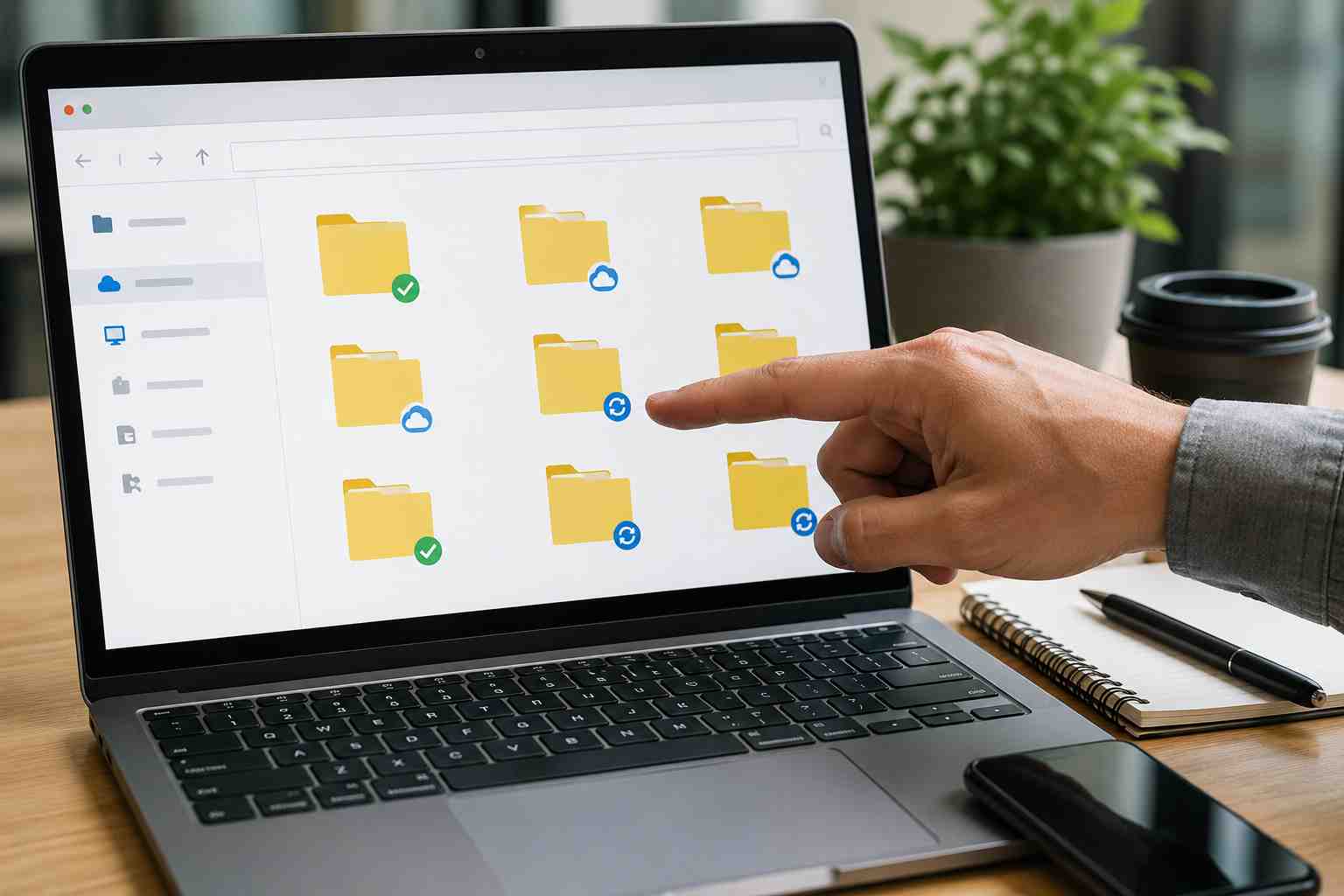
OneDrive is supposed to make file access easier. Employees can work from the office, home, or a laptop on the road and still reach the same documents.
But when OneDrive does not sync correctly, it can create a very frustrating workday. Files may look missing. A folder may not update. Someone may edit an old version. A desktop may show a red X or spinning sync icon. A team member may say, “I saved it,” while another person cannot find the latest copy.
For small businesses, that confusion can slow down billing, scheduling, customer service, project work, and internal communication.
OneDrive sync connects files stored in Microsoft 365 to a computer. It lets users see cloud files in File Explorer on Windows or Finder on Mac.
That setup is convenient, but it depends on several things working together:
If one piece is off, the user may see missing files, old files, upload errors, or sync warnings.
OneDrive sync problems are usually not caused by one big failure. They are often caused by small, fixable issues.
Common causes include:
To a non-technical user, all of these may look the same: “My files are gone” or “OneDrive is broken.”
That is why it helps to troubleshoot in a calm order instead of randomly clicking settings.
Start with the simple checks.
First, look for the OneDrive cloud icon near the clock on Windows. If there is a red X, pause symbol, warning icon, or sign-in message, click it and read the message carefully. Many sync problems explain themselves right there.
Next, confirm the user is signed into the correct work account. This matters when someone has a personal Microsoft account and a business Microsoft 365 account on the same computer.
Then check available storage. If the computer or Microsoft storage is full, files may stop uploading or syncing.
After that, open OneDrive on the web and confirm whether the missing file is actually in the cloud. If the file is visible online but not on the computer, the issue may be local sync. If it is not visible online either, the file may have been saved somewhere else, deleted, moved, or never uploaded.
When files appear missing, it is tempting to start deleting folders, unlinking accounts, or resetting OneDrive right away. Sometimes those steps help. But they can also create more confusion if the business does not know where the current file version lives.
Before making bigger changes, check:
For businesses with shared files, it is best to slow down and confirm the source of truth before making major changes.
File sync issues are more than a nuisance. They can create real business problems.
A sales team may send an old proposal. A bookkeeper may work from the wrong spreadsheet. A manager may think a document was lost. A customer service team may waste time searching for files instead of helping customers.
There is also a security angle. If employees do not trust OneDrive, they may start emailing files to themselves, saving copies on personal devices, or using unauthorized file-sharing tools. That creates more risk and less control.
Reliable file sync helps people work confidently. Unreliable sync pushes employees into workarounds.
A managed IT provider can help standardize how files are stored, shared, synced, and backed up. That includes setting up Microsoft 365 correctly, reviewing SharePoint and OneDrive permissions, monitoring sync health, and helping employees understand where files should go.
For small businesses, this is often the difference between “everyone has their own file habits” and “the team knows where work belongs.”
Good support can also prevent repeated disruptions by catching patterns: aging computers, weak Wi-Fi, storage problems, outdated apps, or confusing folder structures.
If OneDrive problems keep coming back, small businesses should review:
OneDrive can be a strong tool, but only when it is configured clearly and supported consistently.

Himala and his team at Cybernetic Networks have been amazing. We have been a customer of Cybernetic Networks for well over 14 years now, both personally and professionally. Himala and his team are professional, reachable and on the cutting edge of technology. We have enjoyed doing business with Cybernetic Networks for many years and still rely on their knowledge, skills and technology every day
Himala and his Cybernetic team have never let me down! For over 10 years now they have been fixing my technical issues, set up all my new networks and computers and have safeguarded me from any hackers or malware. You can trust this company to navigate you as your company grows and to keep you on track with the latest in security and safety
I am a solo practicing neurologist and have had all my IT needs covered through Cybernetic Networks since 2007. They are the best! All of their tech support staff is extremely knowledgeable and efficient. Just as importantly, they are quickly responsive whenever we need their assistance. I couldn’t be happier with their service and give them my highest recommendation!
I couldn't be happier with Cybernetics - they are experts, always respond quickly , and solves any issues I have.
Cybernetic Networks has been advising and supporting all our IT issues and purchases for the last 18 years. They are very responsive and extremely knowledgeable- always providing us with timely services.
It is not often you find small business companies that are not only rewarding to work with, but also have integrity, truth and skill. I have worked with this company for over 20 years, and the service is outstanding. I can easily recommend that if you need an IT company, this is the one to get. Full STOP! Look no further, you will be happy that you did. Sue Myhelic, Gulf Breeze Real Estate, Naples, Florida.
Himala and his team from Cybernetic Networks, Inc. has been an integral part of our successful retail business for the past 20 years. He is extraordinarily knowledgable and always available for our IT needs. Thanks to Himala and his team we are always up and running.