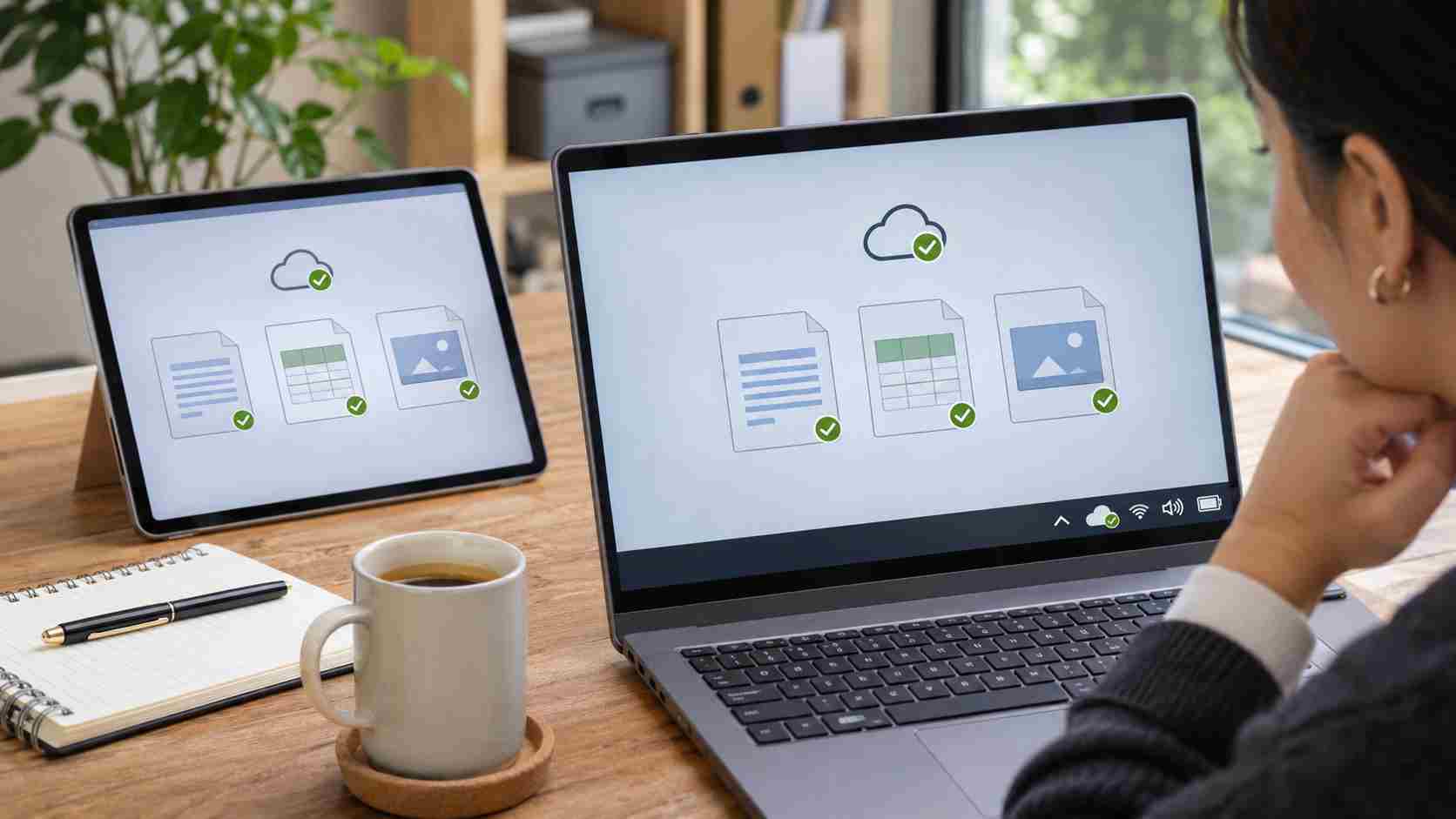
OneDrive synchronization keeps selected files aligned between a computer and Microsoft’s cloud service. When synchronization is working, an approved change made on one device is uploaded and becomes available to authorized users and other connected devices.
A sync problem means that process has paused or failed. It does not automatically mean the file has been deleted, but employees should avoid making more copies until they understand which version is current.
If a document contains recent changes, save it before troubleshooting.
Do not immediately delete files, unlink the account, reset OneDrive, or reinstall the application. Those actions can be appropriate in certain cases, but they may create confusion when local changes have not reached the cloud.
Note the file’s name and location. If practical, save a clearly labeled temporary copy outside the synchronized folder until the issue is understood.
Avoid emailing several versions to coworkers. That often replaces one synchronization problem with a version-control problem.
Look for the OneDrive cloud icon in the Windows notification area near the clock. You may need to select the arrow that shows hidden icons.
Select the icon and read the status message. It may indicate that OneDrive is:
The message often identifies the next sensible step. If the icon is missing, search for OneDrive from the Windows Start menu and open the current application.
Open a reliable website or another cloud application. If several services are slow or unavailable, the problem may be the internet connection rather than OneDrive.
Moving between office Wi-Fi, a home network, and a mobile hotspot can also interrupt synchronization. Allow the computer a few minutes to reconnect before making larger changes.
If multiple employees experience the problem at the same time, ask IT to check Microsoft 365 service health and the office network.
OneDrive may be paused manually or by a battery-saving setting.
Open the cloud icon menu and resume synchronization if the application reports that it is paused. Keep the computer awake and connected long enough for pending changes to upload.
If the device is low on power, connect it to its charger. Closing the laptop immediately after saving a large file can prevent the upload from finishing.
A file may not synchronize while another application is actively using or locking it. Save the document, close the program that opened it, and give OneDrive time to retry.
Also look for an error symbol beside the file in File Explorer. OneDrive may identify a permissions problem, unsupported file type, naming issue, or another file-specific condition.
Do not rename an entire folder structure or move large groups of business files as an initial troubleshooting step. Broad changes can produce additional synchronization activity and make the original problem harder to isolate.
Microsoft states that files may stop uploading, editing, or synchronizing when the associated cloud storage is full.
Check the OneDrive status and the organization’s Microsoft 365 storage allocation. A computer can also have too little local storage to download files that users expect to keep available offline.
Deleting business information is not the first solution. An administrator should determine whether old data can be archived, storage should be expanded, or local folders should use Files On-Demand.
Open OneDrive through the organization’s approved Microsoft 365 web portal and locate the affected file.
Compare its modified date and contents with the local copy. This helps establish whether the newest work reached the cloud.
If the web version is older, protect the newer local copy before attempting a reset or account reconnection. If the web version is current but another computer is behind, the problem is likely limited to that device.
Be careful with sensitive files and use only the official business portal. A search result or email link should not be trusted as a shortcut to the Microsoft 365 sign-in page.
After saving open work, close and reopen OneDrive. A normal Windows restart can also resolve temporary application or update problems.
Install approved Windows and OneDrive updates when the business’s update policy permits. Microsoft regularly updates both components, and outdated software can contribute to synchronization trouble.
A restart is different from resetting OneDrive. Start with the less disruptive restart.
Contact IT before unlinking the account, resetting the sync client, changing permissions, or reinstalling OneDrive when:
Microsoft notes that resetting OneDrive does not delete cloud data, but it disconnects sync relationships and causes a full synchronization. That process should be handled carefully on a business computer with unsynced work or large shared libraries.
Businesses can reduce future disruption by standardizing where shared documents belong, monitoring Microsoft 365 storage, keeping devices updated, and teaching employees what OneDrive status symbols mean.
Important business files should also be covered by an appropriate backup and retention plan. Cloud synchronization makes files convenient to access, but it should not be treated as the organization’s only recovery strategy.


Himala and his team at Cybernetic Networks have been amazing. We have been a customer of Cybernetic Networks for well over 14 years now, both personally and professionally. Himala and his team are professional, reachable and on the cutting edge of technology. We have enjoyed doing business with Cybernetic Networks for many years and still rely on their knowledge, skills and technology every day
Himala and his Cybernetic team have never let me down! For over 10 years now they have been fixing my technical issues, set up all my new networks and computers and have safeguarded me from any hackers or malware. You can trust this company to navigate you as your company grows and to keep you on track with the latest in security and safety
I am a solo practicing neurologist and have had all my IT needs covered through Cybernetic Networks since 2007. They are the best! All of their tech support staff is extremely knowledgeable and efficient. Just as importantly, they are quickly responsive whenever we need their assistance. I couldn’t be happier with their service and give them my highest recommendation!
I couldn't be happier with Cybernetics - they are experts, always respond quickly , and solves any issues I have.
Cybernetic Networks has been advising and supporting all our IT issues and purchases for the last 18 years. They are very responsive and extremely knowledgeable- always providing us with timely services.
It is not often you find small business companies that are not only rewarding to work with, but also have integrity, truth and skill. I have worked with this company for over 20 years, and the service is outstanding. I can easily recommend that if you need an IT company, this is the one to get. Full STOP! Look no further, you will be happy that you did. Sue Myhelic, Gulf Breeze Real Estate, Naples, Florida.
Himala and his team from Cybernetic Networks, Inc. has been an integral part of our successful retail business for the past 20 years. He is extraordinarily knowledgable and always available for our IT needs. Thanks to Himala and his team we are always up and running.