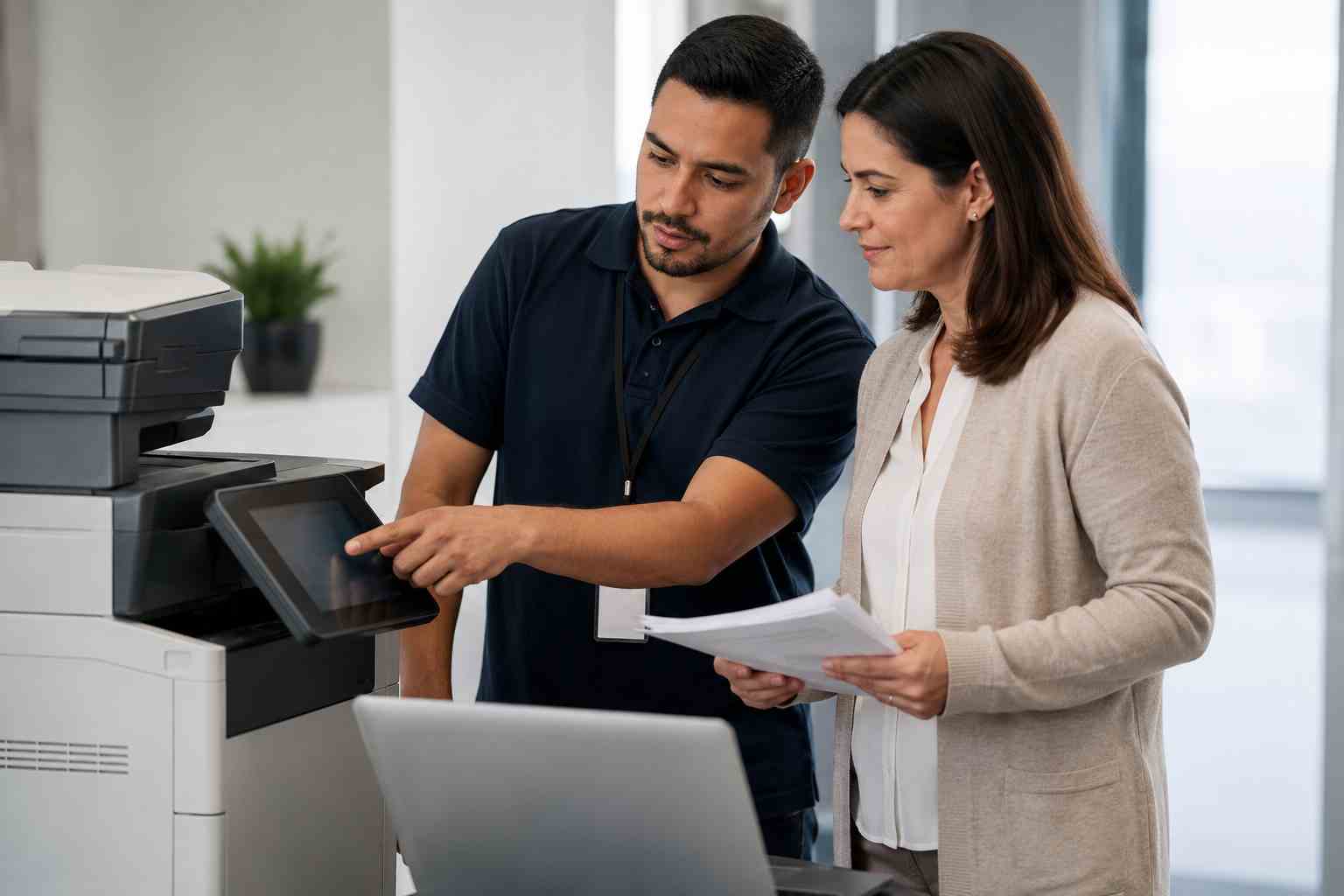
Few office issues feel more annoying than scanning a document, pressing “send,” and realizing nothing arrived in email.
It is easy to assume the copier is broken. Sometimes it is. But many scan-to-email problems are actually caused by changes in email security, Microsoft 365 settings, passwords, firewall rules, or outdated copier firmware.
For small businesses, this matters because scanning is still part of daily work. Medical forms, contracts, invoices, HR paperwork, insurance documents, and signed approvals often need to move quickly.
Most multifunction copiers are not email servers. They need help from Microsoft 365 or another mail service to send scanned documents.
Microsoft’s own guidance lists several ways devices can send email through Microsoft 365, including authenticated SMTP submission, SMTP relay, Direct Send, and High Volume Email. That sounds technical, but the business translation is simple: the copier needs the right path, the right permissions, and the right security settings to send mail.
Common causes include:
Microsoft has also updated its timeline around Basic Authentication for SMTP AUTH in Exchange Online, with changes extending into late 2026 and beyond. That means older scan-to-email setups should not be ignored, even if they still work today.
Before replacing the copier, check the basics.
Start with these questions:
If the copier has an error log, take a photo of the error before rebooting or changing settings. That can save time when support is troubleshooting.
A quick password update might get scanning working again, but it may not be the safest or most reliable long-term answer.
A better approach is to review the full scan-to-email setup and decide which method fits the business. Some offices may use a dedicated mailbox. Others may need SMTP relay, a supported email connector, or a different secure sending service.
The right answer depends on the copier model, Microsoft 365 settings, email security requirements, and how the business uses scanning.
Scan-to-email failures are a perfect example of a small issue that touches several systems at once: copier, email, network, firewall, Microsoft 365, and security policy.
Without proactive support, the office may spend hours bouncing between the copier vendor, Microsoft settings, and internet equipment. With managed IT support, those pieces can be documented, monitored, and updated before they create repeat downtime.


Himala and his team at Cybernetic Networks have been amazing. We have been a customer of Cybernetic Networks for well over 14 years now, both personally and professionally. Himala and his team are professional, reachable and on the cutting edge of technology. We have enjoyed doing business with Cybernetic Networks for many years and still rely on their knowledge, skills and technology every day
Himala and his Cybernetic team have never let me down! For over 10 years now they have been fixing my technical issues, set up all my new networks and computers and have safeguarded me from any hackers or malware. You can trust this company to navigate you as your company grows and to keep you on track with the latest in security and safety
I am a solo practicing neurologist and have had all my IT needs covered through Cybernetic Networks since 2007. They are the best! All of their tech support staff is extremely knowledgeable and efficient. Just as importantly, they are quickly responsive whenever we need their assistance. I couldn’t be happier with their service and give them my highest recommendation!
I couldn't be happier with Cybernetics - they are experts, always respond quickly , and solves any issues I have.
Cybernetic Networks has been advising and supporting all our IT issues and purchases for the last 18 years. They are very responsive and extremely knowledgeable- always providing us with timely services.
It is not often you find small business companies that are not only rewarding to work with, but also have integrity, truth and skill. I have worked with this company for over 20 years, and the service is outstanding. I can easily recommend that if you need an IT company, this is the one to get. Full STOP! Look no further, you will be happy that you did. Sue Myhelic, Gulf Breeze Real Estate, Naples, Florida.
Himala and his team from Cybernetic Networks, Inc. has been an integral part of our successful retail business for the past 20 years. He is extraordinarily knowledgable and always available for our IT needs. Thanks to Himala and his team we are always up and running.




