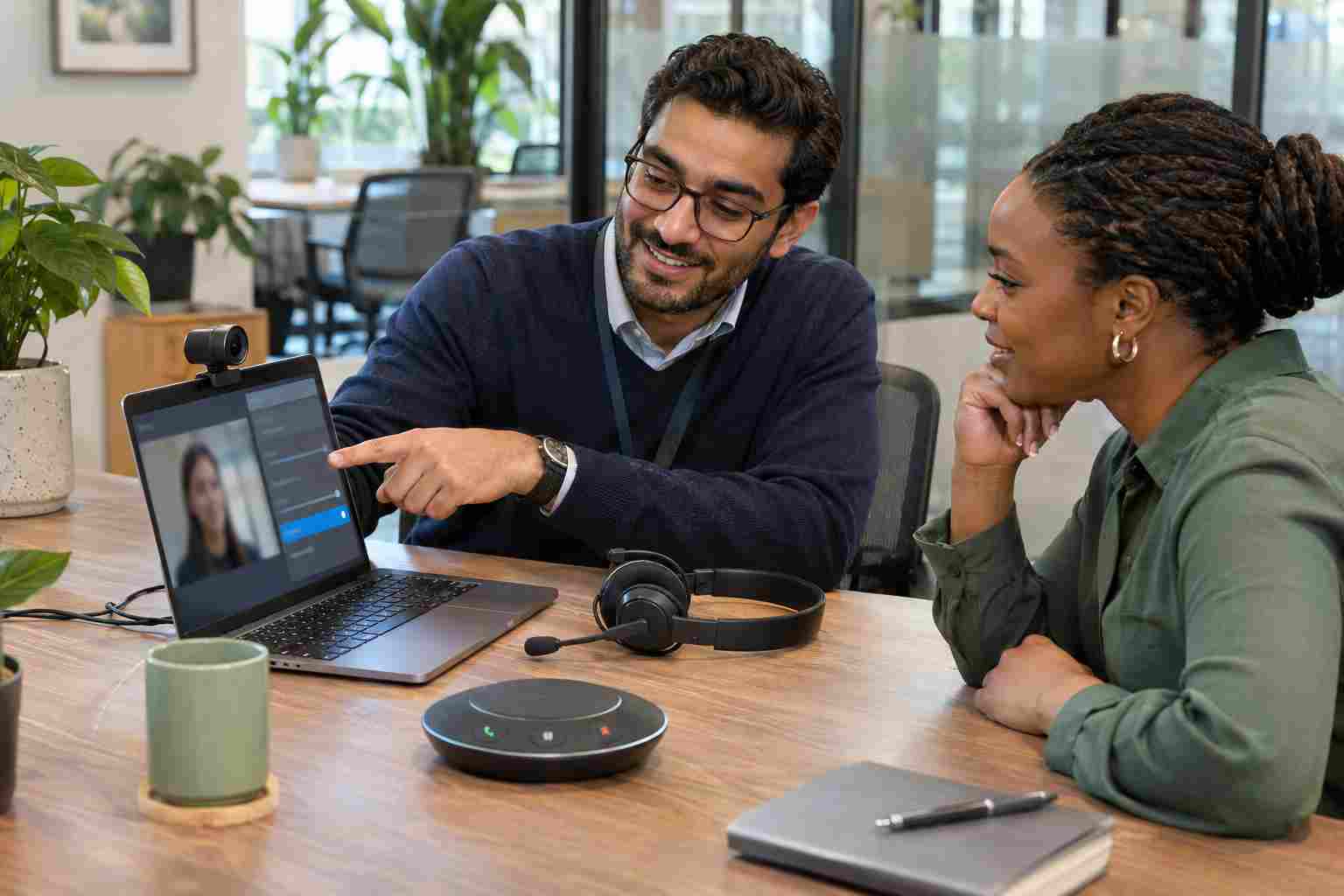
A client meeting begins in two minutes. Microsoft Teams opens, but the camera shows a blank screen, the microphone does not respond, or the wrong headset is selected.
These problems feel random, but they usually come from a short list of causes: a closed privacy shutter, a loose connection, the wrong device selection, blocked permissions, another application using the camera, or an update that needs a restart.
Before changing drivers or reinstalling software, work through these safer checks in order.
Start with the simplest possibilities.
Look for a privacy shutter or slider beside the laptop camera. Some computers also have a keyboard key that disables the camera electronically. A small camera symbol with a line through it may indicate that privacy mode is active.
For external webcams and headsets:
Avoid connecting unfamiliar personal equipment to a business computer without approval.
Teams may continue using a laptop’s built-in microphone after a headset is connected. It may also select a docking-station device or virtual camera that is not actually being used.
In Teams, open Settings, select Devices, and review the selected speaker, microphone, and camera. Choose the equipment you intend to use.
Where available, use Teams’ test-call feature. Record a short sample and play it back. This can confirm whether the microphone, speaker, and camera are working before an important meeting begins.
Open the built-in Windows Camera application.
If the camera works there but not in Teams, the camera hardware is probably functioning. Focus on Teams settings, application permissions, or another program that may be using the camera.
If the camera also fails in the Windows Camera application, the problem is more likely related to a physical shutter, Windows privacy setting, connection, update, driver, or hardware failure.
For the microphone, open Settings > System > Sound. Under the input section, select the microphone and use the available test option. Speak normally and check whether Windows detects sound.
This quick separation prevents unnecessary changes to a working device.
Windows can block applications from using the camera or microphone even when the hardware is working.
Go to Settings > Privacy & security > Camera. Confirm that camera access and application access are enabled. Teams and browsers may be treated as desktop applications, so review the setting that allows desktop applications to use the camera.
Repeat the process under Settings > Privacy & security > Microphone.
If a permission is greyed out or controlled by your organization, stop there and contact your IT provider. The setting may be managed centrally for security or privacy reasons.
If you use Teams in a web browser, the browser also needs permission. Select the site-permissions control beside the website address and confirm that the camera and microphone are allowed for the Teams website.
Another application may already be using the camera or microphone. Close other meeting tools, recording applications, camera utilities, and browser tabs that may have access.
Then fully close and reopen Teams.
If that does not help, restart the computer. Selecting Restart is important; closing the laptop lid or waking it from sleep does not perform the same reset.
Install approved Teams and Windows updates, especially when the problem started after a long period without restarting.
For a business-managed computer, follow your company’s update process. Avoid downloading drivers from search results or unfamiliar websites. Incorrect or malicious drivers can create larger reliability and security problems.
If Windows does not detect the camera or microphone after a restart and approved updates, let your IT provider inspect the device and its drivers.
Contact IT support when:
Repeated camera or microphone failures may point to aging hardware, unstable docking stations, inconsistent device settings, or an update problem affecting multiple computers.
Test the camera, microphone, and speakers before an important call. Keep shared meeting-room equipment connected consistently, label approved devices, and schedule updates outside busy meeting periods.
Businesses with several computers should also standardize webcams, headsets, docks, and meeting-room equipment when possible. Supporting a small number of known device models is easier and more reliable than maintaining a different setup at every desk.


Himala and his team at Cybernetic Networks have been amazing. We have been a customer of Cybernetic Networks for well over 14 years now, both personally and professionally. Himala and his team are professional, reachable and on the cutting edge of technology. We have enjoyed doing business with Cybernetic Networks for many years and still rely on their knowledge, skills and technology every day
Himala and his Cybernetic team have never let me down! For over 10 years now they have been fixing my technical issues, set up all my new networks and computers and have safeguarded me from any hackers or malware. You can trust this company to navigate you as your company grows and to keep you on track with the latest in security and safety
I am a solo practicing neurologist and have had all my IT needs covered through Cybernetic Networks since 2007. They are the best! All of their tech support staff is extremely knowledgeable and efficient. Just as importantly, they are quickly responsive whenever we need their assistance. I couldn’t be happier with their service and give them my highest recommendation!
I couldn't be happier with Cybernetics - they are experts, always respond quickly , and solves any issues I have.
Cybernetic Networks has been advising and supporting all our IT issues and purchases for the last 18 years. They are very responsive and extremely knowledgeable- always providing us with timely services.
It is not often you find small business companies that are not only rewarding to work with, but also have integrity, truth and skill. I have worked with this company for over 20 years, and the service is outstanding. I can easily recommend that if you need an IT company, this is the one to get. Full STOP! Look no further, you will be happy that you did. Sue Myhelic, Gulf Breeze Real Estate, Naples, Florida.
Himala and his team from Cybernetic Networks, Inc. has been an integral part of our successful retail business for the past 20 years. He is extraordinarily knowledgable and always available for our IT needs. Thanks to Himala and his team we are always up and running.