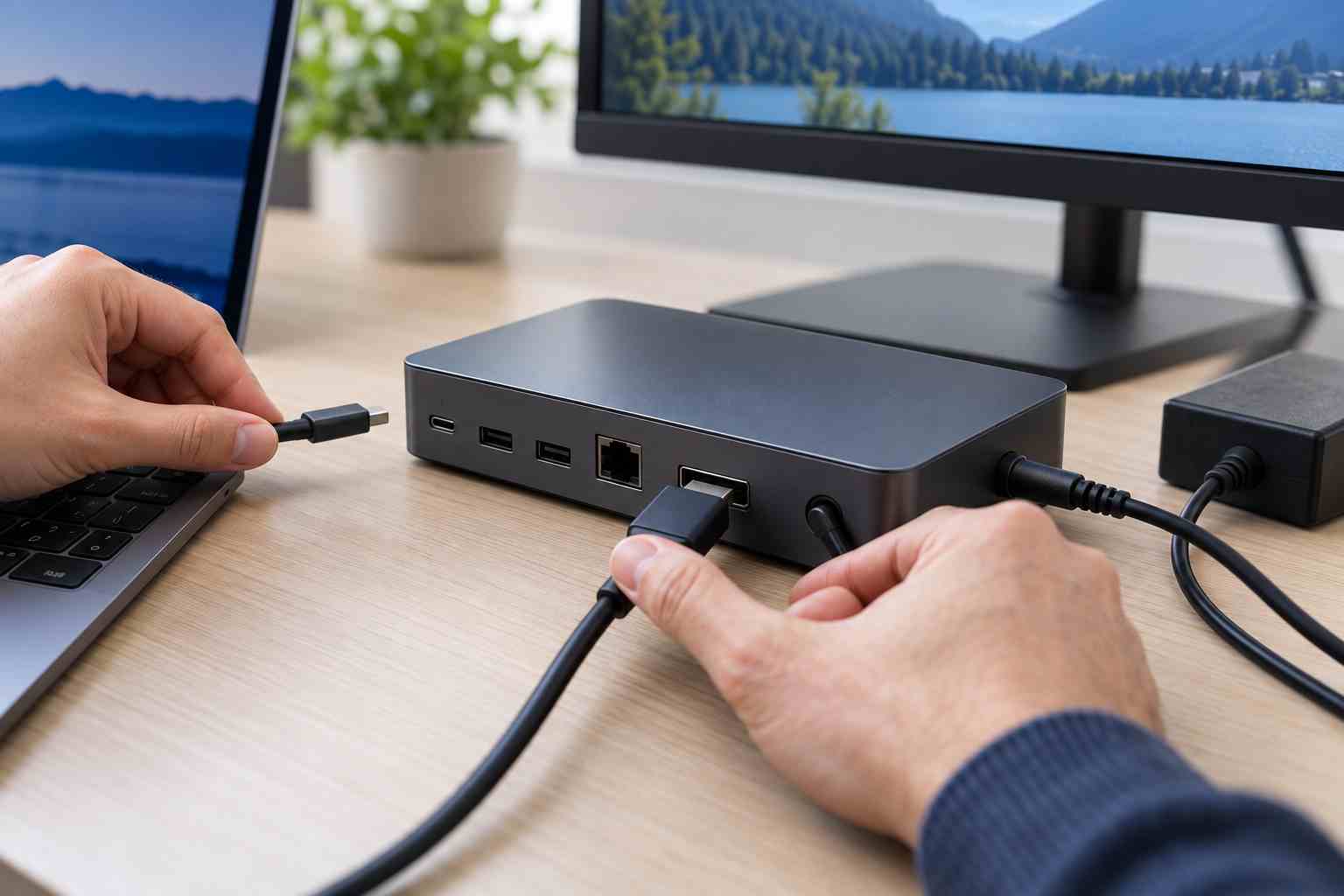
A laptop connects to its dock, but the second monitor stays black. The keyboard works, yet the screen does not. Or everything worked yesterday, but today Windows cannot find either display.
Docking stations make office workstations convenient, but one connection may be carrying power, video, network access, sound, and several USB devices at once. A loose cable, underpowered dock, incompatible USB-C port, or temporary Windows problem can therefore affect several devices together.
Before replacing the dock or monitor, work through the setup one piece at a time.
Confirm that the monitor and docking station have power. Look for normal indicator lights, make sure power adapters are firmly connected, and check that the monitor has not been switched to the wrong input.
Disconnect and reconnect the laptop’s USB-C cable. Then reseat the display cable at both the dock and monitor. If a cable looks damaged, feels loose, or works only when held in a certain position, replace it with a known-compatible cable.
USB-C cables may look identical while supporting different capabilities. Some carry charging and basic data but not video. Microsoft notes that the computer, port, cable, and connected device must all support the required USB-C display features. (Microsoft USB-C Troubleshooting)
Press Windows key + P and select Extend. This tells Windows to use the external monitor as additional desktop space rather than displaying only the laptop screen.
Then open Settings > System > Display and check whether Windows detects the monitor. If it appears there, confirm that it is enabled and arranged in the correct position.
A display splitter does not necessarily create two independent screens. Microsoft explains that many splitters simply duplicate one signal. Supporting multiple extended monitors may require a compatible docking station or display adapter. (Microsoft External Monitor Guidance)
Change one component at a time:
If the monitor works directly but not through the dock, the dock, its power supply, its cable, or its compatibility is the likely issue. If the same monitor fails on another computer, the monitor or display cable deserves closer attention.
Save open work and restart the laptop. A real restart can clear a stalled display driver or dock connection that unplugging and reconnecting does not resolve.
If the problem began after a Windows, graphics-driver, or dock-firmware update, record when it started and contact IT before rolling back or removing drivers. Microsoft lists a graphics-driver reset and driver review among its troubleshooting options, but company-managed computers may need an administrator to make those changes safely.
Avoid downloading “driver updater” or “PC repair” utilities from advertisements or unfamiliar websites. They can install unwanted software and make a simple hardware problem more difficult to diagnose.
Recurring dock problems may come from an undersized power adapter, a cable that does not support video, an incompatible laptop model, or more monitors than the computer can drive. A low battery can also cause Windows to limit power supplied to connected USB devices.
Mixed hardware is a common source of office frustration. Employees may have different laptop models, several dock brands, and a collection of nearly identical USB-C cables with different capabilities. A setup that works for one employee may therefore fail for another.
Small businesses can prevent many of these interruptions by standardizing supported laptops, docks, power adapters, cables, and monitors. Label equipment that belongs together, document approved connection layouts, keep dock firmware current, and maintain a spare tested cable or dock for quick isolation.
Employees should also have a simple way to report which devices stopped working. “The right monitor is blank, but the keyboard and network still work through the dock” gives IT a much better starting point than “my desk is broken.”


Himala and his team at Cybernetic Networks have been amazing. We have been a customer of Cybernetic Networks for well over 14 years now, both personally and professionally. Himala and his team are professional, reachable and on the cutting edge of technology. We have enjoyed doing business with Cybernetic Networks for many years and still rely on their knowledge, skills and technology every day
Himala and his Cybernetic team have never let me down! For over 10 years now they have been fixing my technical issues, set up all my new networks and computers and have safeguarded me from any hackers or malware. You can trust this company to navigate you as your company grows and to keep you on track with the latest in security and safety
I am a solo practicing neurologist and have had all my IT needs covered through Cybernetic Networks since 2007. They are the best! All of their tech support staff is extremely knowledgeable and efficient. Just as importantly, they are quickly responsive whenever we need their assistance. I couldn’t be happier with their service and give them my highest recommendation!
I couldn't be happier with Cybernetics - they are experts, always respond quickly , and solves any issues I have.
Cybernetic Networks has been advising and supporting all our IT issues and purchases for the last 18 years. They are very responsive and extremely knowledgeable- always providing us with timely services.
It is not often you find small business companies that are not only rewarding to work with, but also have integrity, truth and skill. I have worked with this company for over 20 years, and the service is outstanding. I can easily recommend that if you need an IT company, this is the one to get. Full STOP! Look no further, you will be happy that you did. Sue Myhelic, Gulf Breeze Real Estate, Naples, Florida.
Himala and his team from Cybernetic Networks, Inc. has been an integral part of our successful retail business for the past 20 years. He is extraordinarily knowledgable and always available for our IT needs. Thanks to Himala and his team we are always up and running.




