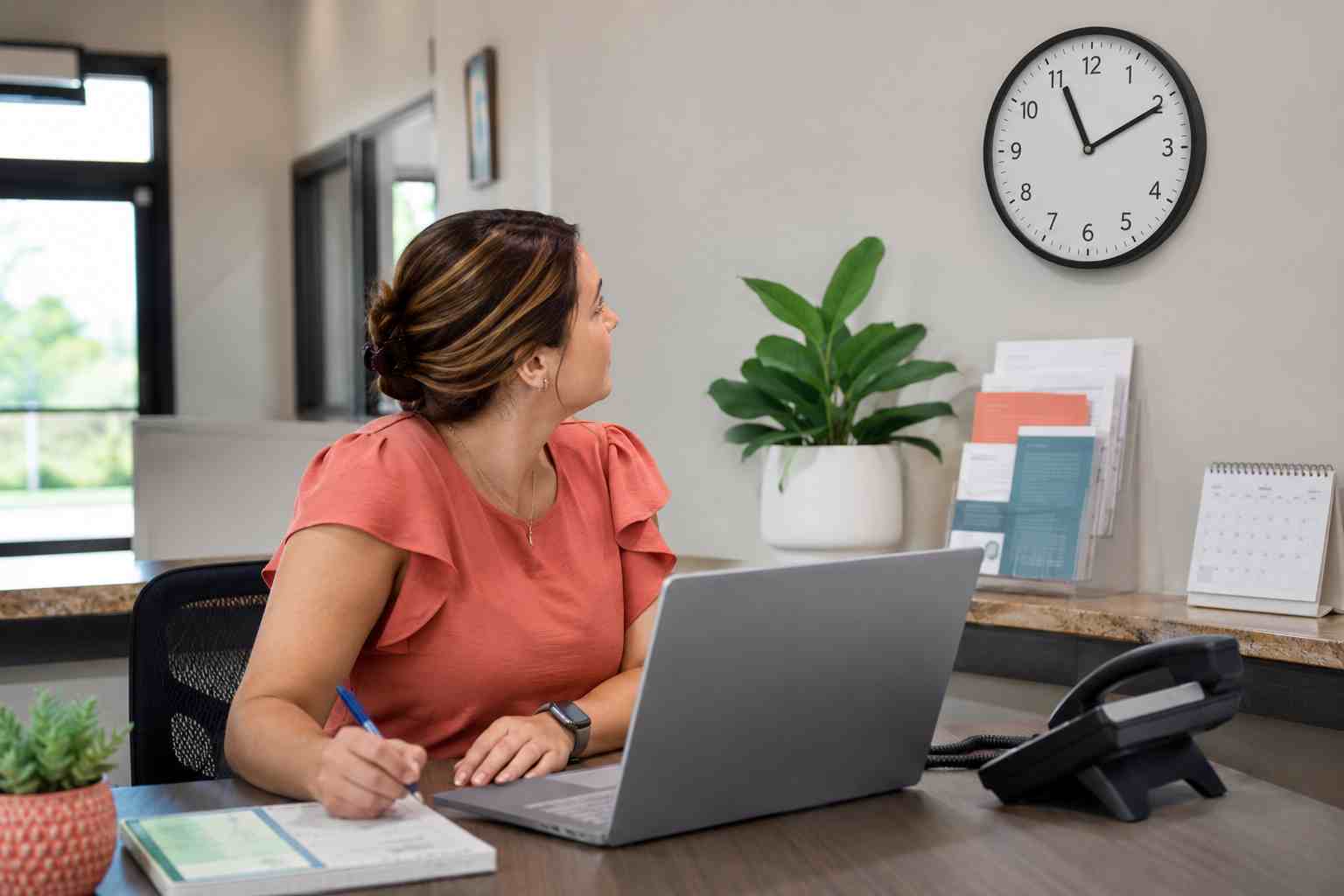
A computer that is several minutes or several hours wrong may seem like a minor annoyance. In a business, it can cause confusing meeting reminders, incorrect file timestamps, missed appointments, and account-access errors.
The computer may show the right minutes but the wrong time zone. It may correct itself and then change again after a restart. Traveling employees may also return to Orlando and find that their laptops never switched back to Eastern Time.
Microsoft continues to improve time-zone detection and daylight-saving handling in Windows updates, but individual devices can still have incorrect settings, disabled location services, management policies, or synchronization problems.
Windows treats the clock and the time zone as related but separate settings.
Open:
Start > Settings > Time & language > Date & time
Then review the following:
Avoid repeatedly changing the time manually without checking the time zone. A manually corrected clock can become wrong again when Windows performs its next synchronization.
Automatic time-zone detection may depend on Windows location services.
If the automatic option is unavailable or consistently chooses the wrong area, open:
Settings > Privacy & security > Location
Confirm whether location services are permitted on the device. On a company-managed computer, the setting may be controlled by an administrator.
Employees should not attempt registry changes or remove company policies to fix this. Contact IT if the setting is locked.
Microsoft’s August 27 Windows 11 preview update included improvements to time-zone change notifications and daylight-saving data. Preview updates are optional and are not always appropriate for every business computer, so employees should not install them independently just to fix the clock.
Instead:
A shared problem may point to an update, company policy, or network time source rather than an individual setting.
Business systems depend on reliable timestamps.
Incorrect time can affect:
When the clock is wrong, employees may also make the problem worse by creating duplicate meetings, changing calendar entries, or repeatedly resetting passwords.
Contact IT if:
A recurring issue may involve device-management policies, the Windows Time service, network configuration, or an aging internal battery. Those causes should be diagnosed before more settings are changed.


Himala and his team at Cybernetic Networks have been amazing. We have been a customer of Cybernetic Networks for well over 14 years now, both personally and professionally. Himala and his team are professional, reachable and on the cutting edge of technology. We have enjoyed doing business with Cybernetic Networks for many years and still rely on their knowledge, skills and technology every day
Himala and his Cybernetic team have never let me down! For over 10 years now they have been fixing my technical issues, set up all my new networks and computers and have safeguarded me from any hackers or malware. You can trust this company to navigate you as your company grows and to keep you on track with the latest in security and safety
I am a solo practicing neurologist and have had all my IT needs covered through Cybernetic Networks since 2007. They are the best! All of their tech support staff is extremely knowledgeable and efficient. Just as importantly, they are quickly responsive whenever we need their assistance. I couldn’t be happier with their service and give them my highest recommendation!
I couldn't be happier with Cybernetics - they are experts, always respond quickly , and solves any issues I have.
Cybernetic Networks has been advising and supporting all our IT issues and purchases for the last 18 years. They are very responsive and extremely knowledgeable- always providing us with timely services.
It is not often you find small business companies that are not only rewarding to work with, but also have integrity, truth and skill. I have worked with this company for over 20 years, and the service is outstanding. I can easily recommend that if you need an IT company, this is the one to get. Full STOP! Look no further, you will be happy that you did. Sue Myhelic, Gulf Breeze Real Estate, Naples, Florida.
Himala and his team from Cybernetic Networks, Inc. has been an integral part of our successful retail business for the past 20 years. He is extraordinarily knowledgable and always available for our IT needs. Thanks to Himala and his team we are always up and running.




