A business laptop that once ran for hours may eventually need a charger before lunch. Sometimes the cause is a power-hungry application or an adjustable Windows setting. In other cases, the battery has simply lost capacity and needs replacement.
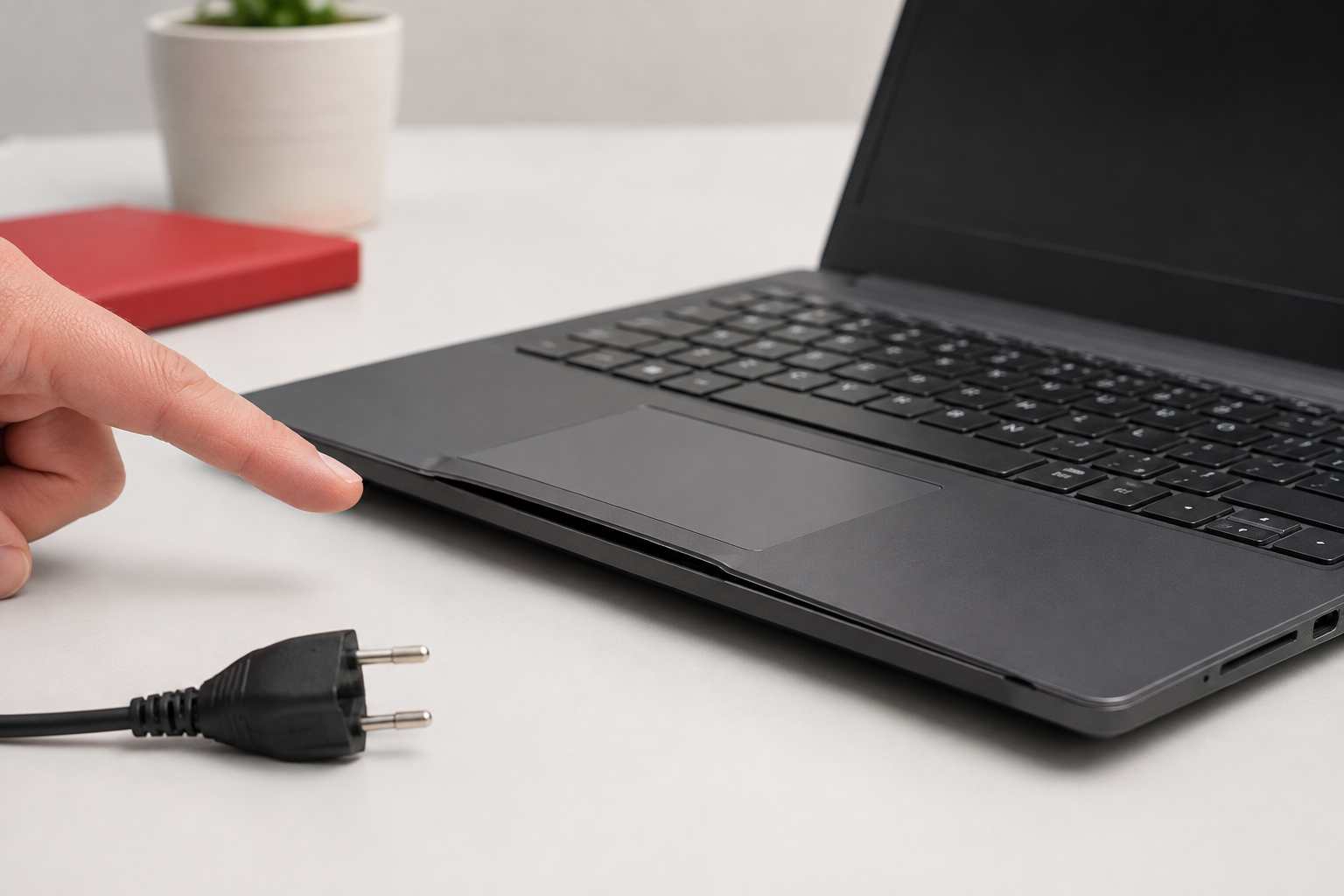
The problem becomes more serious when the laptop’s case begins to separate, the trackpad rises, or the computer no longer sits flat. Those can be signs of a swollen battery and should not be treated as an ordinary performance problem.
Knowing the difference can help employees avoid lost work, unnecessary computer replacement, and unsafe attempts to continue using damaged equipment.
Most modern laptops use lithium-ion batteries. These batteries naturally hold less charge as they age and complete more charging cycles.
Heat can accelerate deterioration. This matters in Central Florida, where a laptop left in a hot vehicle can be exposed to temperatures far beyond a normal office environment.
A battery may also appear to drain quickly because of:
A restart can close a stuck application or background process that has been consuming power. Save open work and use Restart rather than simply closing the laptop lid.
In Windows 11, open Settings, select System, and then choose Power & battery. Review Energy recommendations and consider enabling Energy Saver.
Reducing brightness and shortening the time before the screen turns off can improve battery life without disrupting normal office work.
Windows can show battery usage by application. A browser with many active tabs, video-conferencing software, cloud synchronization, or an application that has stopped responding may consume more power than expected.
Do not remove unfamiliar business or security software without checking with IT. Some background tools are required for backups, device protection, or remote support.
USB drives, mobile devices, portable monitors, and other accessories can draw power from the laptop. Disconnect items that are not needed and see whether battery performance improves.
A low-powered or incompatible USB-C charger may keep a laptop running without charging it properly. Use the manufacturer-approved charger or one that meets the laptop’s required wattage.
Repeatedly swapping unknown chargers between workstations can create inconsistent charging and unnecessary support problems.
Windows 11 can generate a battery report that compares the battery’s current full-charge capacity with its original design capacity. This can help an IT technician determine whether the problem is an application, a setting, or normal battery wear.
Microsoft documents the following command:
powercfg /batteryreport
Employees do not need to interpret the report alone. An IT provider can review the results and determine whether a battery replacement, software adjustment, or broader device replacement is the sensible choice.
Stop using the laptop and contact a qualified technician if you notice:
Microsoft advises users to stop using a device immediately when a battery expands beyond its enclosure. Do not press the case closed, puncture the battery, continue charging it, or attempt removal without the appropriate training.
Turn the laptop off, disconnect its charger, keep it away from heat and combustible material, and contact the manufacturer or an experienced technician for device-specific instructions.
Microsoft recommends avoiding frequent deep discharges and keeping the battery within a moderate charge range when practical. Some business laptops also include a smart-charging or battery-preservation mode for computers that remain connected to power for long periods.
Businesses can also reduce recurring problems by:
When every employee handles battery problems differently, the business ends up with unapproved chargers, surprise shutdowns, rushed replacements, and potentially damaged equipment. A basic device-maintenance plan creates a consistent way to inspect batteries, evaluate aging computers, and schedule replacements before work is interrupted.


Himala and his team at Cybernetic Networks have been amazing. We have been a customer of Cybernetic Networks for well over 14 years now, both personally and professionally. Himala and his team are professional, reachable and on the cutting edge of technology. We have enjoyed doing business with Cybernetic Networks for many years and still rely on their knowledge, skills and technology every day
Himala and his Cybernetic team have never let me down! For over 10 years now they have been fixing my technical issues, set up all my new networks and computers and have safeguarded me from any hackers or malware. You can trust this company to navigate you as your company grows and to keep you on track with the latest in security and safety
I am a solo practicing neurologist and have had all my IT needs covered through Cybernetic Networks since 2007. They are the best! All of their tech support staff is extremely knowledgeable and efficient. Just as importantly, they are quickly responsive whenever we need their assistance. I couldn’t be happier with their service and give them my highest recommendation!
I couldn't be happier with Cybernetics - they are experts, always respond quickly , and solves any issues I have.
Cybernetic Networks has been advising and supporting all our IT issues and purchases for the last 18 years. They are very responsive and extremely knowledgeable- always providing us with timely services.
It is not often you find small business companies that are not only rewarding to work with, but also have integrity, truth and skill. I have worked with this company for over 20 years, and the service is outstanding. I can easily recommend that if you need an IT company, this is the one to get. Full STOP! Look no further, you will be happy that you did. Sue Myhelic, Gulf Breeze Real Estate, Naples, Florida.
Himala and his team from Cybernetic Networks, Inc. has been an integral part of our successful retail business for the past 20 years. He is extraordinarily knowledgable and always available for our IT needs. Thanks to Himala and his team we are always up and running.




