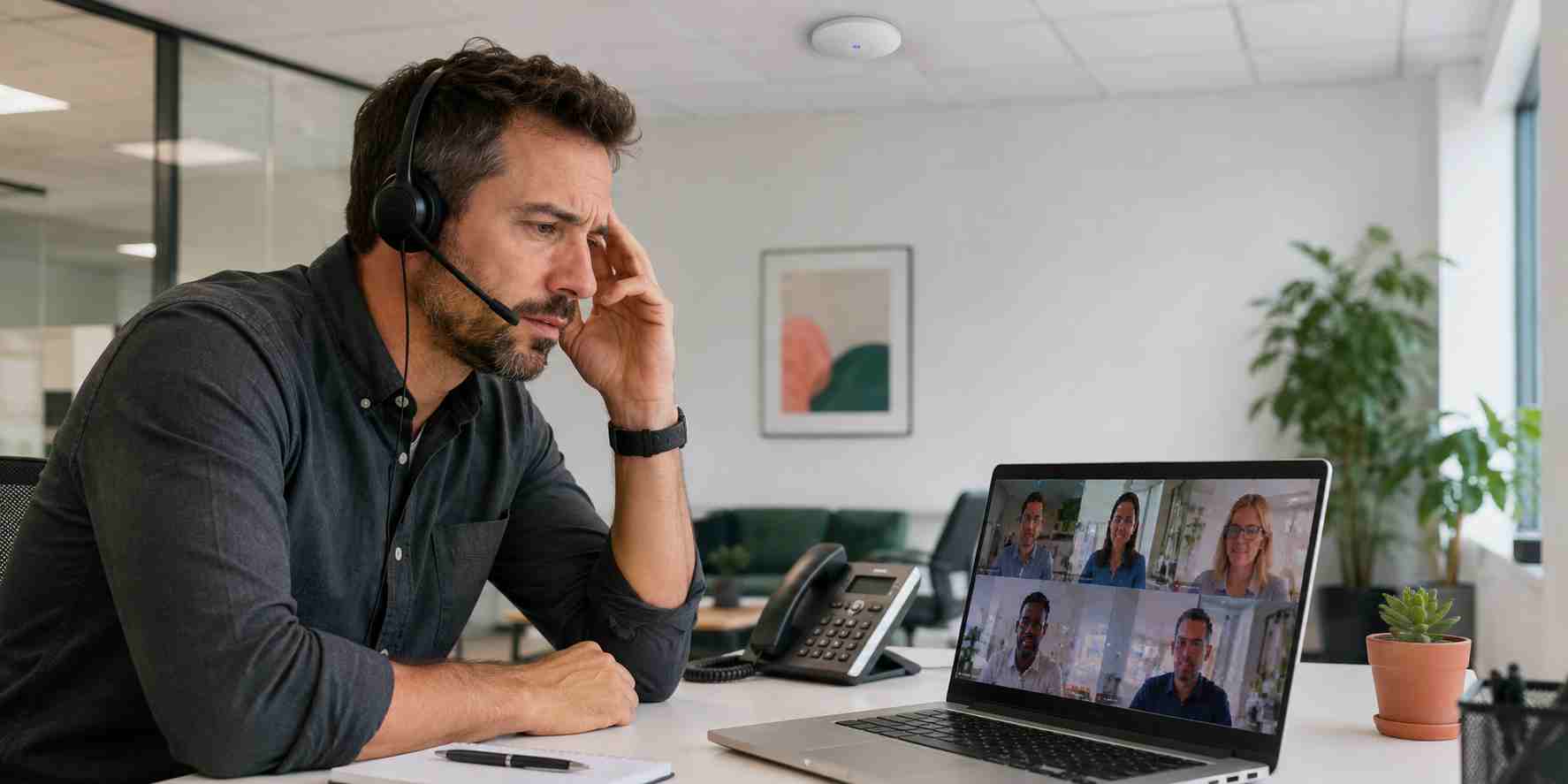
A customer is explaining an important problem, but every third word disappears. A remote employee sounds robotic. The video freezes while the audio continues. Someone leaves and rejoins the meeting, and the problem returns five minutes later.
The natural reaction is to run an internet speed test. When the result looks fast, the problem becomes even more confusing.
Microsoft Teams and other internet-based calling systems do not depend on speed alone. They also need information to travel consistently and arrive in the correct order. A connection can download large files quickly and still perform poorly during a live conversation.
Microsoft identifies delay, changing delay, and lost data as important call-quality measurements.
Delay, often called latency, is how long information takes to travel between participants. Too much delay causes people to talk over one another because responses arrive late.
Changing delay, known technically as jitter, means pieces of the conversation are arriving at uneven intervals. The calling application tries to smooth them out, but excessive variation can make a voice sound distorted or robotic.
Lost data, called packet loss, happens when small pieces of the audio or video never arrive. That can produce missing words, frozen video, or complete audio cutouts.
A normal speed test may not clearly expose any of these problems.
Call-quality trouble often follows a pattern. It may affect one conference room, one side of the office, remote employees using a company VPN, or everyone at the busiest time of day.
Common causes include:
Finding the pattern is more useful than repeatedly restarting random equipment.
When a call begins breaking up, try these simple checks:
Avoid changing firewall, router, VPN, or advanced network settings without qualified assistance. An improvised adjustment can create security problems or make the fault harder to diagnose.
Microsoft provides call-quality information that an administrator can use to investigate individual calls and broader office trends. This can show whether poor calls are associated with delay, lost data, a particular building, a network connection, or a recurring group of devices.
An IT provider can then evaluate practical improvements such as:
Microsoft calls traffic prioritization “Quality of Service.” In plain English, it gives time-sensitive calls a better place in line so they are less likely to become stuck behind a large download.
Poor calls waste meeting time, create misunderstandings, and make customer conversations feel less professional. Rejoining every meeting or buying a faster internet package may temporarily hide the issue without addressing its cause.


Himala and his team at Cybernetic Networks have been amazing. We have been a customer of Cybernetic Networks for well over 14 years now, both personally and professionally. Himala and his team are professional, reachable and on the cutting edge of technology. We have enjoyed doing business with Cybernetic Networks for many years and still rely on their knowledge, skills and technology every day
Himala and his Cybernetic team have never let me down! For over 10 years now they have been fixing my technical issues, set up all my new networks and computers and have safeguarded me from any hackers or malware. You can trust this company to navigate you as your company grows and to keep you on track with the latest in security and safety
I am a solo practicing neurologist and have had all my IT needs covered through Cybernetic Networks since 2007. They are the best! All of their tech support staff is extremely knowledgeable and efficient. Just as importantly, they are quickly responsive whenever we need their assistance. I couldn’t be happier with their service and give them my highest recommendation!
I couldn't be happier with Cybernetics - they are experts, always respond quickly , and solves any issues I have.
Cybernetic Networks has been advising and supporting all our IT issues and purchases for the last 18 years. They are very responsive and extremely knowledgeable- always providing us with timely services.
It is not often you find small business companies that are not only rewarding to work with, but also have integrity, truth and skill. I have worked with this company for over 20 years, and the service is outstanding. I can easily recommend that if you need an IT company, this is the one to get. Full STOP! Look no further, you will be happy that you did. Sue Myhelic, Gulf Breeze Real Estate, Naples, Florida.
Himala and his team from Cybernetic Networks, Inc. has been an integral part of our successful retail business for the past 20 years. He is extraordinarily knowledgable and always available for our IT needs. Thanks to Himala and his team we are always up and running.




