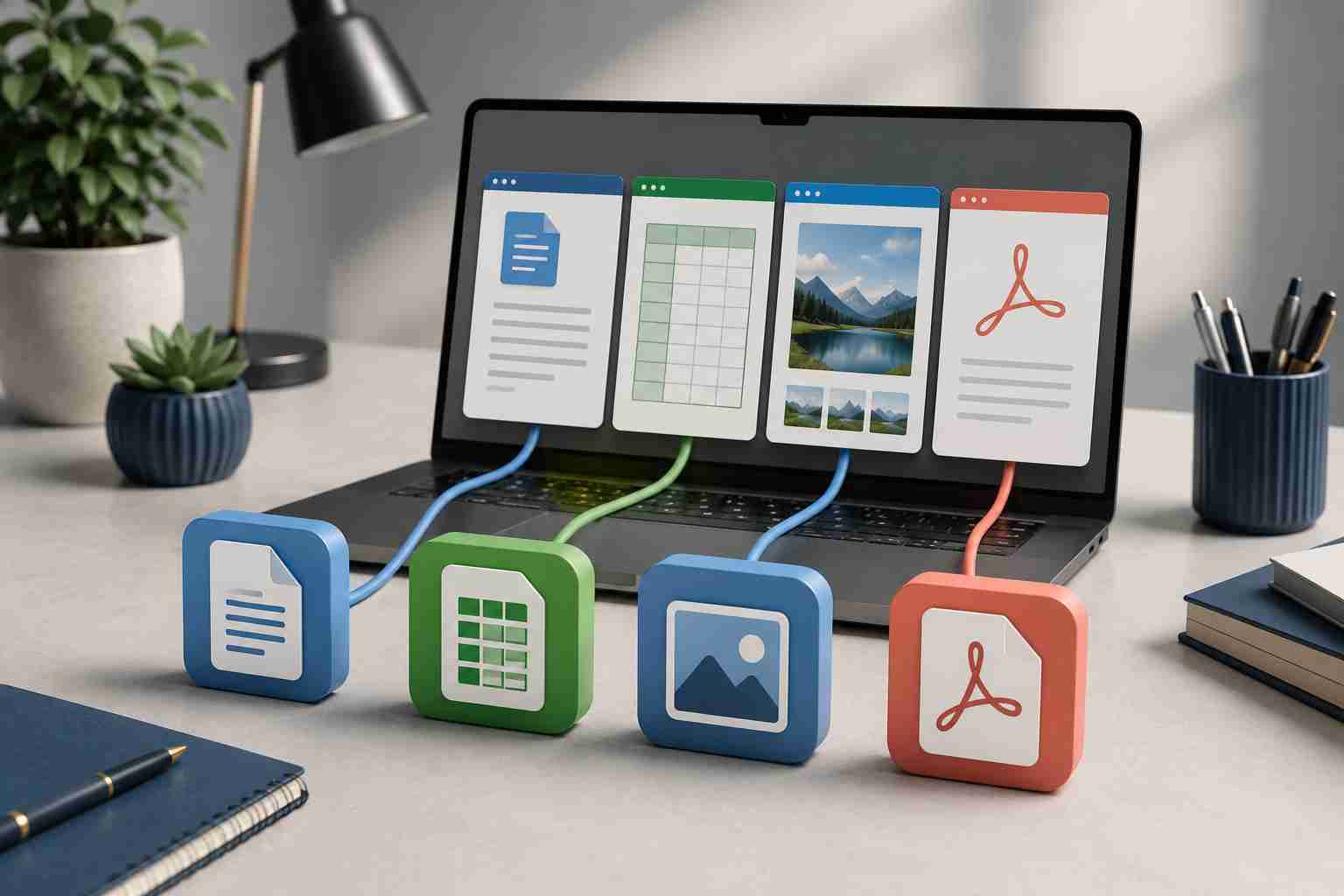
You double-click a PDF and it opens in a web browser you do not normally use. A photograph launches in an editing program. A spreadsheet opens in an unfamiliar viewer, or Windows asks which program you want every single time.
The file is not necessarily damaged. Windows may simply be using the wrong default app.
A default app is the program Windows automatically chooses for a particular kind of file or link. When that choice changes, ordinary work can become surprisingly confusing.
Windows recognizes file types through the letters at the end of a filename. These are called file extensions.
Common examples include:
.docx for a Word document.xlsx for an Excel workbook.pdf for a PDF document.jpg or .png for an image.csv for certain data filesEach extension can be connected to a default program. That connection may change after:
The result can look like a file problem even when the file itself is fine.
Before changing anything, determine what kind of file you are opening.
In Windows File Explorer, select View, then Show, then File name extensions. This reveals the ending of each filename.
Do not rename the extension simply to make the file open. Changing report.pdf to report.docx does not convert the document. It only changes the label, which may make the situation more confusing.
If the file came from an unexpected email or has an unfamiliar extension, stop and ask IT to inspect it. Do not experiment with unknown attachments on a business computer.
If the file is expected and you recognize its type:
This is a useful test because it does not require reinstalling anything. If the file opens normally in the correct app, the problem is probably the default association rather than the document.
Be cautious about selecting a permanent “always use” option until you are certain that the chosen program is appropriate for every file of that type.
Microsoft’s supported method is through Windows Settings:
.pdf.Windows also lets you select an application and review the file types associated with it.
On a company-managed computer, some options may be controlled by your IT provider. That is often intentional. Standardized settings help ensure that employees use compatible, supported applications.
If the preferred program is not listed, confirm that it is actually installed. Avoid downloading random document viewers or “file opener” utilities from advertisements or unfamiliar websites.
When an installed program will not open files correctly, Windows may offer a repair option under Settings > Apps > Installed apps. Not every program supports repair, and business-critical software should be handled carefully.
Call IT support when:
These patterns may point to an incomplete update, damaged application, user-profile problem, conflicting software, or company policy.
When every office computer is configured differently, small problems become recurring help-desk tickets. One employee opens PDFs in a browser, another uses a dedicated reader, and a third installs an unapproved utility just to make a document work.
A managed setup can define which applications the business uses, keep those programs updated, and apply appropriate default-app policies across company devices. That provides employees with a more consistent experience and makes troubleshooting much faster.
It also reduces the temptation to install unnecessary software that could create licensing, compatibility, or security problems.
A wrong default app is usually easy to correct. Repeated file-opening problems across several computers deserve a more organized response.


Himala and his team at Cybernetic Networks have been amazing. We have been a customer of Cybernetic Networks for well over 14 years now, both personally and professionally. Himala and his team are professional, reachable and on the cutting edge of technology. We have enjoyed doing business with Cybernetic Networks for many years and still rely on their knowledge, skills and technology every day
Himala and his Cybernetic team have never let me down! For over 10 years now they have been fixing my technical issues, set up all my new networks and computers and have safeguarded me from any hackers or malware. You can trust this company to navigate you as your company grows and to keep you on track with the latest in security and safety
I am a solo practicing neurologist and have had all my IT needs covered through Cybernetic Networks since 2007. They are the best! All of their tech support staff is extremely knowledgeable and efficient. Just as importantly, they are quickly responsive whenever we need their assistance. I couldn’t be happier with their service and give them my highest recommendation!
I couldn't be happier with Cybernetics - they are experts, always respond quickly , and solves any issues I have.
Cybernetic Networks has been advising and supporting all our IT issues and purchases for the last 18 years. They are very responsive and extremely knowledgeable- always providing us with timely services.
It is not often you find small business companies that are not only rewarding to work with, but also have integrity, truth and skill. I have worked with this company for over 20 years, and the service is outstanding. I can easily recommend that if you need an IT company, this is the one to get. Full STOP! Look no further, you will be happy that you did. Sue Myhelic, Gulf Breeze Real Estate, Naples, Florida.
Himala and his team from Cybernetic Networks, Inc. has been an integral part of our successful retail business for the past 20 years. He is extraordinarily knowledgable and always available for our IT needs. Thanks to Himala and his team we are always up and running.




