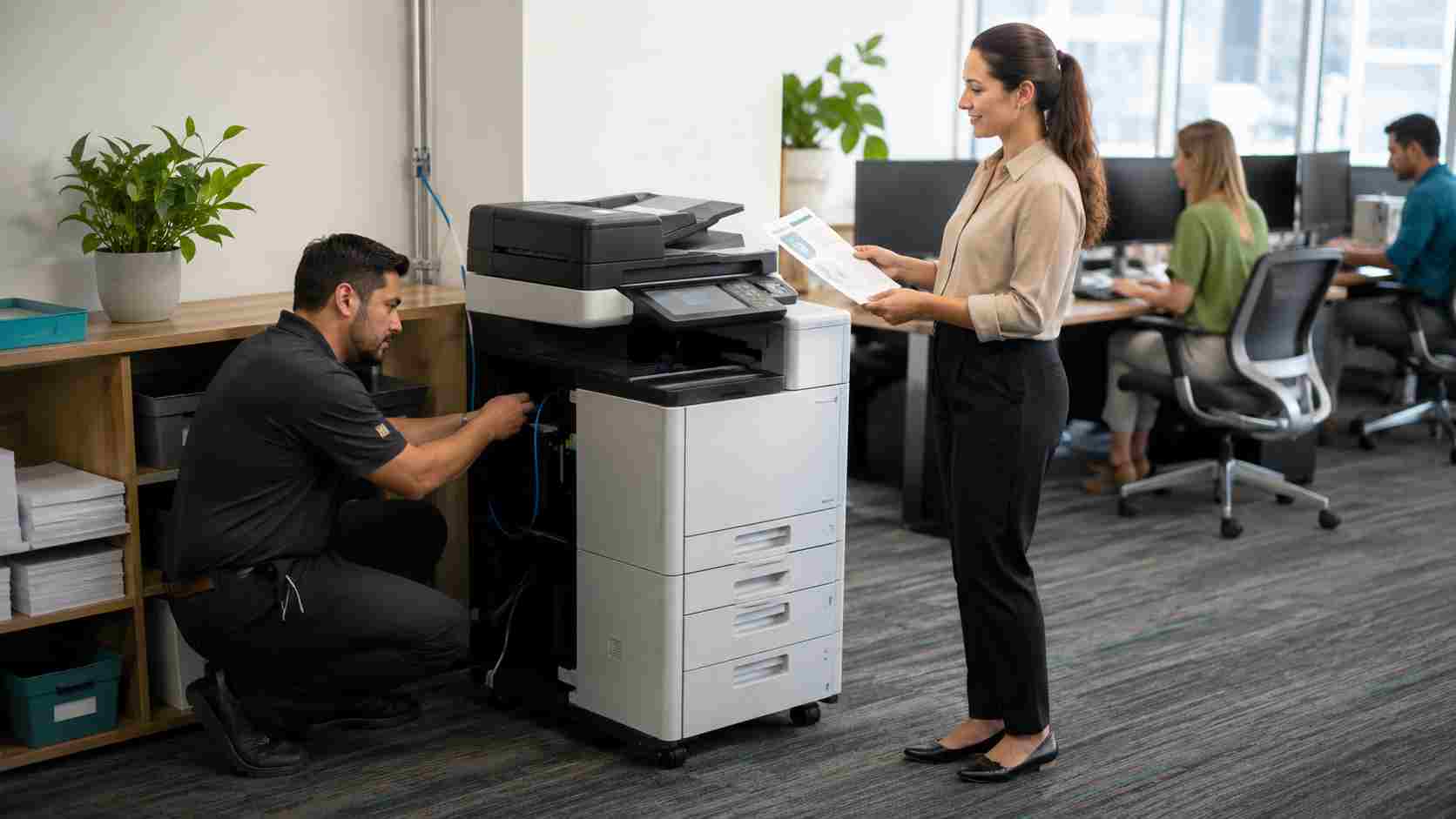
An office printer can look perfectly normal while every computer insists it is offline. Another common version of the problem is a print job that remains stuck in the queue and prevents everything behind it from printing.
Employees may send the document again, switch computers, or create several copies of the same job. That often makes the queue more confusing without addressing the underlying problem.
Before replacing the printer or repeatedly reinstalling it, work through a few simple checks in the right order.
Ask whether the problem affects one employee or everyone.
If only one person cannot print, the issue may be that computer’s connection, selected printer, driver, or application. If nobody can print, the problem is more likely connected to the printer itself, the network, or the shared print service.
This distinction saves time. There is little value in changing a printer’s settings when every other employee can use it normally.
Start with the equipment before changing computer settings.
Confirm that:
A printer may appear “offline” because it is paused at the device, waiting for a simple response.
If nothing is obviously wrong, turn the printer off, unplug it for about 30 seconds, reconnect it, and allow it to start completely. Microsoft recommends this basic power cycle as an early troubleshooting step.
Wireless and network printers must be reachable from the employee’s computer.
A laptop connected to guest Wi-Fi may have internet access but still be unable to see an office printer. This is often intentional because a properly separated guest network should not provide access to internal business equipment.
The same problem can occur when an office uses several wireless network names, extenders, or separate routers. Confirm that the affected computer is connected to the approved staff network.
Do not weaken guest-network security simply to make printing easier. The better solution is to configure the printer and staff devices correctly.
The print queue is the waiting line of documents that Windows plans to send to the printer.
One damaged or unusually large job can sometimes hold everything behind it. Open Settings, select Bluetooth & devices, choose Printers & scanners, select the correct printer, and open its print queue.
Check for:
Cancel only the jobs you recognize as unnecessary or stuck. If the queue does not respond, avoid repeatedly clicking Print. That creates more work once the connection returns.
Many offices have old printer entries left behind after replacements, relocations, or software changes. Employees may also see options for PDF files, label printers, conference-room printers, or devices that no longer exist.
Confirm that the selected printer is the current office device. Printing a Windows test page can help determine whether the problem affects the whole computer or only one document or application.
If the test page works but a particular Word, Excel, or PDF file does not, the issue may be with that application or file rather than the printer.
Windows 11 includes an automated printer troubleshooter in the Get Help application. Microsoft recommends using it to diagnose common connection, queue, and configuration problems.
This is a reasonable next step after checking the equipment, network, and selected printer. Employees should be cautious about downloading unofficial “driver fix” utilities or calling phone numbers displayed in unexpected pop-ups.
A driver is the software that allows Windows and the printer to communicate. An outdated, damaged, or incorrect driver can cause offline messages, missing features, and failed print jobs.
Drivers should come from Windows Update or the printer manufacturer’s official support site. Avoid downloading them from advertisements or unfamiliar websites.
The Windows Print Spooler, which manages print jobs, may also need to be restarted or cleared. Microsoft provides steps for doing this, but businesses with shared printers should let their IT provider handle it when several employees are affected. Clearing the wrong queue or changing shared settings can disrupt working computers.
Recurring printer issues usually point to a setup problem, not bad luck.
Businesses can reduce repeat interruptions by:


Himala and his team at Cybernetic Networks have been amazing. We have been a customer of Cybernetic Networks for well over 14 years now, both personally and professionally. Himala and his team are professional, reachable and on the cutting edge of technology. We have enjoyed doing business with Cybernetic Networks for many years and still rely on their knowledge, skills and technology every day
Himala and his Cybernetic team have never let me down! For over 10 years now they have been fixing my technical issues, set up all my new networks and computers and have safeguarded me from any hackers or malware. You can trust this company to navigate you as your company grows and to keep you on track with the latest in security and safety
I am a solo practicing neurologist and have had all my IT needs covered through Cybernetic Networks since 2007. They are the best! All of their tech support staff is extremely knowledgeable and efficient. Just as importantly, they are quickly responsive whenever we need their assistance. I couldn’t be happier with their service and give them my highest recommendation!
I couldn't be happier with Cybernetics - they are experts, always respond quickly , and solves any issues I have.
Cybernetic Networks has been advising and supporting all our IT issues and purchases for the last 18 years. They are very responsive and extremely knowledgeable- always providing us with timely services.
It is not often you find small business companies that are not only rewarding to work with, but also have integrity, truth and skill. I have worked with this company for over 20 years, and the service is outstanding. I can easily recommend that if you need an IT company, this is the one to get. Full STOP! Look no further, you will be happy that you did. Sue Myhelic, Gulf Breeze Real Estate, Naples, Florida.
Himala and his team from Cybernetic Networks, Inc. has been an integral part of our successful retail business for the past 20 years. He is extraordinarily knowledgable and always available for our IT needs. Thanks to Himala and his team we are always up and running.




