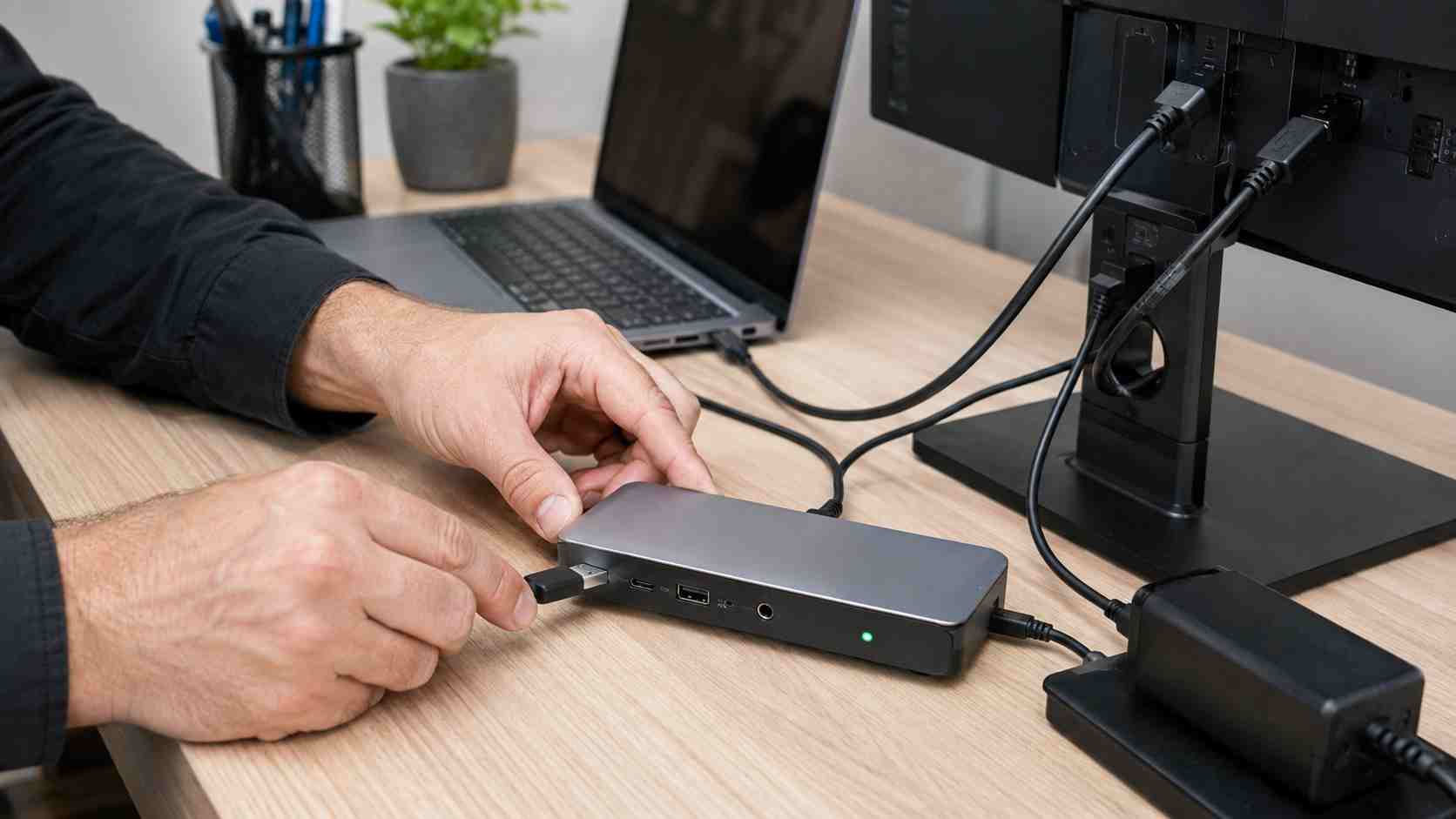
Many office employees now connect a laptop to two monitors, Ethernet, a keyboard, a mouse, a headset, power, and other accessories through one USB-C docking station.
It feels wonderfully simple when it works. When it does not, the symptoms can be confusing:
These symptoms may look unrelated, but they can all lead back to the connection between the laptop, USB-C cable, dock, power supply, and attached equipment.
The connector may look identical on two different laptops or cables, but the features behind it can be different.
One USB-C port may support charging and data but not an external display. Another may support one monitor but not two. A cable that charges a phone may not carry enough power or display data for a business docking station.
Microsoft notes that the computer, cable, dock, and attached device must support compatible features. Some equipment also needs a particular USB-C port, DisplayPort capability, Thunderbolt support, or sufficient power.
That is why replacing a cable with another cable that “fits” does not always solve the problem.
Before replacing a dock or monitor, work through the setup in a consistent order.
Confirm that the docking station is connected to its proper power adapter. A lower-powered replacement adapter may run some equipment without delivering enough power for the entire workstation.
If Windows displays a slow-charger warning or the laptop battery continues dropping while connected, the dock, charger, cable, or laptop may not support the required power level.
Disconnect and firmly reconnect:
Look for loose connectors, damaged cable ends, bent ports, or cables being pulled tightly behind the desk.
If the laptop has more than one USB-C port, check the manufacturer’s documentation. The port with a lightning-bolt or display symbol may support features that another port does not.
Disconnect nonessential accessories and test one monitor at a time. If one monitor works reliably but two do not, the setup may be exceeding the dock, laptop, cable, or display capability.
This also helps identify whether a particular monitor, cable, or USB accessory is causing the conflict.
Save all work, shut down the laptop, disconnect the dock from the laptop and power, and wait about 30 seconds. Reconnect the dock’s power before reconnecting the laptop.
This can reset a dock that has stopped responding. It is a useful test, although repeated resets should not become the permanent solution.
A docking station is an electronic device with its own internal software, commonly called firmware. Laptop manufacturers may also release updates for graphics, USB, network, and Thunderbolt components.
Outdated or mismatched updates can contribute to monitor blanking, unreliable network connections, charging problems, or failure after sleep.
Dell, for example, documents cases where updating dock firmware resolves intermittent monitor blanking on affected models. The correct update depends on the exact laptop and docking-station model, so businesses should avoid installing random drivers from third-party download websites.
Use the computer or dock manufacturer’s official support page, or ask the company’s IT provider to manage the updates.
A cable replacement may solve one workstation. If the same problem keeps appearing across the office, the business may have a larger equipment-management issue.
Common causes include:
At that point, troubleshooting each desk separately becomes expensive. Standardizing laptops, approved docks, power supplies, display cables, and monitor configurations can reduce both downtime and support time.
When reporting a dock problem, provide a few specific details:
A short video of a flickering monitor or a photo of the connections can also help a technician identify the problem more quickly.
A docking station should make work easier, not turn the start of every morning into a cable experiment. Reliable workstations depend on compatible equipment, controlled updates, consistent configurations, and a support process that identifies recurring problems.


 Trustindex verifies that the original source of the review is Google.
  Trustindex verifies that the original source of the review is Google.
  Trustindex verifies that the original source of the review is Google.
  Trustindex verifies that the original source of the review is Google.
  Trustindex verifies that the original source of the review is Google.
  Trustindex verifies that the original source of the review is Google.
  Trustindex verifies that the original source of the review is Google.
  Trustindex verifies that the original source of the review is Google.
  Trustindex verifies that the original source of the review is Google.
  Trustindex verifies that the original source of the review is Google.

Himala and his team at Cybernetic Networks have been amazing. We have been a customer of Cybernetic Networks for well over 14 years now, both personally and professionally. Himala and his team are professional, reachable and on the cutting edge of technology. We have enjoyed doing business with Cybernetic Networks for many years and still rely on their knowledge, skills and technology every day
Himala and his Cybernetic team have never let me down! For over 10 years now they have been fixing my technical issues, set up all my new networks and computers and have safeguarded me from any hackers or malware. You can trust this company to navigate you as your company grows and to keep you on track with the latest in security and safety
I am a solo practicing neurologist and have had all my IT needs covered through Cybernetic Networks since 2007. They are the best! All of their tech support staff is extremely knowledgeable and efficient. Just as importantly, they are quickly responsive whenever we need their assistance. I couldn’t be happier with their service and give them my highest recommendation!
I couldn't be happier with Cybernetics - they are experts, always respond quickly , and solves any issues I have.
Cybernetic Networks has been advising and supporting all our IT issues and purchases for the last 18 years. They are very responsive and extremely knowledgeable- always providing us with timely services.
It is not often you find small business companies that are not only rewarding to work with, but also have integrity, truth and skill. I have worked with this company for over 20 years, and the service is outstanding. I can easily recommend that if you need an IT company, this is the one to get. Full STOP! Look no further, you will be happy that you did. Sue Myhelic, Gulf Breeze Real Estate, Naples, Florida.
Himala and his team from Cybernetic Networks, Inc. has been an integral part of our successful retail business for the past 20 years. He is extraordinarily knowledgable and always available for our IT needs. Thanks to Himala and his team we are always up and running.

