Call or Text - 
Orlando & Central Florida:
407-554-5534
Naples & Southwest Florida:
239-653-0252
cybernetic_logo
Schedule a Free Consultation

Email Attachment Too Large? A Better Way for Small Businesses to Share Big Files

09/24/2026
2149445127(1)

Why a File That Fits on Your Computer May Not Fit in an Email

You finish a proposal, scan a signed document, or export a presentation. Then Outlook refuses to send it because the message is too large.

Trying again usually does not help. Neither does dividing the same file among several messages unless there is no better option.

Email systems enforce size limits, and the recipient’s system may use a lower limit than yours. Attachments also become larger while being prepared for email delivery. That means a file that appears to be within the expected limit can still be rejected.

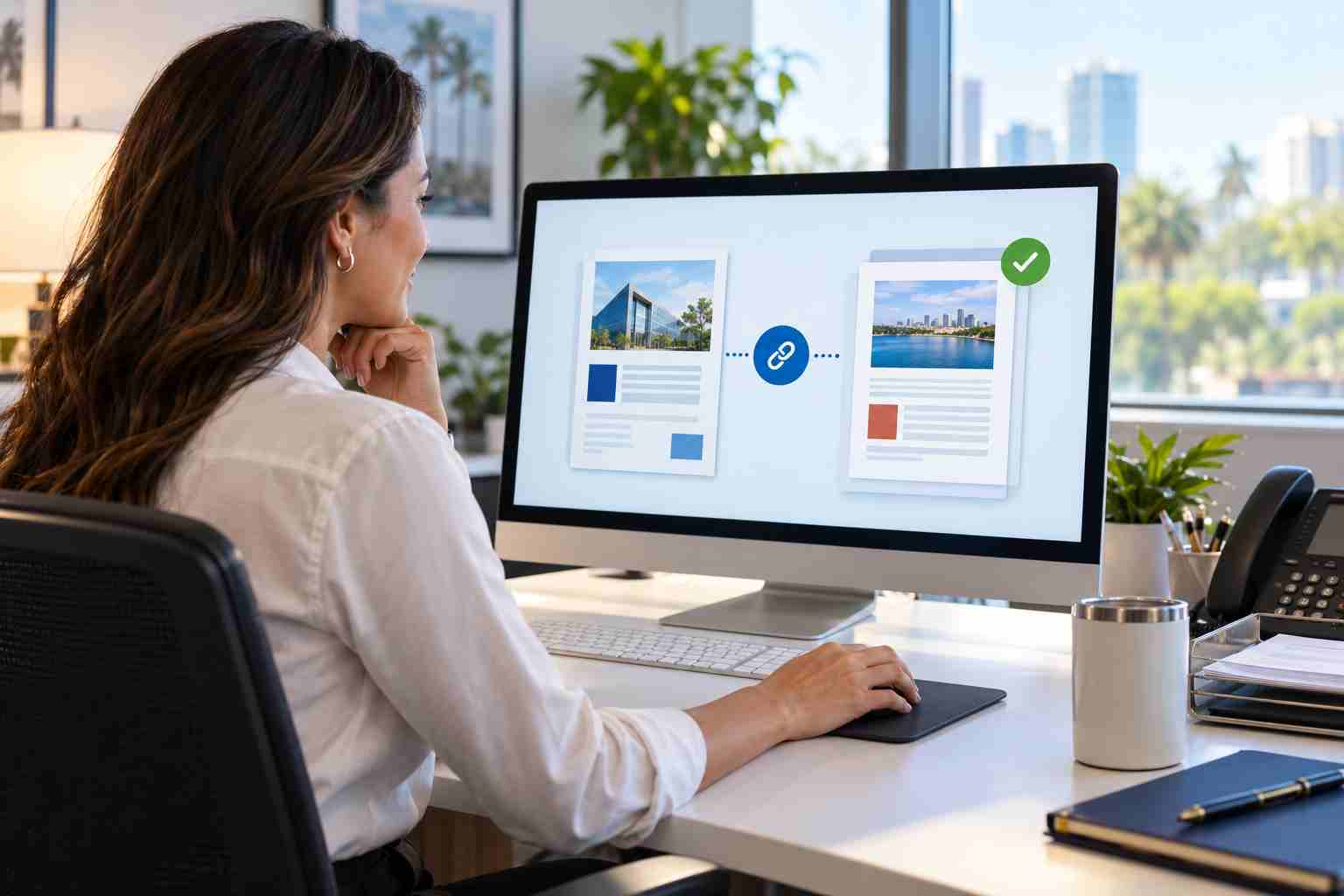
For most businesses using Microsoft 365, the cleaner answer is to store the file in OneDrive or SharePoint and send a controlled link.

Why Traditional Attachments Create Extra Work

A normal email attachment is a separate copy of a file.

If five people receive an attached spreadsheet, the business may soon have six versions: the original plus one copy for every recipient. Employees may add comments or changes to different copies, making it difficult to identify the current version.

Large attachments can also:

  • Fill mailboxes more quickly
  • Take longer to send or download
  • Fail when the recipient has a lower message limit
  • Create duplicate files across several devices
  • Encourage employees to use unapproved personal file-sharing services
  • Make it harder to withdraw access later

A sharing link avoids many of these problems by giving authorized recipients access to one stored file.

How to Share a Large File Through Outlook

Microsoft’s Outlook attachment guidance allows users to upload a local file to OneDrive and share it as a link.

The exact buttons vary between new Outlook, classic Outlook, and Outlook on the web, but the basic process is:

  1. Start the email and choose the attachment option.
  2. Select the file from your computer, OneDrive, or SharePoint.
  3. If the file is local, choose the option to upload it to OneDrive.
  4. Share the file as a link rather than attaching another copy.
  5. Review the access setting before sending.
  6. Confirm that the recipient can open the link.

Sending a link keeps the message smaller and allows authorized users to work with the same current file.

Check the Permission Before You Send

A link is only useful when the right people have the right level of access.

Common permission choices include:

  • Can view: The recipient can read the file but cannot change it.
  • Can edit: The recipient can modify the shared file.
  • Specific recipients: Only the people named in the sharing invitation should be able to use the link.
  • People in your organization: The link works for authorized users within the business.
  • Existing access: The link does not grant new access; it only directs authorized users to the file.

For a final proposal, report, invoice, or signed document, view-only access is often the better starting point. Edit access makes more sense when the recipient is expected to collaborate.

Avoid choosing the broadest setting simply because it is convenient. The permission should match the business purpose.

One Link Can Keep Everyone on the Current Version

A cloud link is especially useful when several people need to review the same document.

Instead of sending filenames such as:

  • Proposal-Final.docx
  • Proposal-Final-Revised.docx
  • Proposal-Final-Revised-2.docx
  • Proposal-Really-Final.docx

the team can work from one controlled location. Depending on the application and permissions, changes can be tracked without producing another round of attachments.

Microsoft also notes that attaching a file as a copy means later changes will not synchronize with the copy stored in OneDrive or SharePoint. That distinction should be clear before the message is sent.

Be Careful With Sensitive Information

Cloud sharing does not eliminate the need for judgment.

Before sending a link containing financial, employee, medical, customer, or other sensitive information:

  • Confirm the recipient’s email address.
  • Use specific-recipient access when appropriate.
  • Choose view-only access unless editing is required.
  • Avoid placing confidential files in broadly shared folders.
  • Remove access when the business purpose ends.
  • Follow any industry or contractual requirements that apply to the information.
  • Ask IT for guidance when you are uncertain.

Do not bypass a blocked attachment by changing its file extension or moving it to an unfamiliar public sharing service. Outlook blocks some attachment types because they are commonly associated with malicious software. Microsoft recommends using OneDrive or SharePoint when a legitimate file cannot be sent normally.

What If the Recipient Cannot Open the Link?

If a client says the link does not work, check the following before creating another copy:

  1. Was the correct email address granted access?
  2. Is the recipient signing in with that same address?
  3. Does the link allow external recipients?
  4. Is the file still in its original OneDrive or SharePoint location?
  5. Did someone remove or rename the file?
  6. Is the sharing link expired?
  7. Does company policy restrict external sharing?

Avoid immediately changing the link to “anyone can access.” That may solve the immediate inconvenience while creating unnecessary exposure.

A Simple Business File-Sharing Standard

Small businesses can prevent repeated confusion by establishing a short internal rule:

  • Use attachments for small, final files that will not be edited collaboratively.
  • Use OneDrive or SharePoint links for large files and shared working documents.
  • Use view-only access unless the recipient needs to make changes.
  • Use approved business storage rather than personal accounts.
  • Confirm external-sharing permissions before sending confidential information.
  • Contact IT when a link must be shared outside the normal company workflow.

A consistent process saves time and makes support easier.

The Business Takeaway

An oversized attachment is not just an Outlook annoyance. It is a sign that email may not be the best delivery method for that file.

Sharing a controlled OneDrive or SharePoint link keeps the message small, reduces duplicate versions, and gives the business more control over who can open or edit the document. The important step is checking the permission before pressing Send.


Cybernetic Networks helps Orlando and Central Florida businesses configure Microsoft 365, OneDrive, SharePoint, and email sharing so employees can collaborate without relying on confusing or insecure workarounds. If large attachments, broken links, or inconsistent permissions keep interrupting your team, proactive managed IT support can create a clearer file-sharing process and resolve problems before they delay client work.

Source Links

Quotes from our Customers

Posted on Google Google
Lori Hall Patel profile picture
Lori Hall Patel
Google star 1Google star 2Google star 3Google star 4Google star 5Trustindex verifies that the original source of the review is Google.
Fantastic service!
Posted on Google Google
Yaritza Quintero Luis profile picture
Yaritza Quintero Luis
Google star 1Google star 2Google star 3Google star 4Google star 5Trustindex verifies that the original source of the review is Google.
Cybernetic Networks Inc. provides excellent tech support for the office. Himala is always responsive, knowledgeable, and quick to resolve any issues I run into. I truly appreciate his reliability and professionalism—highly recommended!
Posted on Google Google
Carlos Villoch profile picture
Carlos Villoch
Google star 1Google star 2Google star 3Google star 4Google star 5Trustindex verifies that the original source of the review is Google.
From the very first call to Cybernetic, the team was responsive, knowledgeable, and genuinely committed to solving my issues. Their proactive approach and genuine care are what really stood out above any other IT Support Businesses. If you’re looking for IT support that’s dependable, friendly, and truly invested in keeping your technology running smoothly, this is the team you want. I can’t recommend them highly enough.
Posted on Google Google
KIMBERLY profile picture
KIMBERLY
Google star 1Google star 2Google star 3Google star 4Google star 5Trustindex verifies that the original source of the review is Google.
I would highly recommend Cybernetic Networks Inc. to anyone looking for reliable and trustworthy tech support.
Posted on Google Google
Tom moore profile picture
Tom moore
Google star 1Google star 2Google star 3Google star 4Google star 5Trustindex verifies that the original source of the review is Google.
Himala and his team at Cybernetic Networks have been amazing. We have been a customer of Cybernetic Networks for well over 14 years now, both personally and professionally. Himala and his team are professional, reachable and on the cutting edge of technology. We have enjoyed doing business with Cybernetic Networks for many years and still rely on their knowledge, skills and technology every day.
Posted on Google Google
Daniel Fusco profile picture
Daniel Fusco
Google star 1Google star 2Google star 3Google star 4Google star 5Trustindex verifies that the original source of the review is Google.
Himala and his Cybernetic team have never let me down! For over 10 years now they have been fixing my technical issues, set up all my new networks and computers and have safeguarded me from any hackers or malware. You can trust this company to navigate you as your company grows and to keep you on track with the latest in security and safety.
Posted on Google Google
Beth Wolff profile picture
Beth Wolff
Google star 1Google star 2Google star 3Google star 4Google star 5Trustindex verifies that the original source of the review is Google.
Cybernetic Networks has been advising and supporting all our IT issues and purchases for the last 18 years. They are very responsive and extremely knowledgeable- always providing us with timely services.
Posted on Google Google
Brian Wolff profile picture
Brian Wolff
Google star 1Google star 2Google star 3Google star 4Google star 5Trustindex verifies that the original source of the review is Google.
I am a solo practicing neurologist and have had all my IT needs covered through Cybernetic Networks since 2007. They are the best! All of their tech support staff is extremely knowledgeable and efficient. Just as importantly, they are quickly responsive whenever we need their assistance. I couldn’t be happier with their service and give them my highest recommendation!
Posted on Google Google
Patti Muzzonigro profile picture
Patti Muzzonigro
Google star 1Google star 2Google star 3Google star 4Google star 5Trustindex verifies that the original source of the review is Google.
I couldn't be happier with Cybernetics - they are experts, always respond quickly , and solves any issues I have.
Posted on Google Google
sue myhelic profile picture
sue myhelic
Google star 1Google star 2Google star 3Google star 4Google star 5Trustindex verifies that the original source of the review is Google.
It is not often you find small business companies that are not only rewarding to work with, but also have integrity, truth and skill. I have worked with this company for over 20 years, and the service is outstanding. I can easily recommend that if you need an IT company, this is the one to get. Full STOP! Look no further, you will be happy that you did. Sue Myhelic, Gulf Breeze Real Estate, Naples, Florida.

