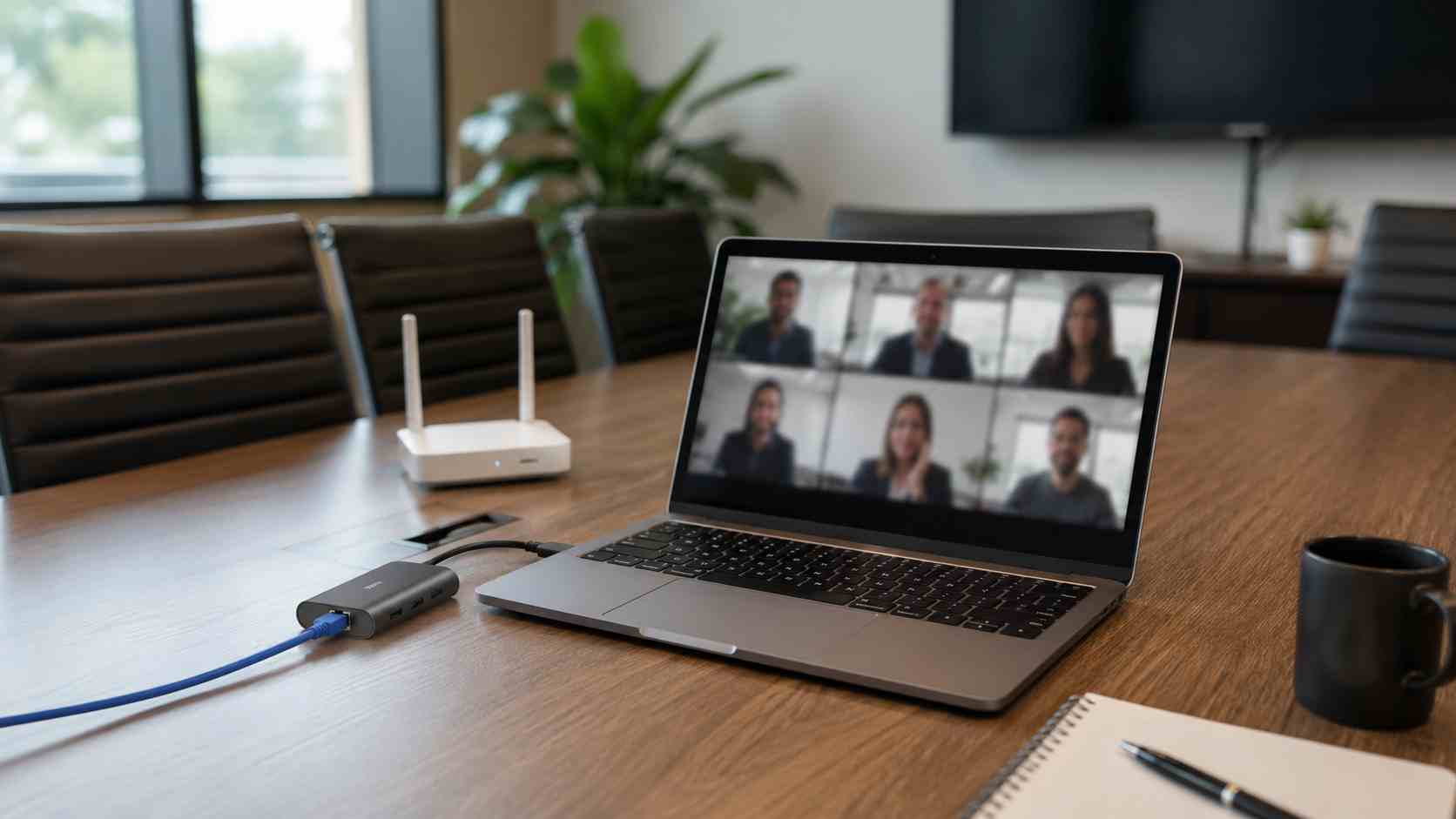
A video call that freezes at the wrong moment can make a business look unprepared.
Maybe the customer cannot hear you. Maybe the screen share lags during a proposal. Maybe the conference room works fine one day and fails during the next important meeting.
For small businesses, unreliable video calls waste time, frustrate staff, and can hurt customer confidence. The good news is that many of these problems are fixable once you look beyond the laptop and check the network.
Microsoft explains that Teams is designed to adapt to available bandwidth. When network conditions are poor, Teams may protect audio quality first and reduce video quality.
That is useful, but it also means your meeting may still feel choppy if the office network is overloaded, the Wi-Fi signal is weak, or too many devices are competing for the same connection.
In plain English: Teams may be doing its best, but your network may not be giving it enough room to work well.
Freezing, robotic audio, and delayed screen sharing often come from one of these issues:
The frustrating part is that the problem may not happen all the time. It may only show up when the office is busy, when several people join meetings at once, or when someone is uploading large files.
Start with the simple items.
If one person has trouble, test whether the problem follows that person’s laptop or stays in one room. If everyone in the conference room has trouble, the room’s Wi-Fi or wiring may be the issue.
Try these practical checks:
For recurring problems, guessing gets expensive. A proper network review can identify coverage gaps, overloaded equipment, or configuration issues.
A speed test may show a high number and still not explain why calls freeze.
Video meetings care about more than raw speed. They also depend on stability, signal strength, delay, packet loss, and how traffic moves through the office network.
That is why a business can pay for good internet service and still have bad meetings if the internal Wi-Fi design is weak.
The conference room may need a better access point, a wired connection, quality-of-service settings, or cleaner network segmentation. The right answer depends on how the office is built and how employees work.
A managed IT provider can look at the full path: the laptop, the Wi-Fi, the switch, the firewall, the internet service, Microsoft 365, and the meeting room setup.
That bigger view matters. Otherwise, the business may keep replacing laptops or blaming Teams when the real issue is network coverage or equipment age.
Reliable meetings usually come from proactive maintenance, not emergency troubleshooting five minutes before a client call.


Himala and his team at Cybernetic Networks have been amazing. We have been a customer of Cybernetic Networks for well over 14 years now, both personally and professionally. Himala and his team are professional, reachable and on the cutting edge of technology. We have enjoyed doing business with Cybernetic Networks for many years and still rely on their knowledge, skills and technology every day
Himala and his Cybernetic team have never let me down! For over 10 years now they have been fixing my technical issues, set up all my new networks and computers and have safeguarded me from any hackers or malware. You can trust this company to navigate you as your company grows and to keep you on track with the latest in security and safety
I am a solo practicing neurologist and have had all my IT needs covered through Cybernetic Networks since 2007. They are the best! All of their tech support staff is extremely knowledgeable and efficient. Just as importantly, they are quickly responsive whenever we need their assistance. I couldn’t be happier with their service and give them my highest recommendation!
I couldn't be happier with Cybernetics - they are experts, always respond quickly , and solves any issues I have.
Cybernetic Networks has been advising and supporting all our IT issues and purchases for the last 18 years. They are very responsive and extremely knowledgeable- always providing us with timely services.
It is not often you find small business companies that are not only rewarding to work with, but also have integrity, truth and skill. I have worked with this company for over 20 years, and the service is outstanding. I can easily recommend that if you need an IT company, this is the one to get. Full STOP! Look no further, you will be happy that you did. Sue Myhelic, Gulf Breeze Real Estate, Naples, Florida.
Himala and his team from Cybernetic Networks, Inc. has been an integral part of our successful retail business for the past 20 years. He is extraordinarily knowledgable and always available for our IT needs. Thanks to Himala and his team we are always up and running.

