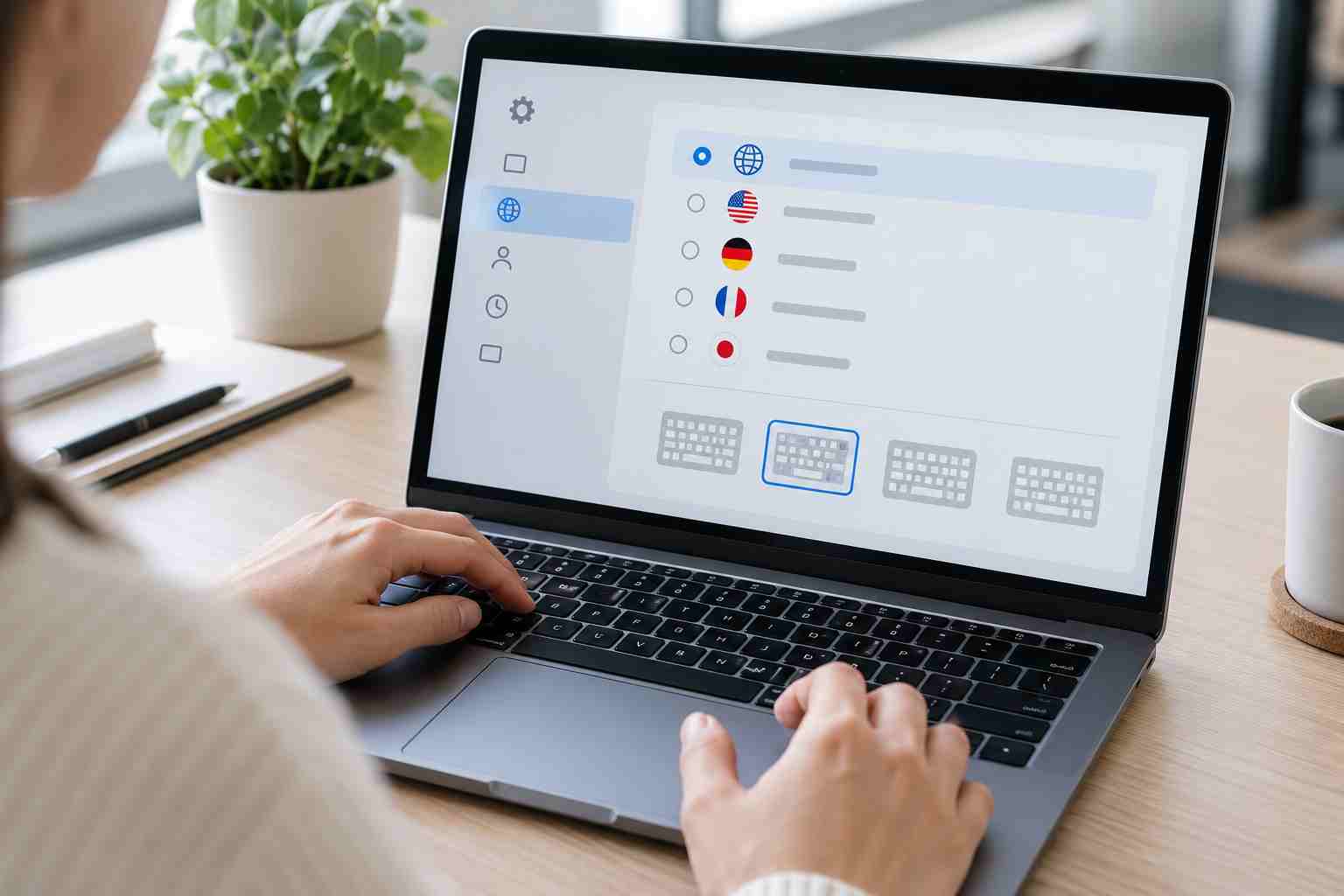
An employee tries to type an email address, invoice, or password, but the keyboard produces the wrong symbol. Quotation marks appear where another character should be. Numbers replace letters. Some keys repeat, while others seem to do nothing.
It is easy to assume the keyboard is broken. In many cases, the cause is a changed keyboard layout, a lock key, an accessibility setting, a weak wireless connection, or an application-specific problem.
A few safe checks can often identify the cause before the business replaces working equipment.
Open a blank document in a trusted application and type a short test sentence. Then test several numbers and common symbols.
Pay attention to what is happening:
A consistent pattern often points to a setting. Random missed or repeated keystrokes are more likely to involve the connection, debris, damage, or failing hardware.
Do not type a real password into a visible document for testing.
Windows can support multiple languages and keyboard layouts. A keyboard shortcut or accidental selection can switch from one layout to another even though the physical keyboard has not changed.
When this happens, letters may move and symbols may appear on unexpected keys.
In Windows 11:
The language indicator near the right side of the taskbar may also show the active input layout. Employees who only use one layout may want IT to remove unneeded layouts so accidental switching is less likely.
Be especially careful at the Windows sign-in screen. Microsoft notes that the selected keyboard layout can affect how a username or password is entered.
Before changing Windows settings, check the keyboard’s lock keys.
Caps Lock changes lowercase letters to uppercase. That is obvious in a document but less obvious inside a password box.
Num Lock can affect the numeric keypad. On some compact laptops, it may also cause letter keys to act like numbers when an embedded number pad is active.
Press the relevant lock key once and test again. Some keyboards show a small light, while others display a brief notification on the screen.
If the problem affects only password entry, verify the active layout and lock keys before resetting the password. The account may be fine even though the computer is receiving different characters.
Windows includes accessibility features that change how the keyboard responds.
Sticky Keys helps users enter multi-key shortcuts one key at a time. Filter Keys can ignore brief or repeated keystrokes. These features are useful when intentionally enabled, but an employee may turn them on accidentally through a keyboard shortcut.
Open:
Settings > Accessibility > Keyboard
Review Sticky Keys, Filter Keys, and related options. Do not disable an accessibility feature that an employee relies on. If the setting appears intentional or is managed by company policy, check with the user or IT support first.
For a wired keyboard:
For a wireless keyboard:
Do not repeatedly pair a shared keyboard with different computers unless you know which device it is supposed to control. Some wireless keyboards remember several devices and can appear unresponsive when they are connected to the wrong one.
If the keyboard acts strangely in one application but works normally in another, the problem may involve that application rather than the keyboard.
Close and reopen the affected program. Save your work and restart the computer if the issue continues.
When practical, test the keyboard on another computer or connect a known working keyboard to the affected computer. This comparison can quickly separate a hardware problem from a Windows setting or software issue.
A technician can use the results to avoid replacing the wrong device.
Turn the keyboard off or disconnect it before inspecting it.
Check for:
Do not pour cleaner directly onto a keyboard or pry laptop keys off. Laptop keyboard mechanisms are easy to damage, and a raised keyboard or separated case may indicate a battery problem that requires prompt professional attention.
Microsoft recommends using Windows Update or the computer manufacturer’s official support resources when a driver update is needed.
Avoid websites that promise an instant keyboard repair, automatic driver update, registry cleaning, or free system optimization. These tools can introduce unwanted software and turn a small support problem into a security issue.
Employees should also avoid editing the Windows registry or removing company device policies to correct a keyboard problem.
Contact support when:
Tell support which keys are affected, whether the problem occurs in every application, and what changed before it began. That information can shorten the diagnosis considerably.
Businesses can reduce recurring input problems by standardizing approved keyboards, documenting language settings, replacing batteries before they fail, keeping spare equipment available, and managing Windows updates and drivers consistently.


Himala and his team at Cybernetic Networks have been amazing. We have been a customer of Cybernetic Networks for well over 14 years now, both personally and professionally. Himala and his team are professional, reachable and on the cutting edge of technology. We have enjoyed doing business with Cybernetic Networks for many years and still rely on their knowledge, skills and technology every day
Himala and his Cybernetic team have never let me down! For over 10 years now they have been fixing my technical issues, set up all my new networks and computers and have safeguarded me from any hackers or malware. You can trust this company to navigate you as your company grows and to keep you on track with the latest in security and safety
I am a solo practicing neurologist and have had all my IT needs covered through Cybernetic Networks since 2007. They are the best! All of their tech support staff is extremely knowledgeable and efficient. Just as importantly, they are quickly responsive whenever we need their assistance. I couldn’t be happier with their service and give them my highest recommendation!
I couldn't be happier with Cybernetics - they are experts, always respond quickly , and solves any issues I have.
Cybernetic Networks has been advising and supporting all our IT issues and purchases for the last 18 years. They are very responsive and extremely knowledgeable- always providing us with timely services.
It is not often you find small business companies that are not only rewarding to work with, but also have integrity, truth and skill. I have worked with this company for over 20 years, and the service is outstanding. I can easily recommend that if you need an IT company, this is the one to get. Full STOP! Look no further, you will be happy that you did. Sue Myhelic, Gulf Breeze Real Estate, Naples, Florida.
Himala and his team from Cybernetic Networks, Inc. has been an integral part of our successful retail business for the past 20 years. He is extraordinarily knowledgable and always available for our IT needs. Thanks to Himala and his team we are always up and running.




