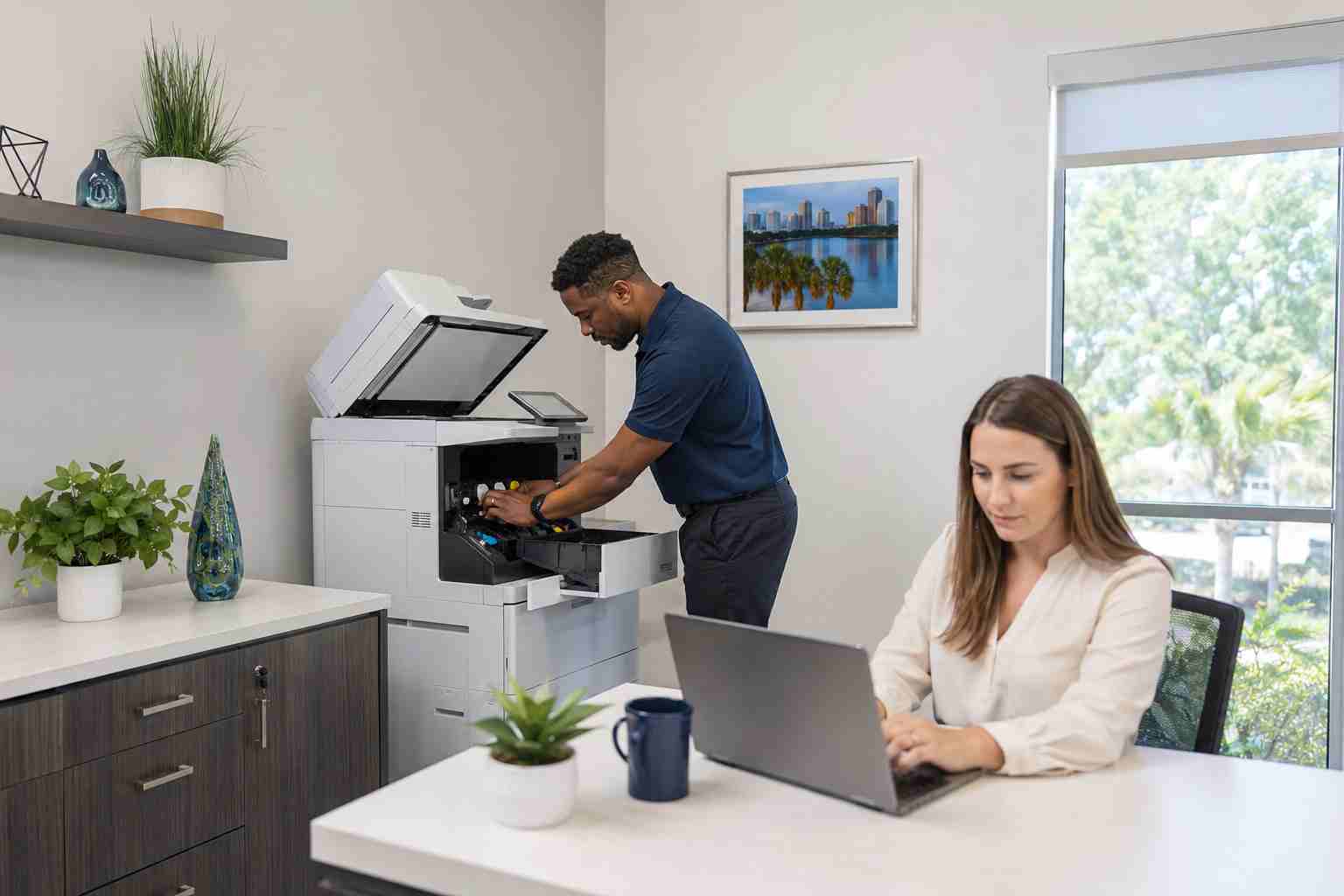
The printer has paper. The display looks normal. Windows can see it. Yet nothing comes out.
This familiar office problem is often caused by a stuck print job, the wrong default printer, a communication problem, or a Windows service called the Print Spooler.
The spooler is simply the part of Windows that holds documents in line until the printer is ready. If one job becomes damaged or the spooler stops responding, every document behind it may remain stuck.
Repeatedly clicking Print usually makes the queue longer. It rarely solves the underlying problem.
Before changing settings, ask two questions:
If nobody can print, the problem is more likely to involve the printer, network, or shared print service.
If only one computer is affected, the problem may be that computer’s queue, printer selection, connection, or driver. If printing works from Word but not from another application, the problem may be limited to that program or document.
This quick comparison can prevent unnecessary restarts and configuration changes.
Confirm that the printer is powered on and does not show a paper jam, empty tray, open door, low toner warning, or other obvious alert.
For a network printer, check whether its network or Wi-Fi indicator appears normal. A printer can be powered on while disconnected from the office network.
Open Settings > Bluetooth & devices > Printers & scanners and select the intended printer.
Businesses sometimes have old, duplicate, remote, or virtual printers installed. A document may be quietly waiting in the wrong queue.
If employees repeatedly send jobs to the wrong device, set the correct office printer as the default.
Select the printer and open its print queue. Cancel the pending jobs, especially the first document if it has been sitting there for a long time.
Wait briefly for the list to clear before submitting a small test page. Sending the original large file immediately may recreate the same problem.
If a particular PDF, spreadsheet, or image keeps blocking the queue, try printing a simpler document. The original file may be unusually large or damaged.
Turn the printer off, unplug it, and wait about 30 seconds before reconnecting it.
Be aware that this will interrupt everyone using the device. In a busy office, notify employees first so someone does not lose time troubleshooting the same outage independently.
If the queue will not clear, Windows may need its printing service restarted.
Search for Services, open it, locate Print Spooler, and choose Restart. Employees without the required permissions should ask their IT provider to handle this step.
Restarting the spooler clears many temporary printing failures, but recurring crashes can indicate a driver, software, or configuration problem that requires deeper attention.
A wireless printer and the employee’s computer generally need access to the same business network.
Guest Wi-Fi is a frequent source of confusion. Guest networks are often designed to prevent connected devices from communicating with office equipment. A laptop may have internet access while still being unable to reach the printer.
Windows 11 includes an automated printer troubleshooter through the Get Help application. It can check several common problems and may restore printing without manual configuration changes.
Microsoft lists removing and reinstalling the printer or updating its driver as later troubleshooting steps. These actions can help, but they may also remove custom paper trays, scanning features, secure-print settings, or shared-office configurations.
If several employees depend on the device, document the settings or contact IT before removing anything.
A printer that fails once may only have encountered a temporary communication problem. A printer that goes offline every week has a larger issue.
Repeated trouble may point to:
Tracking when the problem occurs can help. Note the affected employee, application, document type, time, printer, and any message shown on screen. Those details are more useful than simply reporting that “the printer is broken again.”
Shared printers should be treated like other business technology. Their software, network settings, supplies, and replacement plans all affect employee productivity.
A managed approach can standardize printer installations, remove obsolete drivers, monitor network reliability, document device settings, and give employees one place to request help. It also reduces the chance that several employees will spend the same hour trying different fixes.


Himala and his team at Cybernetic Networks have been amazing. We have been a customer of Cybernetic Networks for well over 14 years now, both personally and professionally. Himala and his team are professional, reachable and on the cutting edge of technology. We have enjoyed doing business with Cybernetic Networks for many years and still rely on their knowledge, skills and technology every day
Himala and his Cybernetic team have never let me down! For over 10 years now they have been fixing my technical issues, set up all my new networks and computers and have safeguarded me from any hackers or malware. You can trust this company to navigate you as your company grows and to keep you on track with the latest in security and safety
I am a solo practicing neurologist and have had all my IT needs covered through Cybernetic Networks since 2007. They are the best! All of their tech support staff is extremely knowledgeable and efficient. Just as importantly, they are quickly responsive whenever we need their assistance. I couldn’t be happier with their service and give them my highest recommendation!
I couldn't be happier with Cybernetics - they are experts, always respond quickly , and solves any issues I have.
Cybernetic Networks has been advising and supporting all our IT issues and purchases for the last 18 years. They are very responsive and extremely knowledgeable- always providing us with timely services.
It is not often you find small business companies that are not only rewarding to work with, but also have integrity, truth and skill. I have worked with this company for over 20 years, and the service is outstanding. I can easily recommend that if you need an IT company, this is the one to get. Full STOP! Look no further, you will be happy that you did. Sue Myhelic, Gulf Breeze Real Estate, Naples, Florida.
Himala and his team from Cybernetic Networks, Inc. has been an integral part of our successful retail business for the past 20 years. He is extraordinarily knowledgable and always available for our IT needs. Thanks to Himala and his team we are always up and running.




