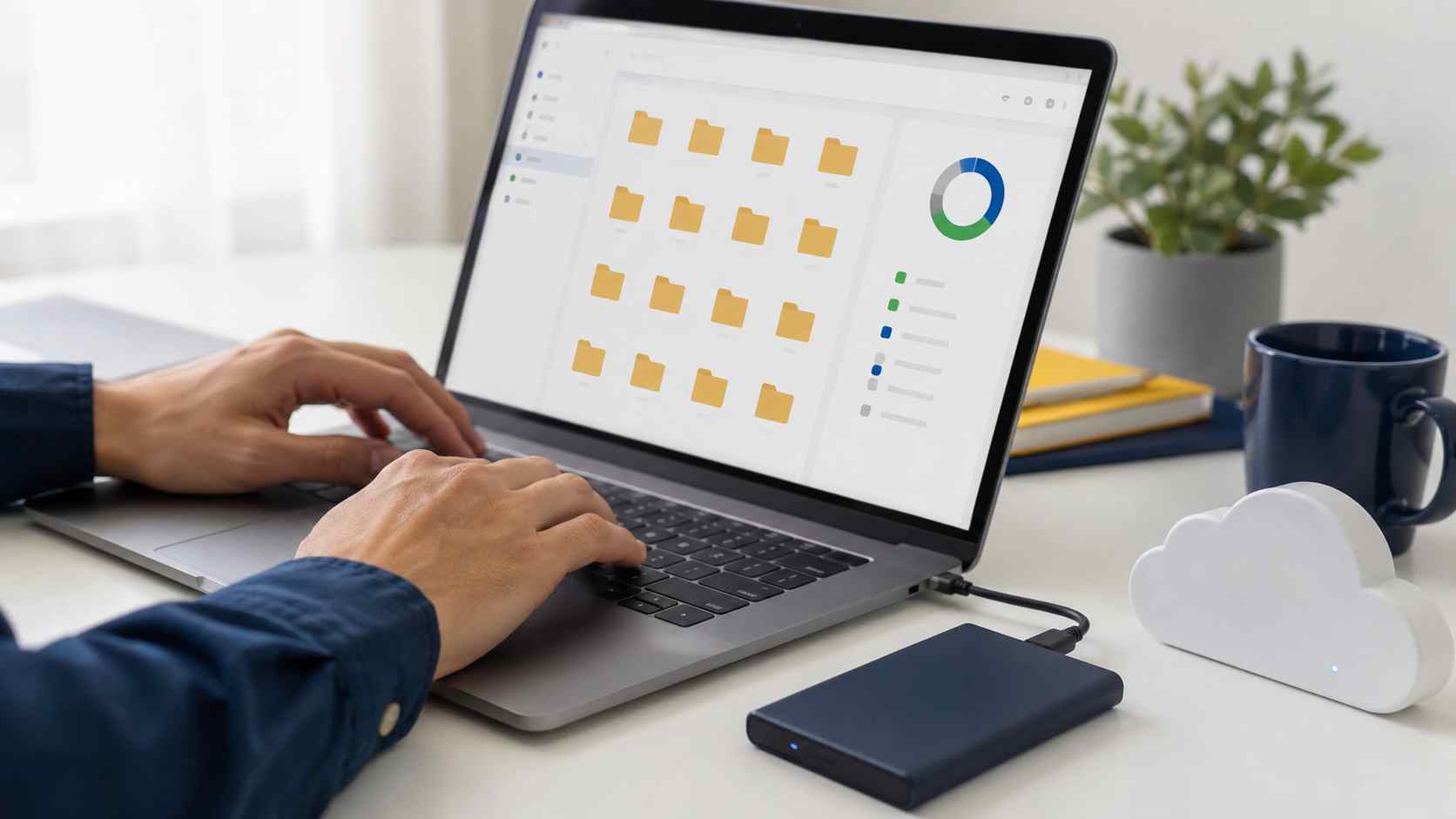
A nearly full computer may not stop working immediately. Instead, employees often notice a collection of smaller frustrations: the device feels slow, applications hesitate, files will not download, and Windows updates repeatedly fail.
The usual reaction is to open folders and start deleting things. That can create a second problem if an employee removes an important business document or an unfamiliar system file.
The safer approach is to identify what is using the storage, clean approved categories, and make sure company data is protected before removing anything.
Windows needs free space for temporary files, application updates, security improvements, and normal system activity. Microsoft warns that low storage can affect device performance and make system upgrades difficult.
A full drive can lead to:
This is more than a housekeeping issue. If low storage prevents security updates from installing, it can also become a security concern.
On Windows 11, open Settings, select System, and then select Storage.
Windows divides storage into categories such as installed applications, temporary files, documents, pictures, and system files. This is more useful than opening random folders because it shows where the largest amounts of space are being used.
Look for obvious causes such as:
Do not delete an unfamiliar folder simply because it is large.
Windows includes a Cleanup recommendations section under its Storage settings. It can identify temporary files, large or unused files, cloud-synced content, and applications that may no longer be needed.
Review every category before selecting Clean up. Pay particular attention to Downloads, previous Windows installations, and personal files.
Removing a previous Windows installation can free substantial space, but it also removes the option to return to the previous Windows version. That decision should be made carefully, especially soon after a major upgrade.
Storage Sense can automatically remove unnecessary temporary files and older items from the Recycle Bin.
Microsoft says that the default settings do not clean the Downloads folder or manage cloud content unless those options are configured. Still, a business should review the settings instead of accepting an automatic cleanup policy blindly.
For shared or managed computers, IT should decide what Storage Sense is allowed to remove and how often it runs.
OneDrive Files On-Demand can display files in File Explorer without keeping a full copy of every file on the computer.
An online-only file remains visible but does not use local storage until someone opens it. Files that employees need without an internet connection can be marked to remain available on the device.
Before changing folders to online-only, confirm that OneDrive is signed in, synchronization is healthy, and the files are present in the correct business account. “In the cloud” should never be assumed without verification.
Remember that synchronization and backup are not always the same thing. If someone deletes a synchronized file, that deletion may also synchronize. Important company information should be covered by a separate backup and recovery plan.
Unused applications can consume significant storage, but software should be removed through Settings > Apps > Installed apps.
Do not delete an application’s folder manually. That may leave broken shortcuts, services, and configuration files behind.
Ask the employee who uses the computer before removing specialized business software. An application that appears unfamiliar may support accounting, scanning, remote access, or another important workflow.
Third-party “PC cleaner” applications often promise dramatic speed improvements. Some provide little benefit, display aggressive warnings, or make changes that are difficult to reverse.
Windows already includes tools for viewing storage, removing temporary files, and managing applications. Businesses should use approved tools and involve IT before installing cleanup software.
Contact IT support when:
Recurring low-storage warnings may mean the computer needs a larger drive, a better cloud-file policy, or replacement rather than another round of manual cleanup.
A managed maintenance plan can monitor available storage before a computer reaches a critical level. It can also standardize OneDrive settings, remove approved temporary files, track update failures, and identify devices that no longer have enough capacity for business use.


Himala and his team at Cybernetic Networks have been amazing. We have been a customer of Cybernetic Networks for well over 14 years now, both personally and professionally. Himala and his team are professional, reachable and on the cutting edge of technology. We have enjoyed doing business with Cybernetic Networks for many years and still rely on their knowledge, skills and technology every day
Himala and his Cybernetic team have never let me down! For over 10 years now they have been fixing my technical issues, set up all my new networks and computers and have safeguarded me from any hackers or malware. You can trust this company to navigate you as your company grows and to keep you on track with the latest in security and safety
I am a solo practicing neurologist and have had all my IT needs covered through Cybernetic Networks since 2007. They are the best! All of their tech support staff is extremely knowledgeable and efficient. Just as importantly, they are quickly responsive whenever we need their assistance. I couldn’t be happier with their service and give them my highest recommendation!
I couldn't be happier with Cybernetics - they are experts, always respond quickly , and solves any issues I have.
Cybernetic Networks has been advising and supporting all our IT issues and purchases for the last 18 years. They are very responsive and extremely knowledgeable- always providing us with timely services.
It is not often you find small business companies that are not only rewarding to work with, but also have integrity, truth and skill. I have worked with this company for over 20 years, and the service is outstanding. I can easily recommend that if you need an IT company, this is the one to get. Full STOP! Look no further, you will be happy that you did. Sue Myhelic, Gulf Breeze Real Estate, Naples, Florida.
Himala and his team from Cybernetic Networks, Inc. has been an integral part of our successful retail business for the past 20 years. He is extraordinarily knowledgable and always available for our IT needs. Thanks to Himala and his team we are always up and running.




