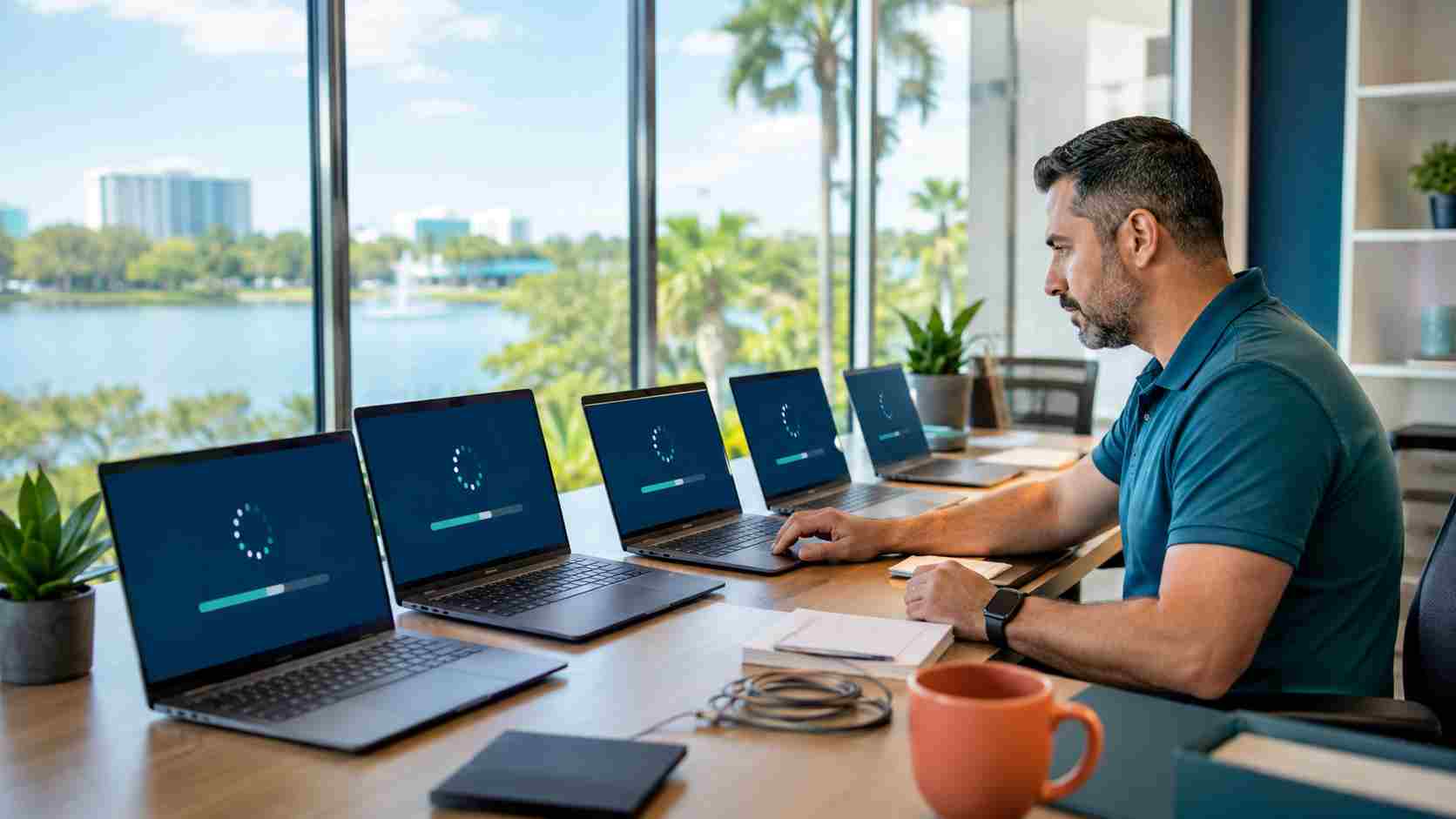
The Windows update message that appears during a busy workday is easy to postpone. Employees have documents open, customer calls are underway, and nobody wants a computer restarting in the middle of important work.
But postponing security updates indefinitely can leave a business exposed to problems that Microsoft has already identified and corrected.
Microsoft released its August 2026 security updates on August 11. The accompanying advisory covers products used throughout many small businesses, including Windows, Microsoft Office, Teams, OneDrive, Entra identity services, and several versions of Windows Server.
For a business owner, the practical message is simple: updates need to be installed, but they also need to be managed properly.
A security update repairs weaknesses in software. If those weaknesses remain uncorrected, an attacker may be able to use them to gain unauthorized access, disrupt a device, or reach business information.
One unpatched computer may affect more than the person sitting in front of it. That device may connect to shared files, email accounts, accounting platforms, customer records, and other computers on the business network.
Small businesses should therefore treat updates as routine business maintenance, much like servicing an air-conditioning system or checking a company vehicle. Waiting until something breaks is usually more disruptive and expensive.
Microsoft’s August advisory covers a broad collection of products rather than one isolated application. That matters because updating Windows alone may not address every affected program in a business environment.
The August 11 Windows 11 update, identified as KB5121003 for supported Windows 11 24H2 and 25H2 devices, includes security improvements and is available through Windows Update and Windows Update for Business.
Microsoft also states that it was not aware of any issues with this particular Windows 11 update at the time its release page was published. Even so, businesses should confirm that important applications and devices continue to work after deployment.
There is another date owners should note: Windows 11 version 24H2 Home and Pro editions are scheduled to reach the end of updates on October 13, 2026. Businesses still using those editions should plan their move to a supported Windows release rather than waiting until the deadline.
Clicking “update” on every computer at a random time is not a complete patching strategy. A dependable process should include the following steps.
Maintain a current list of desktops, laptops, servers, and other managed devices. Include computers used by remote and hybrid employees.
A forgotten laptop that still accesses company email can create the same risk as a computer in the main office.
Check the Windows version installed on each computer and whether that version still receives security updates. A device can look perfectly functional while running an operating system that is approaching or has already reached the end of support.
Business files should already be protected by a reliable backup system. A backup should not depend solely on files stored on the same computer.
Before major operating-system changes, confirm that backups are completing successfully and that important data can actually be restored.
If your business depends on specialized accounting, medical, design, manufacturing, or point-of-sale software, apply updates to a small test group before deploying them everywhere.
This provides an opportunity to identify compatibility problems without interrupting the entire company.
Many updates do not finish until the computer restarts. Set a maintenance window outside peak business hours and ask employees to save their work before leaving.
A computer that remains powered on for weeks may have downloaded an update without completing its installation.
After deployment, confirm that updates installed successfully. Check critical applications, shared drives, printers, line-of-business software, and remote access.
A failed update should create a support task rather than remaining unnoticed for months.
Employees can help by saving their work, accepting approved restart prompts, and reporting repeated update failures.
They should not install updates from links in unexpected emails or pop-up advertisements. Windows updates should come through the approved Windows settings or the company’s managed IT system.
Staff should also avoid repeatedly forcing a computer off while an update is installing. If a device appears stuck for an unusually long time, contact IT support before interrupting it.
The safest update process is predictable. Employees should know when maintenance normally happens, managers should know which systems are covered, and someone should verify that installation succeeded.


Himala and his team at Cybernetic Networks have been amazing. We have been a customer of Cybernetic Networks for well over 14 years now, both personally and professionally. Himala and his team are professional, reachable and on the cutting edge of technology. We have enjoyed doing business with Cybernetic Networks for many years and still rely on their knowledge, skills and technology every day
Himala and his Cybernetic team have never let me down! For over 10 years now they have been fixing my technical issues, set up all my new networks and computers and have safeguarded me from any hackers or malware. You can trust this company to navigate you as your company grows and to keep you on track with the latest in security and safety
I am a solo practicing neurologist and have had all my IT needs covered through Cybernetic Networks since 2007. They are the best! All of their tech support staff is extremely knowledgeable and efficient. Just as importantly, they are quickly responsive whenever we need their assistance. I couldn’t be happier with their service and give them my highest recommendation!
I couldn't be happier with Cybernetics - they are experts, always respond quickly , and solves any issues I have.
Cybernetic Networks has been advising and supporting all our IT issues and purchases for the last 18 years. They are very responsive and extremely knowledgeable- always providing us with timely services.
It is not often you find small business companies that are not only rewarding to work with, but also have integrity, truth and skill. I have worked with this company for over 20 years, and the service is outstanding. I can easily recommend that if you need an IT company, this is the one to get. Full STOP! Look no further, you will be happy that you did. Sue Myhelic, Gulf Breeze Real Estate, Naples, Florida.
Himala and his team from Cybernetic Networks, Inc. has been an integral part of our successful retail business for the past 20 years. He is extraordinarily knowledgable and always available for our IT needs. Thanks to Himala and his team we are always up and running.




